Last updated: December 8, 2025
Available with any of the following subscriptions, except where noted:
-
 Marketing Hub
Professional, Enterprise
Marketing Hub
Professional, Enterprise
-
 Sales Hub
Professional, Enterprise
Sales Hub
Professional, Enterprise
-
 Service Hub
Professional, Enterprise
Service Hub
Professional, Enterprise
-
 Data Hub
Professional, Enterprise
Data Hub
Professional, Enterprise
-
 Content Hub
Professional, Enterprise
Content Hub
Professional, Enterprise
-
 Smart CRM
Professional, Enterprise
Smart CRM
Professional, Enterprise
-
 Commerce Hub
Professional, Enterprise
Commerce Hub
Professional, Enterprise
-
 Additional subscriptions required for certain features
Teams in HubSpot help you organize users into structured groups so you can manage access, reporting, and record visibility more efficiently. By assigning users to a main team and, extra teams (Enterprise only), you can control which records they can access and how your data appears in team-based reports.
Teams are especially useful when you want to create reports based on groups, route conversations to specific groups, or manage how different users view records in the CRM. For example, you might group your sales reps into regional teams so you can report on each region’s performance.
Subscription required an Enterprise subscription is required to create nested teams.
Permissions required Super Admin or Add and edit users permission and a Marketing Hub, Sales Hub, or Service Hub Professional or Enterprise account are required assign a user to extra teams.
Before you get started
Before you begin working with this feature, make sure to fully understand what steps should be taken ahead of time, as well as the limitations of the feature and potential consequences of using it.
Understand teams
Main team
- A user's main team is the primary team they are assigned to.
- Main team members will see any custom records views set up for the team.
Extra teams
- Extra team members get the hierarchal benefits of main team members for nested teams. This means a user who is an extra team member of a team with several nested teams will also get visibility into those extra team members, and from a hierarchal point of view, be visible to parent teams above that one.
- Being an extra member of a team only allows the user access to the team's records and content. Extra team members won't be included in any team reports, routing rules (e.g., conversation routing rules), team notifications (except for form notifications), or workflow rotation actions. They also won't be able to view any of the team's custom record views set up for the left sidebar, middle column, or right sidebar, and can't be tagged in the conversations inbox comments.
Parent & Nested teams
- Users in an Enterprise account, can create a team hierarchy by nesting a team under another team.
- Teams above nested teams can view everything owned below them, but a nested team can't see everything owned by the parent team.
Understand limitations & considerations
- The number of teams you can create depends on your subscription. Learn more about the team limits of your account.
- If the team member is part of a different main team, and you assign them to another main team, then they will automatically be set as an extra team member. Learn how to change a user's main team.
- Users with Team ownership permissions can access records owned by any members of their assigned teams and, if you create nested teams (Enterprise only), the members of the team's nested teams. Learn more about team only permissions.
Create teams
- In your HubSpot account, click the settings icon in the top navigation bar.
- In the left sidebar menu, navigate to Users & Teams.
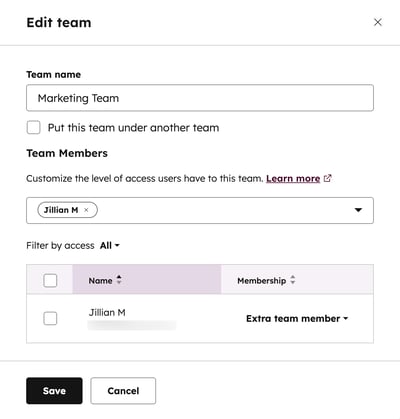
- Click the Teams tab, then click Create team. In the right panel, enter a team name.
- If you're an Enterprise user, you can create a team hierarchy and nest your new team under an existing team:
- Click the Put this team under another team checkbox.
- Click the This team sits under dropdown menu and select the team.
- To add team members to the team, click the Team Members dropdown menu, then select the users.
- Click Save.
Manage teams
Once a team is created, you can edit its information, move it underneath teams (Enterprise only), or delete it.
Edit existing teams
- In your HubSpot account, click the settings icon in the top navigation bar.
- In the left sidebar menu, navigate to Users & Teams.
- Click the Teams tab.
- Browse or search for your team. If you're an Enterprise user and the team you want to edit is a nested team, click the main team name first to locate your team for edits.
- Hover over the team name, then click Edit.
- Make changes to the Team name field as needed.
- To add or remove users from the team, use the Team members dropdown menu, then select the users that you want to add or remove. You can also manage a user's team from their Setup settings.
- Click Save.
Move a team
- In your HubSpot account, click the settings icon in the top navigation bar.
- In the left sidebar menu, navigate to Users & Teams.
- Click the Teams tab.
- Browse or search for your team. If you're an Enterprise user and the team you want to edit is nested underneath a team, click the main team name first to locate your team for edits.
- Hover over the team name, then click Move.
- In the dialog box:
- Use the Teams dropdown menu to select the teams that you want to move. Any nested teams under that team will also be moved.
- Use the This team sits dropdown menu to select the new team you want to move the selected teams under.
- Click Save.
Delete
Please note: if there are any assets assigned to the team, it's recommended to reassign those assets to another team before deletion. If no other teams are assigned those assets when deleting, the assets will become unassigned and available for everyone in the account to view.
- In your HubSpot account, click the settings icon in the top navigation bar.
- In the left sidebar menu, navigate to Users & Teams.
- Click the Teams tab.
- Browse or search for your team. If you're an Enterprise user and the team you want to edit is under another team, click the team name above it first to locate your team for edits.
- Hover over the team name, then click Delete.
- In the dialog box, click Delete team.
Manage an individual user's team assignment
In addition to being able to edit team members from the teams settings page, you can also set a user's teams from their user settings:
- In your HubSpot account, click the settings icon in the top navigation bar.
- In the left sidebar menu, navigate to Users & Teams.
- Click the name of the user.
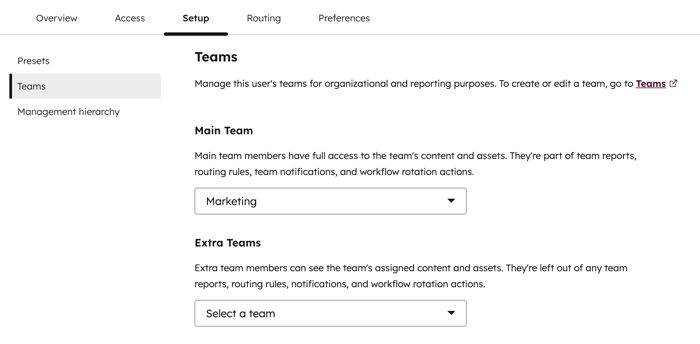
- On the user settings page, click the Setup tab.
- In the left sidebar, click Teams.
- Use the Main Team dropdown menu to select the user's main team.
- If the user is assigned to a main team, you can use the Extra Teams dropdown menu to assign them to additional teams.
- Click Save.