Last updated: September 29, 2025
Available with any of the following subscriptions, except where noted:

The files tool allows you to move files between folders to stay organized. You can move individual files or multiple files in bulk.
Please note: when a file is moved to a new folder in the file manager, it will remain accessible at the old path. You do not need to add a redirect from the old URL to the new URL. If you upload a new file with the same name and path as the file you moved, HubSpot will serve the new file instead.
Move an individual file
To move a single file to a different folder:
- In your HubSpot account, navigate to Content > Files. If you're using HubSpot's free tools, navigate to Marketing > Email. In the top right, click Email tools and select Files.
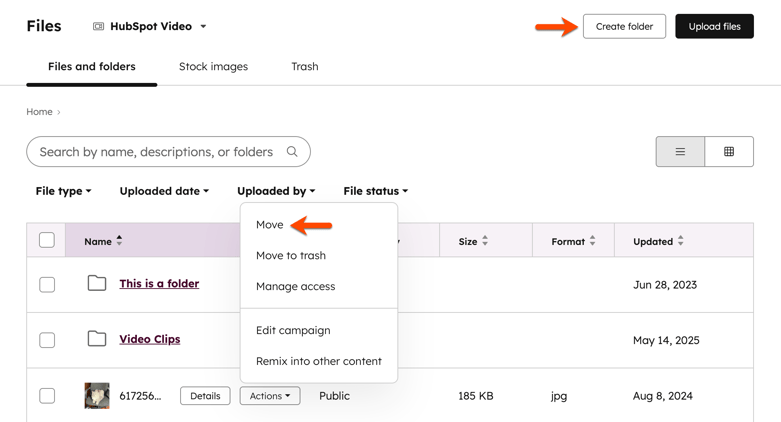
- Hover your mouse over the file and click Actions. Then, select Move.
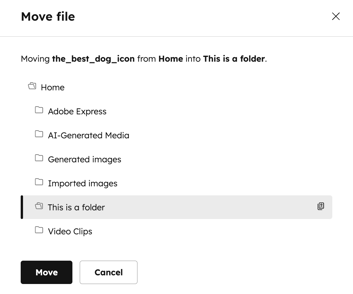
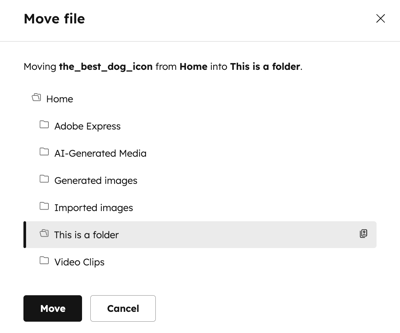
- In the dialog box, click the folder you want to move the file to, then click Move.
Move files in bulk
To move multiple files to a specific folder:
- In your HubSpot account, navigate to Content > Files. If you're using HubSpot's free tools, navigate to Marketing > Email. In the top right, click Email tools and select Files.
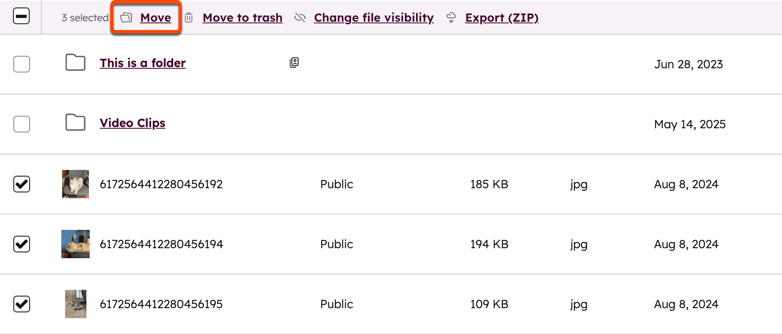
- Select the checkbox in the left column for each of the files you want to move.
- At the top of the table, click Move.
- In the dialog box, select your folder and click Move.