
Last updated: December 4, 2025
Available with any of the following subscriptions, except where noted:
-
 Marketing Hub
Professional, Enterprise
Marketing Hub
Professional, Enterprise
With programmable emails, you can use advanced HubL syntax to personalize the content of your emails. Learn more working with CRM data in modules in HubSpot's developer documentation.
Understand limitations and considerations
- The data you can use in a programmable email depends on your HubSpot subscription:
- If you have a Marketing Hub Professional account, you can render data from standard CRM objects, such as contacts, companies, and products.
- If you have a Marketing Hub Enterprise subscription, you can include structured data sources such as HubDB tables and custom objects in programmable emails.
- The number of CRM functions that you can add to a programmable email depends on the number of recipients:
- Emails with 5 CRM functions can be sent to a maximum of 100,000 recipients. No more than 5 CRM functions can be added to a programmable email.
- Emails with 4 CRM functions can be sent to a maximum of 125,000 recipients.
- Emails with 3 CRM functions can be sent to a maximum of 165,000 recipients.
- Emails with 2 CRM functions can be sent to a maximum of 250,000 recipients.
- Emails with 1 CRM function can be sent to a maximum of 500,000 recipients.
- Programmable emails must be sent at least an hour after any prior programmable emails.
Add programmable emails to modules or templates
In the design manager, you can create custom modules and custom coded templates that can be used for programmable emails.
Once you've created a custom module that supports programmable email, you can add that module to emails created in the drag and drop editor.
Create a programmable email module
- In your HubSpot account, navigate to Content > Design Manager.
- In the left column, click the File menu and select New file.
- In the dialog box, click the dropdown menu and select Module, then click Next.
- In the Where would you like to use this module section, select the Emails checkbox.
- In the File name field, enter a module name.
- Click Create.
- In the right column, toggle the Use module for programmable email switch on.
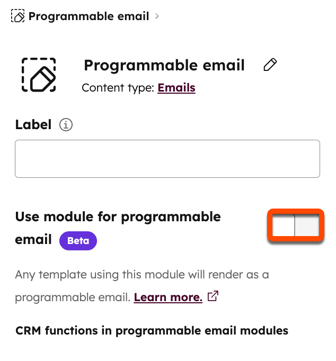
- In the dialog box, review the sending limits, then click Agree and turn on.
Create a programmable email coded template
- In your HubSpot account, navigate to Content > Design Manager.
- In the left column, click the File menu and select New file.
- In the dialog box, click the dropdown menu and select HTML + HubL, then click Next.
- Click the Template type dropdown menu and select Email.
- In the File name field, enter a template name.
- Click Create.
- At the top of the coded template, add the following code to the section between
<!--and-->:isEnabledForEmailV3Rendering: true.
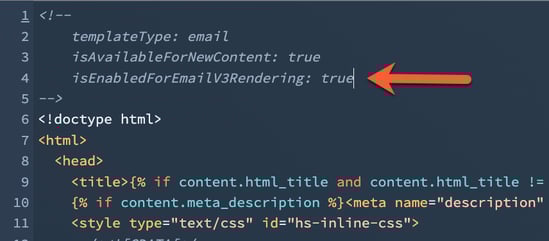
- Finish making edits to the template, then click Publish changes in the top right.
Optimize programmable emails
To avoid sending delays when sending programmable emails, it's recommended to follow these best practices:
- Use regular emails when possible: when sending an email at a fixed time with defined recipients, sending a regular email rather than an automated one is recommended for better performance
- Add a query to avoid fetching too many rows: when setting the
hubdb_table_rows, add an additional query to narrow down which rows you're fetching.- Example: you could filter your rows for any contacts with a
years_at_companygreater than 3 and limit the returned results to 15. hubdb_table_rows(1546258, "years_at_company__gt=3&limit=15")
- Example: you could filter your rows for any contacts with a
- Avoid filtering by personalization tokens: it's recommended to avoid using personalization tokens to filter data rows, including filtering within the query parameter or filtering after fetching.
- If filtering by personalization tokens can't be avoided, it's recommended to prioritize fetching the minimum number of rows and apply conditional filtering using
ifsyntax after the data has been retrieved. - Example: you could limit the rows fetched to 20 and filter after fetching for
row.location = contact.location.
- If filtering by personalization tokens can't be avoided, it's recommended to prioritize fetching the minimum number of rows and apply conditional filtering using

- Limit the number of calls of CRM functions: the number of CRM functions (such as
crm_objectandcrm_associations) in an email depends on the number of recipients. Limit the calls of these functions to avoid delays or cancellations.- Example: set clear limits on the number of calls of CRM functions.

