
Last updated: November 5, 2026
Available with any of the following subscriptions, except where noted:

-
 Additional subscriptions required for certain features
Add the Google Tag Manager code to your HubSpot-hosted content to manage tracking analytic tags for your pages, blog posts, and knowledge base articles from one place. Instead of editing the code on each page, add, update, and remove analytics tags in Google Tag Manager.
For example, Sprocket Supply Co., an eCommerce company selling sustainable office supplies, hosts its store on an external website and its blog and landing pages in HubSpot. The marketing team already manages analytics and advertising tags for the store in Google Tag Manager. By integrating Google Tag Manager with HubSpot, the team applies those same tags to its HubSpot-hosted blog posts and landing pages. This lets the team track visits and conversions across the store and the content that drives traffic to it, without editing the code on each page.
Integrate Google Tag Manager with HubSpot using your Google Tag Manager ID, or add the code to your site header and footer HTML manually. Learn more about Google Tag Manager in Google's getting started guide, which includes a page on common questions.
Before you get started
Before you add the Google Tag Manager code to your HubSpot content, review these requirements and limitations.
Permissions required Super Admin or Website settings permission is required to integrate or add Google Tag Manager code to HubSpot-hosted content.
- You must have a Google Tag Manager account.
- When you integrate HubSpot with Google Tag Manager, it runs on all HubSpot-hosted content. You'll need to connect external content to Google Tag Manager separately.
Integrate with Google Tag Manager
- In your HubSpot account, click the
settings icon in the top navigation bar. - In the left sidebar menu, navigate to Content > Pages.
- Click the Integrations tab.
- Select the Integrate with Google Tag Manager checkbox.
- Enter your Google Tag Manager ID in the text field. Learn how to find this in your Google Tag Manager account.
- When finished, click Save to apply your changes in the bottom left.

Add the Google Tag Manager code manually
You can also add the Google Tag Manager code to HubSpot-hosted content manually. This is recommended if you only want some HubSpot-hosted domains tracked this way. These steps only apply for accounts that have access to site header and footer HTML settings.
Copy the code from Google Tag Manager
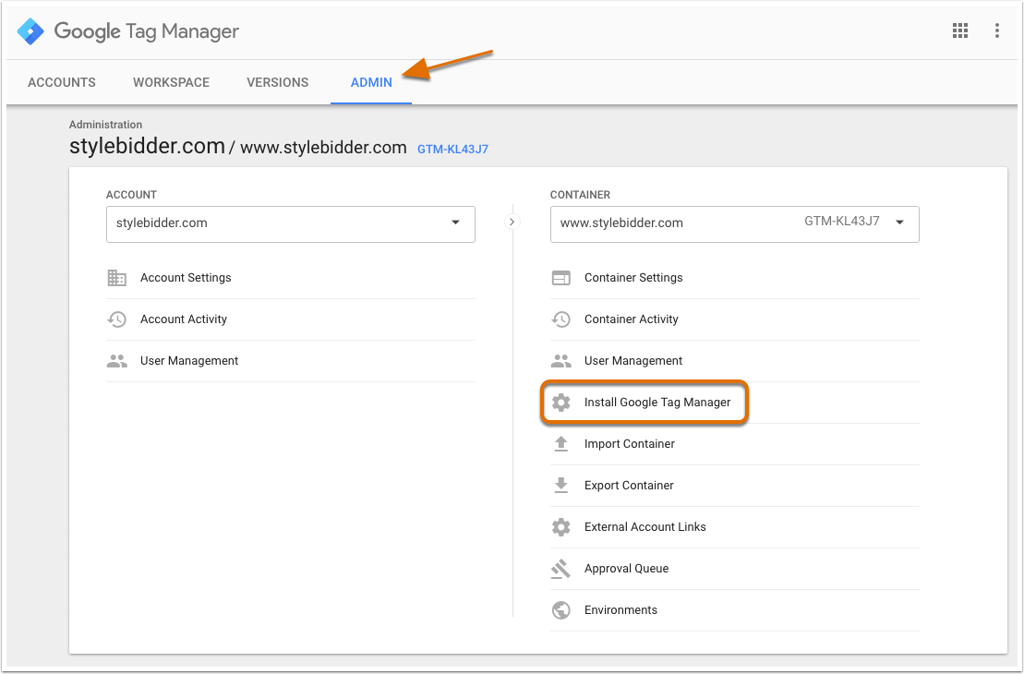
- Log into your Google Tag Manager account.
- Click the Admin tab.
- Click the Container dropdown and select the Container that contains your tags.
- Click Install Google Tag Manager.
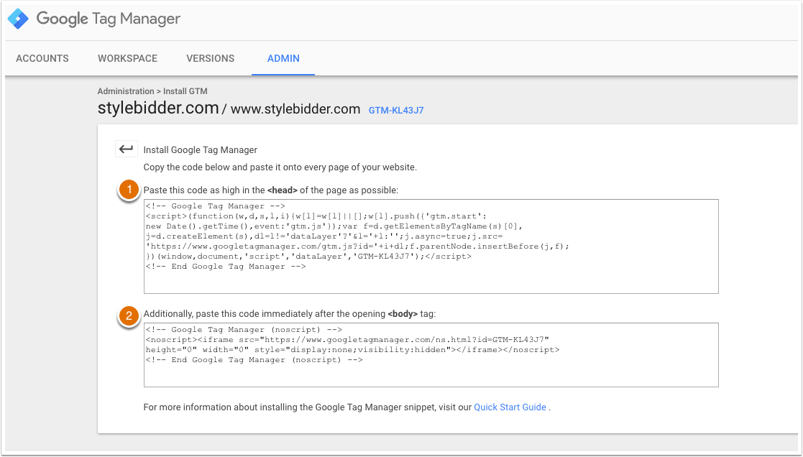
- On the next screen, you'll be able to copy both code snippets (1) and (2) for your Google Tag Manager Container.
Add the Google Tag Manager code to HubSpot
Subscription required Marketing Hub Professional or Enterprise or Content Hub Starter, Professional, or Enterprise are required to add the Google Tag Manager code to the header and footer HTML.
- In your HubSpot account, click the
settings icon in the top navigation bar. - In the left sidebar menu, navigate to Content > Pages.
- Click the Choose a domain to edit its settings dropdown menu and select a domain. If you want to add the code to all your HubSpot-hosted domains, select Default settings for all domains.
Please note: if you add code to the header or footer HTML for a specific domain, it will override any code you have placed in header and footer HTML in Default settings for all domains. Learn more about the order that code is applied to your pages.
- Paste the code snippets copied from Google Tag Manager:
- Add the Javascript code snippet in the Site header HTML field.
- Add the <noscript> code snippet to the Site footer HTML section.
- Click Save to apply your changes.