
Last updated: December 5, 2025
Available with any of the following subscriptions, except where noted:

HubSpot Academy certifications help you demonstrate your skills and share your achievements with others. After completing a certification, you can view your certificate, download a printable version, and share your achievement on social networks or your website. For example, you can add the certification badge to your site or publish the achievement to LinkedIn.
If you're managing a team, learn how to check the progress of your team's certifications.
Please note: there are no other versions of the certification badge, higher resolution or otherwise.
Download Academy certificates
Once you complete an Academy certification, you can download the certification or print it.
- In your HubSpot account, click your account name in the top right corner, then click HubSpot Academy.
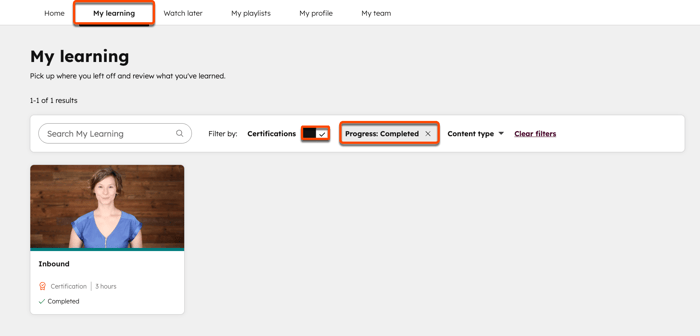
- At the top of the Academy dashboard, click the My learning tab.
- Toggle on the Certifications switch.
- Select the Progress dropdown menu and select Completed.
- Click the course name you've completed.
- On the course page, click Show certificate.
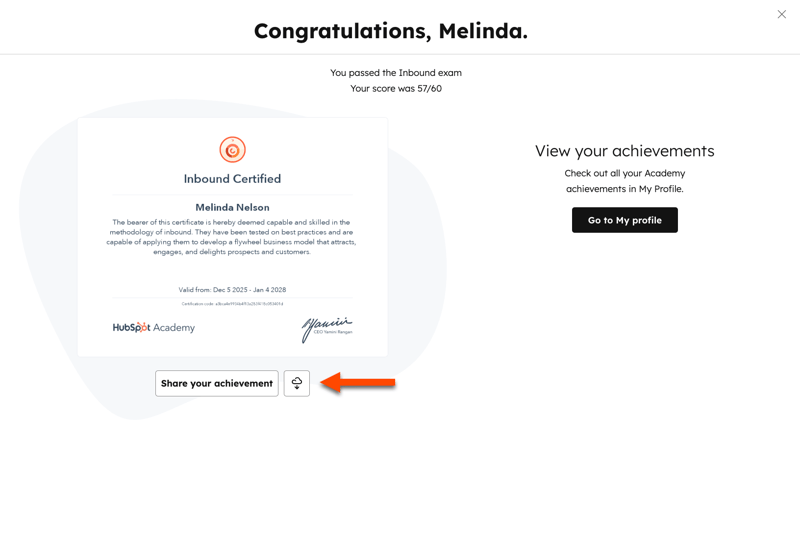
- To view a certification, click the name of the certificate.
- To download or print your certificate, click Download certificate icon.
Share Academy certificates
You can embed a certification badge onto your website. You can also share the certification to your social networks, such as X or LinkedIn.
- In your HubSpot account, click your account name in the top right corner, then click HubSpot Academy.
- At the top of the Academy dashboard, click the My learning tab.
- Toggle on the Certifications switch.
- Select the Progress dropdown menu and select Completed.
- Click the course name you've completed.
- On the course page, click Show certificate.
- To view a certification, click the name of the certificate.
- To share your certificate, click Share your achievement.
- In the Share your achievement page, toggle on the switch to consent to share personal information through sharing the achievement.
- To share a certification to Facebook, click Facebook.
- To share a certification in a LinkedIn post or private message, click LinkedIn post.
- To share a certification on your LinkedIn profile, click LinkedIn licenses & certifications. In LinkedIn, add your details to the Add licenses & certifications pop-up:
- In the Name field, enter the name of the certification (e.g., Inbound Certification).
- In the Issuing Organization field, search for and select HubSpot Academy.
- In the Issue Date fields, select the month and year that you passed the certification.
- In the Expiration Date fields, select the month and year that your certification expires. The expiration date will appear on your certificate as the Valid until date.
- In the Credential URL field, paste your achievement link. In your browser, click the tab of the Share your achievement page and select Copy link to copy the achievement link.
- Leave the Credential ID field blank.
- After adding your details, click Save.
- To share a certification to your X account, click X.
- To preview the achievement page, click Preview achievement.
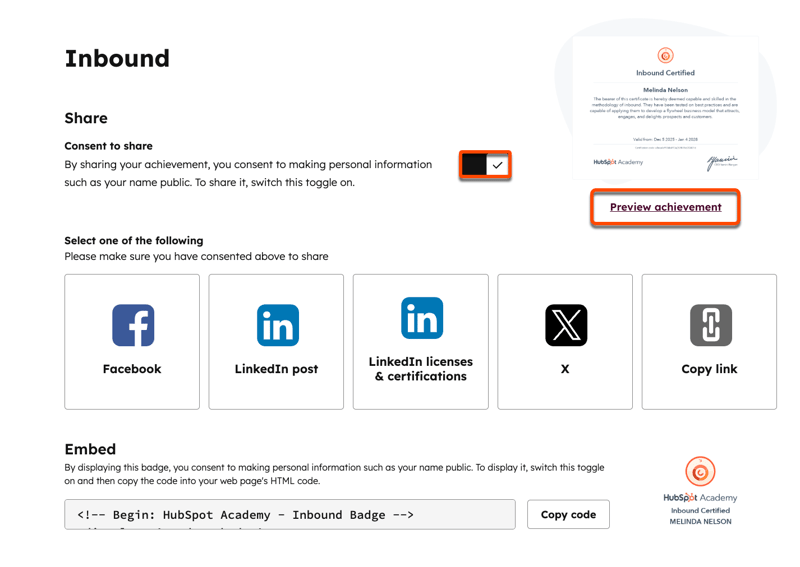
- To embed a badge on your website, click Copy to copy the embed code, then add the embed code to your website.
