
Last updated: January 28, 2026
Available with any of the following subscriptions, except where noted:

If you’ve connected a data sync app to your HubSpot account, learn how to set up a test sync. This simulates the data sync process so you can verify and ensure the correct configuration of field mappings and filters.
Before you get started
To run a test sync, please note the following:
- The test sync option appears only when you're setting up a new object sync between HubSpot and a third-party app that you're connecting for the first time.
- It must be a one-way sync from the third-party app to HubSpot.
Set up a test sync
- In your HubSpot account, click the
settings icon in the top navigation bar. In the left sidebar menu, navigate to Integrations > Connected Apps. - Click an app.
- Click Set up your sync.
- On the Select the data you want to sync page, select a one-way sync from your third-party app to HubSpot.
- Click Next.
- Continue setting up your field mappings, sync rules, and any associations.
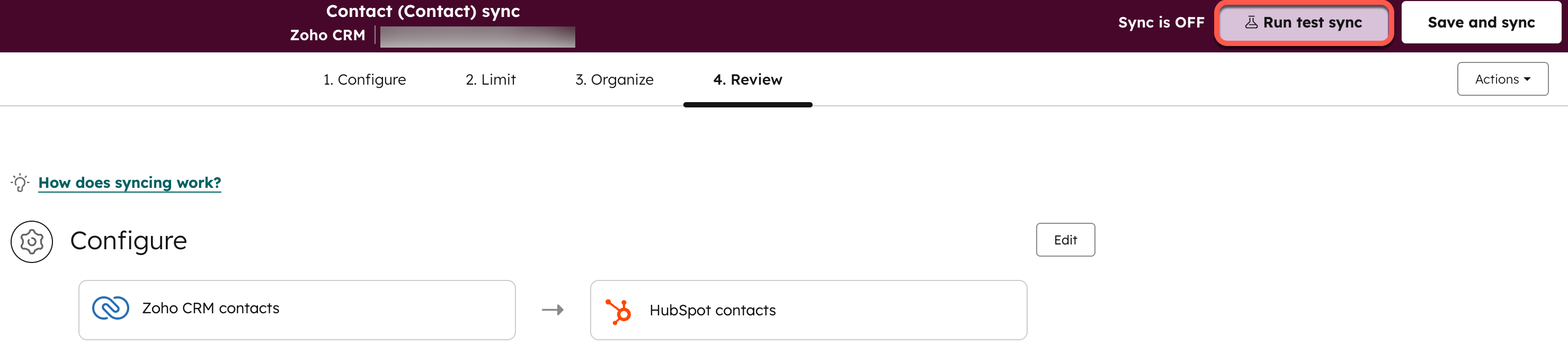
- On the Review page, in the upper right, click Run test sync.
- On the Results preview page, review the results of the test sync.
-
- In the Rule summary section, review the sync rules you've chosen.
- In the Results preview section, review the number of records that'll sync, will fail to sync, and will be excluded from the sync. You can click the number of records to view the specific records.
- In the Records preview section, view individual records that'll sync. Click the Filter by dropdown menu to filter the records.

- In the upper right, click Close screen to return to your settings page. Or, click Start your sync to start the sync.
- To delete your test sync, click Actions > Delete test sync.
