
Last updated: August 28, 2026
Available with any of the following subscriptions, except where noted:

-
 Seats required for certain features
-
Additional subscriptions required for certain features
Export HTML files for pages, blog posts, and templates, or export data about blog posts, knowledge base articles, and website pages. Use these exports to move content to another platform, analyze content data, or retain a copy of your content.
Please note: you can't merge all data between HubSpot accounts. To move assets between accounts, export your data from one HubSpot account, then import the objects or recreate certain data in the other account.
Export HTML files for pages, posts, and templates
Export HTML files for your pages, blog posts, and templates. Use these files to import content to another platform.
Permissions required Super Admin or Publish permission is required to export HTML files for pages, posts, and templates.
- Navigate to your content:
- Website Pages: In your HubSpot account, click More, then navigate to Content > Website Pages. If More doesn't appear in your account, navigate to Content > Website Pages directly.
- Landing Pages: In your HubSpot account, click More, then navigate to Content > Landing Pages. If More doesn't appear in your account, navigate to Content > Landing Pages directly.
- Blog: In your HubSpot account, click More, then navigate to Content > Blog. If More doesn't appear in your account, navigate to Content > Blog directly.
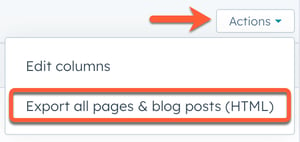
- In the upper left, click the Actions dropdown menu and select Export all pages and blog posts (HTML).
- In the dialog box, click Export.
Once the export is processed, you'll receive a download link through email and in your notification center. Template files will be located in the Styles folder within the exported file.
Export data for posts, articles, and pages
Export data about blog posts and knowledge base articles, or export unsummarized page data from your web traffic analysis report. The available data and requirements vary by content type.
Blog posts
Permissions required Super Admin or Publish permission is required to export blog post data.
- In your HubSpot account, click More, then navigate to Content > Blog. If More doesn't appear in your account, navigate to Content > Blog directly.
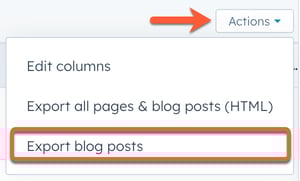
- In the upper left, click the Actions dropdown menu and select Export blog posts. This will export all blog posts regardless of the filters applied.
- In the dialog box, click the File format dropdown menu and select a file format (e.g., CSV, XLS, or XLSX). If you've applied a filter, the export will default to only including those blogs.
- When finished, click Export.
Once the export is processed, you'll receive a download link through email and in the notification center.
Knowledge base articles
Subscription required A Service Hub Professional or Enterprise subscription is required to export knowledge base articles.
Seats required An assigned Service Hub seat is required to export knowledge base articles.
Permissions required Service Access with Knowledge base articles permission is required to export knowledge base articles.
- In your HubSpot account, click More, then navigate to Service > Knowledge Base. If More doesn't appear in your account, navigate to Service > Knowledge Base directly.
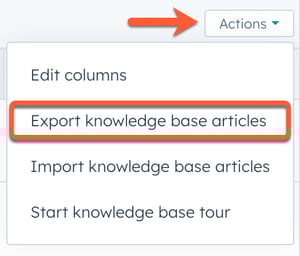
- On the knowledge base index page, click the Actions dropdown menu and select Export knowledge base articles. For a legacy knowledge base, select the checkbox for all articles, then click More tools, and select Export knowledge base articles.
- In the dialog box, click the File format dropdown menu and select a file format (e.g., CSV, XLS, or XLSX).
- When finished, click Export.
Website and landing pages
Subscription required A Marketing Hub or Content Hub Professional or Enterprise subscription is required to export unsummarized pages data.
Permissions required Super Admin or Export permission is required to export unsummarized data.
- In your HubSpot account, click More, then navigate to Reporting > Reports. If More doesn't appear in your account, navigate to Reporting > Reports directly.
- In the left sidebar menu, click Marketing and select Web traffic analysis.
- Click Pages.
- In the top right, click the Actions dropdown menu and select Export unsummarized data.
- In the dialog box, enter a name for the export in the Name field.
- Click the File format dropdown menu and select a file format (e.g., CSV).
- When finished, click Export.
Please note: exports from reports contain page-level data and metrics only, not the full HTML content of your website or landing pages.
