Last updated: April 16, 2026
Available with any of the following subscriptions, except where noted:
-
 Marketing Hub
Professional, Enterprise
Marketing Hub
Professional, Enterprise
Marketing events allow you to track attendee data for both virtual and in-person events directly within HubSpot. You can create new marketing events or add existing ones to campaigns within Marketing Studio.
Create and add marketing events to campaigns in Marketing Studio
To create a new marketing event or to add an existing one to a campaign:
- In your HubSpot account, navigate to Marketing > Marketing Studio.
- At the top, click the Manage tab. In the table, select an existing campaign. Alternatively, create a new campaign.
- In the left sidebar menu, click the + add icon.
- Click and drag the Marketing event card onto the canvas.
- On the Marketing event card, click + Add content.
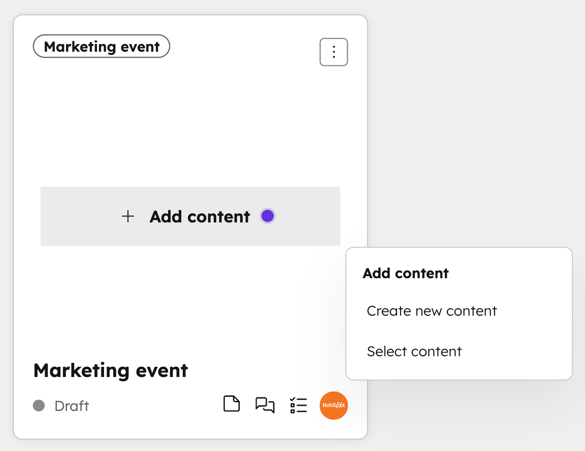
- To create a new marketing event:
-
- Click Create new content.
- On the Create Marketing Event dialog box, add the details of your event. Then click Create.
- To add an existing marketing event to the campaign:
-
- Click Select content.
- On the Select Marketing event page, select the checkbox next to the marketing event you want to add to the campaign.
- Then click Save.
Marketing events created in Marketing Studio will also appear on the Marketing Events index page.
Review your marketing event performance in marketing studio
In Marketing Studio, when you click on a marketing event, the following information will appear:
- In your HubSpot account, navigate to Marketing > Marketing Studio.
- At the top, click the Manage tab. In the table, select an existing campaign.
- In your HubSpot account, navigate to Marketing > Marketing Studio.
- At the top, click the Manage tab. In the table, select an existing campaign.
-
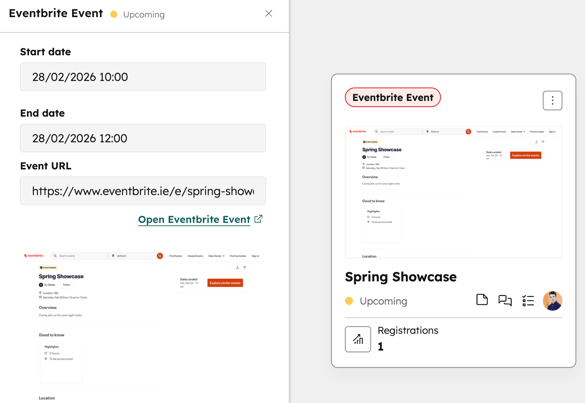
In the canvas view, click the marketing event. The following information will appear:
-
Event name: the name of the marketing event. The event name specifies if the event comes from a third-party platform, such as Zoom or Eventbrite.
-
Start date: the start date of the event.
-
End date: the end date of the event.
-
Event URL: the link to the event page hosted on a third-party platform. Click Open [third-party tool] Event to open the event in the event platform.
-
Event image preview: a preview of the event image from the third-party platform.
-