
Last updated: April 16, 2026
Available with any of the following subscriptions, except where noted:
-
 Marketing Hub
Professional, Enterprise
Marketing Hub
Professional, Enterprise
After creating your campaign in
Marketing Studio, you can export your campaign details, view and filter your campaigns, clone a campaign and its assets, or delete a campaign altogether.
- In your HubSpot account, navigate to Marketing > Marketing Studio.
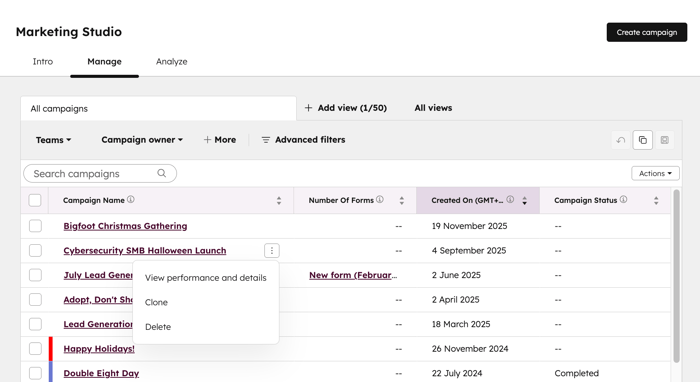
- At the top, click the Manage tab.
- To segment your campaigns, at the top, navigate to the different views. To create a custom view, click + Add view. Learn more about creating custom views.
- To filter your campaign by owner, click the Campaign owner dropdown menu and select a HubSpot user.
- To filter your campaign by other campaign properties, click Advanced filters.
- To review your campaign performance, click the three vertical dots icon next to the campaign. Then, click View performance. Learn more about analyzing your campaign performance.
- To clone your campaign:
- Click the three vertical dots icon next to the campaign. Then, click Clone.
- In the dialog box, enter a name for your cloned campaign.
- Select the checkboxes next to the asset types that you'd like to clone.
- All assets for that asset type will be automatically selected as well.
- Asset types that cannot be cloned will be greyed out.
- To clone only specific assets, click the [asset type] to expand. Then, select the checkboxes next to the asset that you'd like to clone.
- Click Clone.
- To delete your campaign:
- Click the three vertical dots icon next to the campaign. Then, click Delete.
- In the dialog box, click Delete campaign.
- To compare your campaigns, click the checkboxes next to the campaigns that you'd like to compare. Then, at the top of the table, click Compare campaigns.
