
Last updated: April 9, 2026
Available with any of the following subscriptions, except where noted:
-
 Marketing Hub
Professional, Enterprise
Marketing Hub
Professional, Enterprise
-
 Content Hub
Professional, Enterprise
Content Hub
Professional, Enterprise
- Legacy Marketing Hub Basic
Use the layout editor in the design manager to structure and customize drag and drop templates. By arranging modules, groups, and columns, you can control how content is structured across pages. This also gives content creators more control in the page editor.
Before you get started
Before you structure and customize pages using the layout editor in the design manager, review the requirements and considerations.
Permissions required Design tools permission is required to structure and customize templates using the layout editor in the design manager.
Understand limitations & considerations
- Changes to a template apply to all content using that template.
- Some features, such as flexible columns, are only available for page templates.
Structure a template
Use the layout editor to structure how content is organized within a template.
- In your HubSpot account, navigate to Content > Design Manager.
- In the finder, click a template to open it in the layout editor.
Add and arrange modules
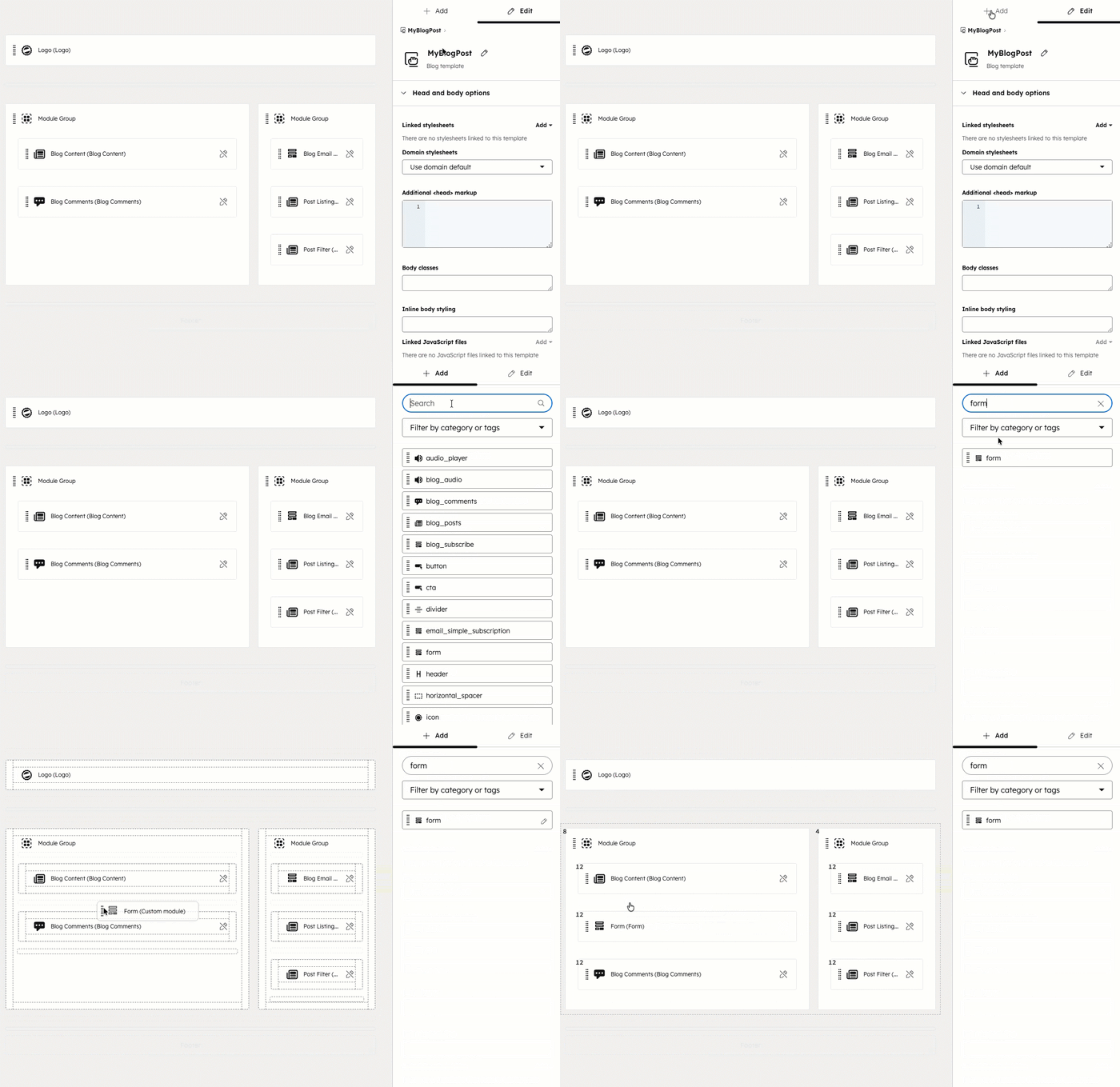
Modules are the building blocks of a template layout. Dragging a module next to another module creates columns. Dragging a module on top of another groups the modules.
- In the inspector, click + Add.
- Enter text to search for a module and then click the module.
- Drag the module into the layout editor.
Change column widths
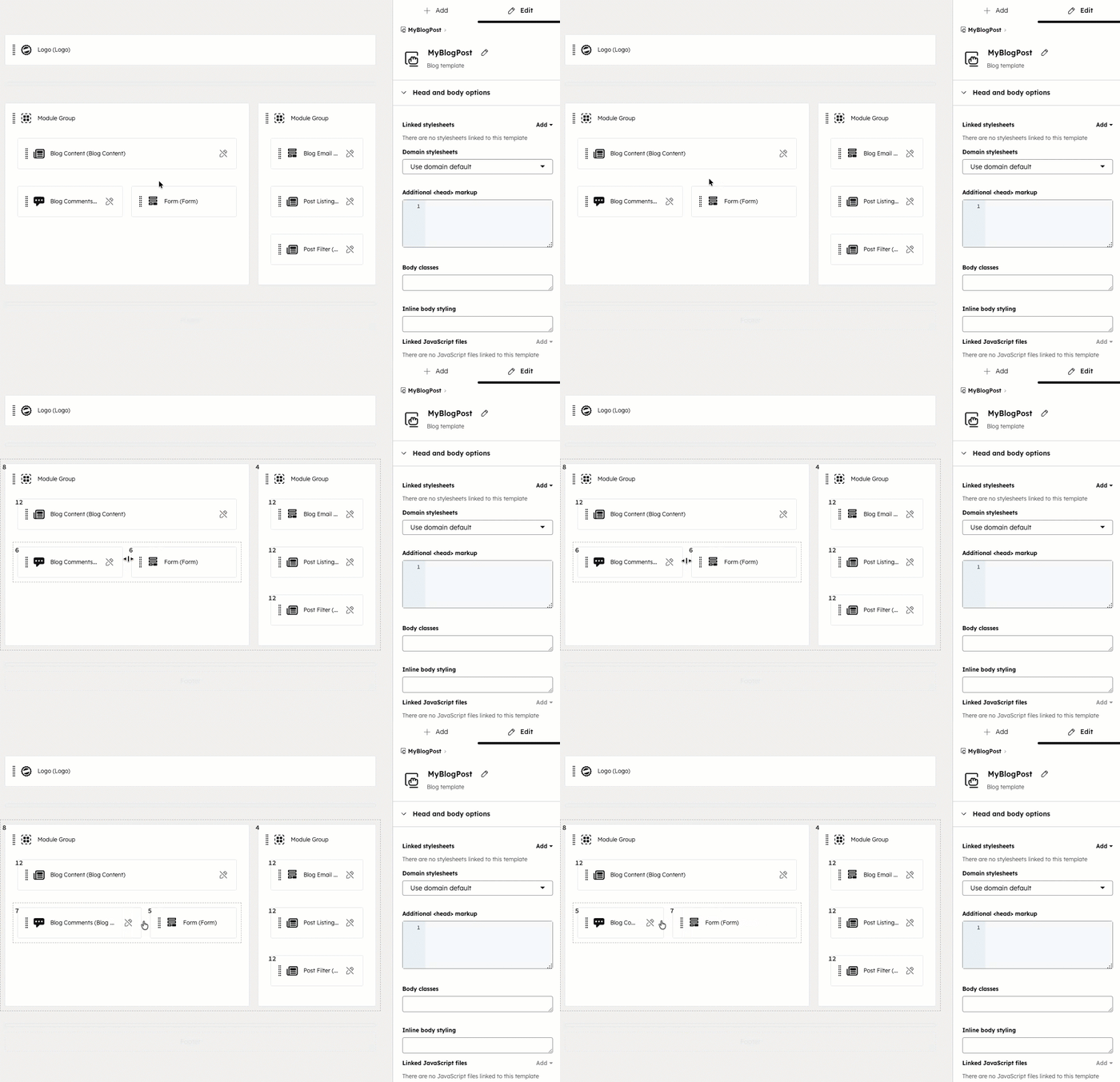
To change the width of a column:
- In the layout editor, hover between two modules.
- Click and drag horizontally to adjust the column width.
Group modules
Group modules to organize sections of a template.
To group modules:
- In the layout editor, select a module.
- Press and hold the Control (Windows) or Command (Mac) key and select additional modules.
- In the inspector, click the Group modules icon.
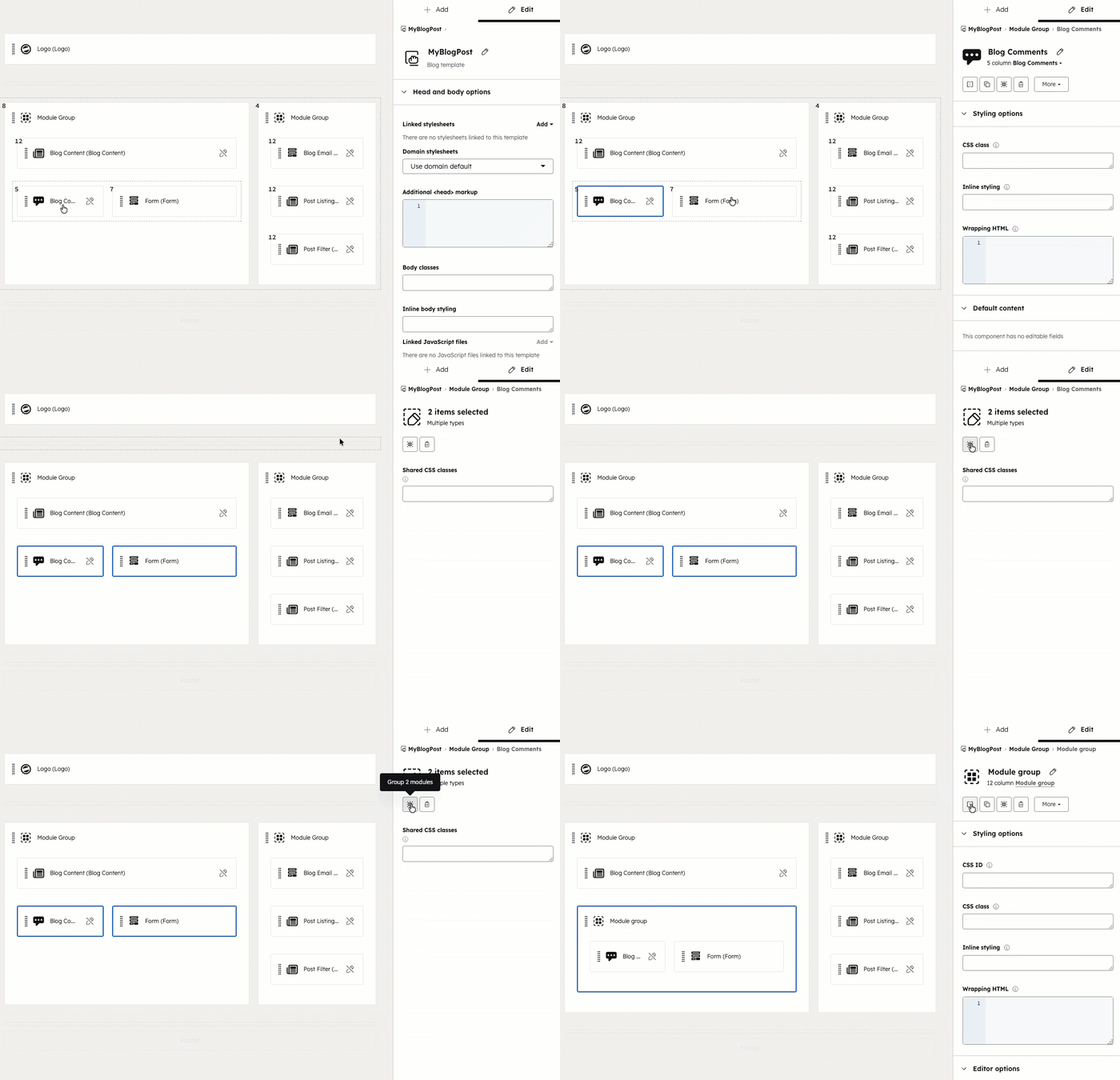
Please note: modules groups cannot cross a section separator or contain a partially selected group of modules.
Split modules horizontally
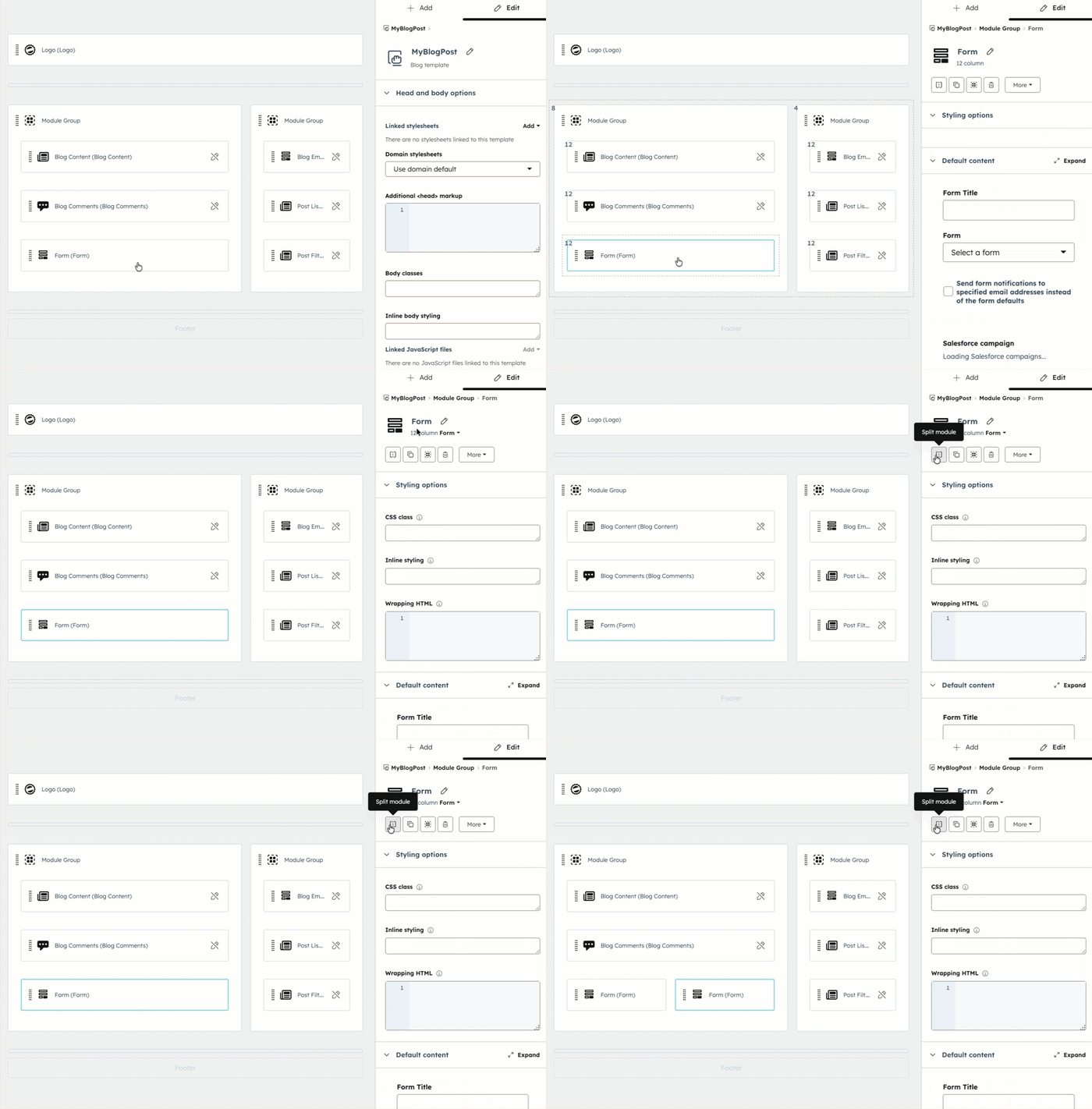
Splitting a module breaks the module in half, creating two modules.
To split a module:
-
In the layout editor, click a module
-
In the inspector, click the Split module icon.
Center modules
Use horizontal spacers to center modules and groups on the page, or add blank space on either side of them.
To add a horizontal spacer:
-
In the inspector, click + Add.
-
Enter horizontal spacer in the Search field. Then drag the Horizontal spacer module into position on the template in the layout editor.
-
To change the size of a horizontal spacer, change the width of the column separating it from other modules.
-
To center a module or group, add Horizontal spacer modules on each side.
Add a flexible column
Flexible columns are designed to make content management at the page-level easier for content creators. When a flexible column is added to a HubSpot page template, users will be given the option to add, remove, and re-order modules within the individual page editor. This feature allows designers to create fewer templates, while still allowing marketers the flexibility to customize each page to fit their needs.
-
In the inspector, click + Add.
-
Enter flexible column in the Search field. Then drag the Flexible Column module into position on the template in the layout editor.
- Flexible columns can only be added to page templates, and cannot be added to email or blog templates.
- Modules added to flexible columns cannot have CSS classes, inline styling, or the wrapping HTML associated with them. Styling options need to be added to the flexible column itself.
Customize your template
After you've structured the layout of your template, you can swap out modules and make other template customizations.
Edit module options
Edit a module's options include styling, default content, and may differ depending on the specific type of module. Learn more about editing module CSS and default content and settings.
- In the layout editor, click a module.
- In the inspector, customize the module's options.
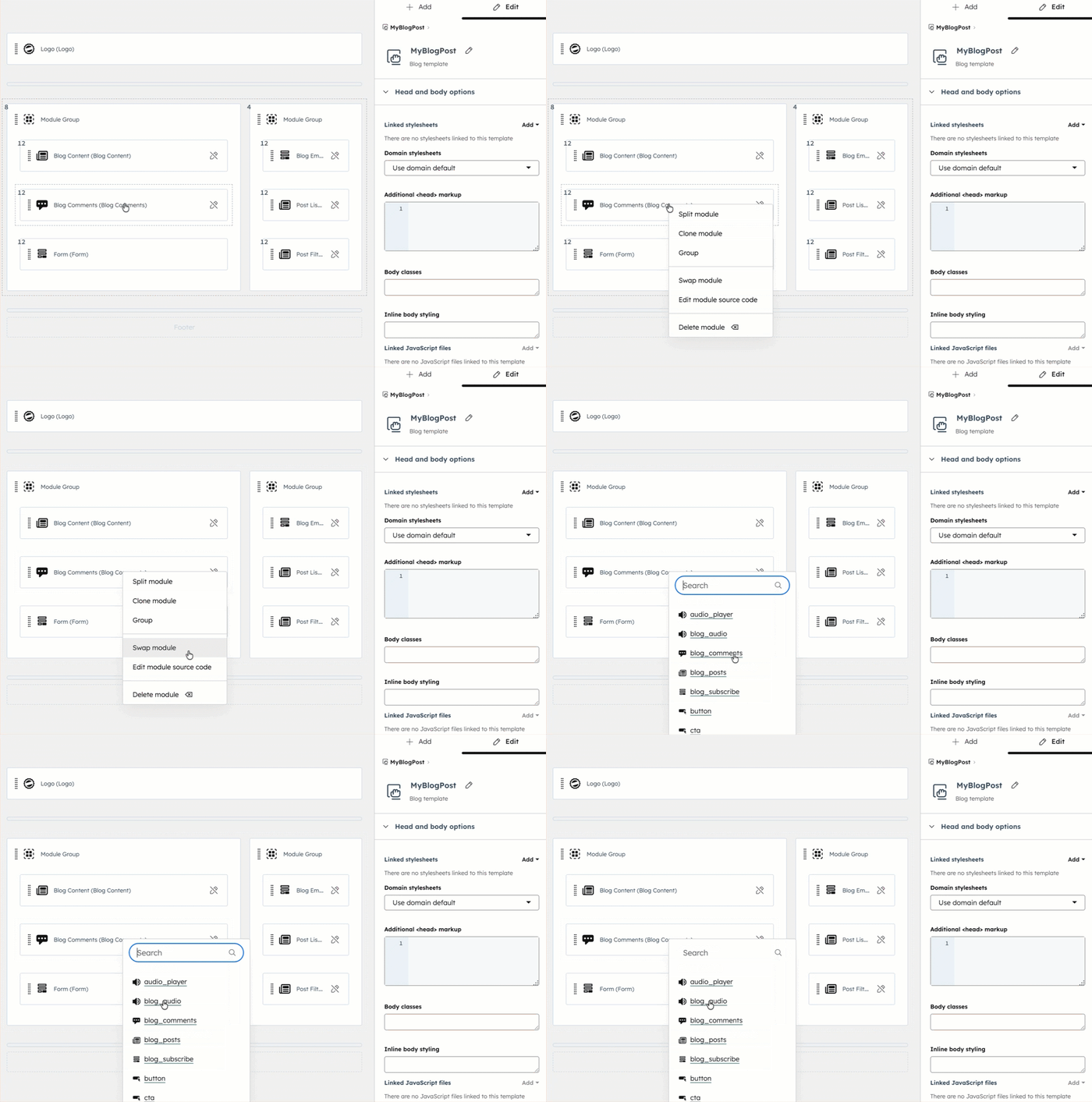
Swap module
After you've added a module to your template, you can choose to swap it out for another module.
-
In the layout editor, right-click the module, then select Swap module.
-
In the pop-up, select the module to replace the original module with.
Convert to global module
Convert a module in your template to a global module, which can be used in multiple templates. Use this when you've styled the module in a certain way, or have default content in the module that you'd like to reuse in other templates.
- In the layout editor, click a module.
- In the inspector, click the More dropdown menu and select Convert to global module.
- In the dialog box, enter the global module name, then click Create.
Delete module
-
In the layout editor, click a module.
-
In the inspector, click the trash can icon.
Manage your template in the finder
In addition to your module options, there are several actions you can take specific to your template.
- In the finder, click the name of a template.
- Click the Actions dropdown menu and select an option:
- Copy to different account: copy the template to another account where you are also a user. Templates purchased from the Marketplace won't be able to be copied to other portals.
- Clone template: this creates an exact duplicate of your template, and is useful when you want to create a variation of an existing template.
- Clone to HTML: this creates a separate HTML version of your drag and drop template. This is helpful if you need more control over your markup, or you want to learn more about how templates are coded.
- View template source: view the template's source code HTML. Unlike the Clone to HTML option, this doesn't create a separate HTML version of your template.
- Rename template: edit your template's internal name.
- Show dependents: view all pages, emails, or blogs currently using the template.
- Show revision history: view your template's revision history and choose to revert your template to a previously published version.
- Create email/page: create an email or page directly from the template.
- Delete template: this deletes the template. After the template is deleted, it'll stay available for 30 days, after which it'll be permanently deleted. To restore the template, you'll need to contact customer support.
