Last updated: July 21, 2026
Available with any of the following subscriptions, except where noted:
-
 Content Hub
Professional, Enterprise
Content Hub
Professional, Enterprise
Import videos from Google Drive into HubSpot's video tool to manage your video files in one place. After connecting your account, select the videos you want to import, then edit them or add them to your HubSpot content.
-
In your HubSpot account, click More, then navigate to Content > Video. If More doesn't appear in your account, navigate to Content > Video directly.
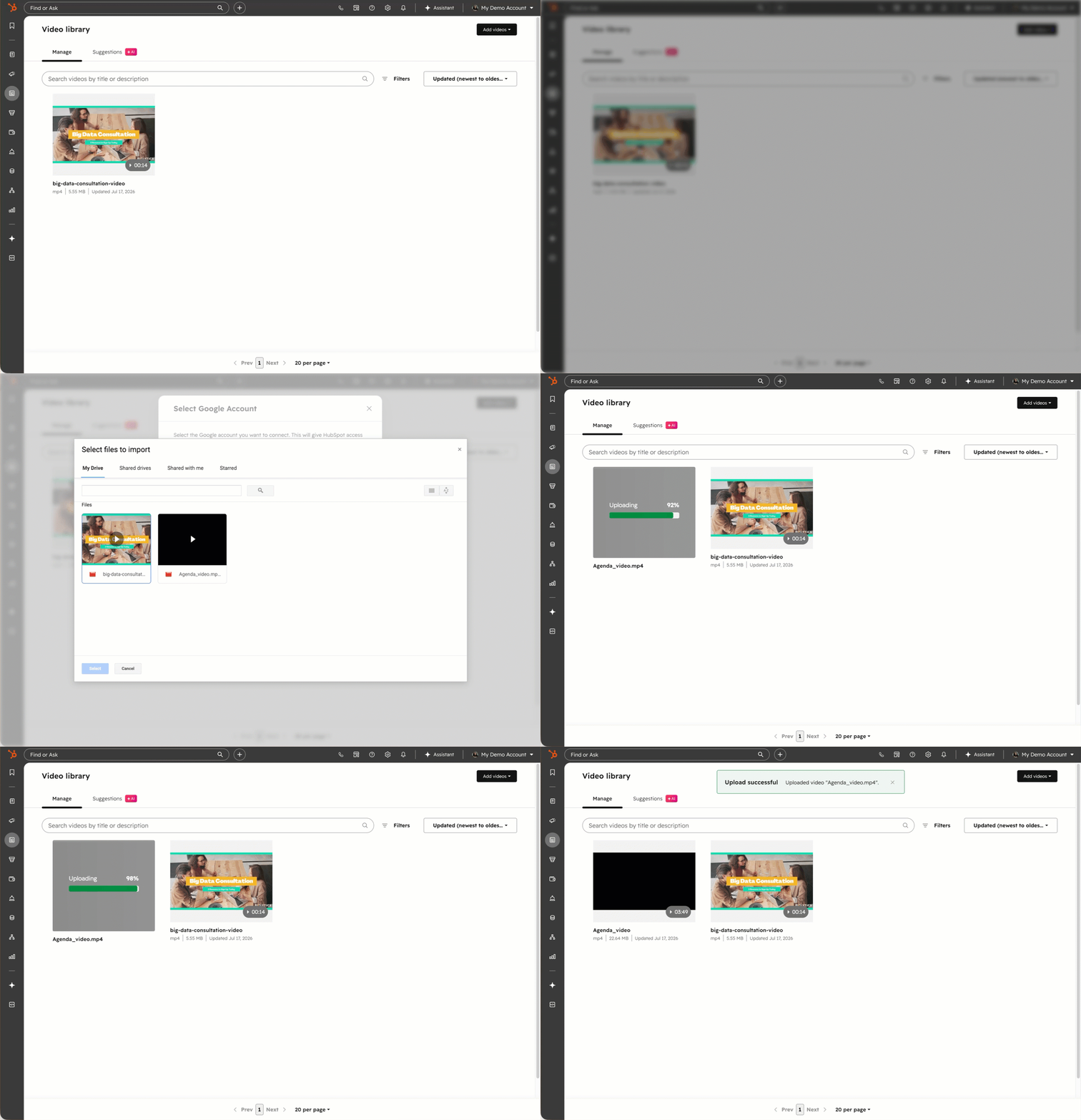
- To import a new video, in the upper right, click Add videos, then, select Google Drive.
- In the dialog box, click the dropdown menu and select the Google account that you'd like to use. Alternatively, to add a new account:
- Click the dropdown menu and select Add an account.
- In the dialog box, click Approve and connect Google Drive.
- In the pop-up box, select the account that you'd like to connect, then click continue.
- Then, review the displayed permissions. HubSpot requires all of these permissions in order to retrieve files from your Google Drive. After reviewing the permissions, click Allow. The added account will appear in the dropdown options.
- Click Open Google Drive Picker.
- Select the videos that you'd like to import
- In the bottom left, click Select. The video files will be automatically added to the video tool.
Please note: imported video files will be automatically added to the file manager with a File URL Visibility of Public.