
Last updated: May 11, 2026
Available with any of the following subscriptions, except where noted:
-
 Marketing Hub
Professional, Enterprise
Marketing Hub
Professional, Enterprise
If your business has specific requirements for your email footer, you can create a global rich text module in the design manager that acts as an email footer. As long as you include the required address and unsubscribe tokens, you can use that module instead of the default email footer.
- In your HubSpot account, navigate to Content > Design Manager.
- In the left column, click the name of an email template.
- In the right column, click a rich text module and drag it onto the footer of your email template.
- In the template layout, click the rich text module.
- In the right column, click the Rich text content box to edit the module's content.
- In the rich text editor, add personalization tokens for office location:
- In the rich text toolbar, click Personalize.
- In the pop-up box, click the Type dropdown menu and select Office location.
- Click the Token dropdown menu and select Company name.
- Click Insert.
- Repeat until these tokens are present: Company name, Company address 1, Company city, and Company state.
- You can also repeat the process for Company address 2, Company country, Company phone, and Company zip, but these tokens aren't required.
- Add unsubscribe links to the footer:
- In the rich text toolbar, click the link icon.
- In the pop-up box, enter the text that will be linked in the Link text field. For example, for a link to the subscription preferences page, you could use "Manage preferences."
- Click the Link to dropdown menu and select Email subscription action.
- Click the Subscription action dropdown menu and select Manage preferences or Unsubscribe. At least one of these unsubscribe tokens must be present in the email footer.
- Click Insert.
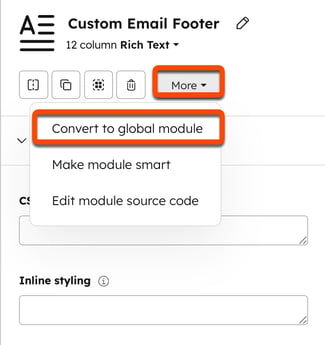
- In the right column, click the More dropdown menu and select Convert to global module.
- In the dialog box, enter a name for the footer in the Global module name field, then click Convert.
- Make any additional changes to your footer, then click Publish changes in the top right.
- Edit a marketing email to include the custom footer. As long as the custom footer contains the required tokens, you should be able to remove the default footer and still send the email.
