
Last updated: April 14, 2026
Available with any of the following subscriptions, except where noted:

If you're opted into the custom fonts in marketing email beta, you can add the custom font to marketing emails. Once a custom font is uploaded to your brand kit and a fallback font is selected, customers who use email clients that support custom fonts will be able to see the version of your marketing emails that use them.
Understand limitations and considerations
- Custom fonts are supported in Apple Mail and partially supported in Samsung Mail. Custom fonts are not supported in Gmail, Outlook, or most mobile web clients.
- To avoid issues with fallback fonts, the following steps are recommended:
- Use fallback fonts with a similar x-height and weight to your custom font.
- Preview marketing emails in a variety of email clients to see which fonts will be used.
- Ensure that all important elements render as expected with fallback fonts.
Use custom fonts
- Add a custom font in your brand kit, then select the fallback font closest to your custom font.
- In your HubSpot account, navigate to Marketing > Email.
- Click the name of a marketing email, or click Create email to create a new email.
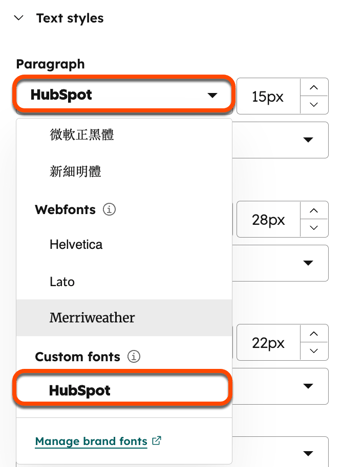
- To use a custom font to style types of text, such as paragraphs or headings:
- In the email editor, click the template design icon in the left sidebar.
- To set a In the Text styles section, click a dropdown menu and select a font in the Custom fonts section.
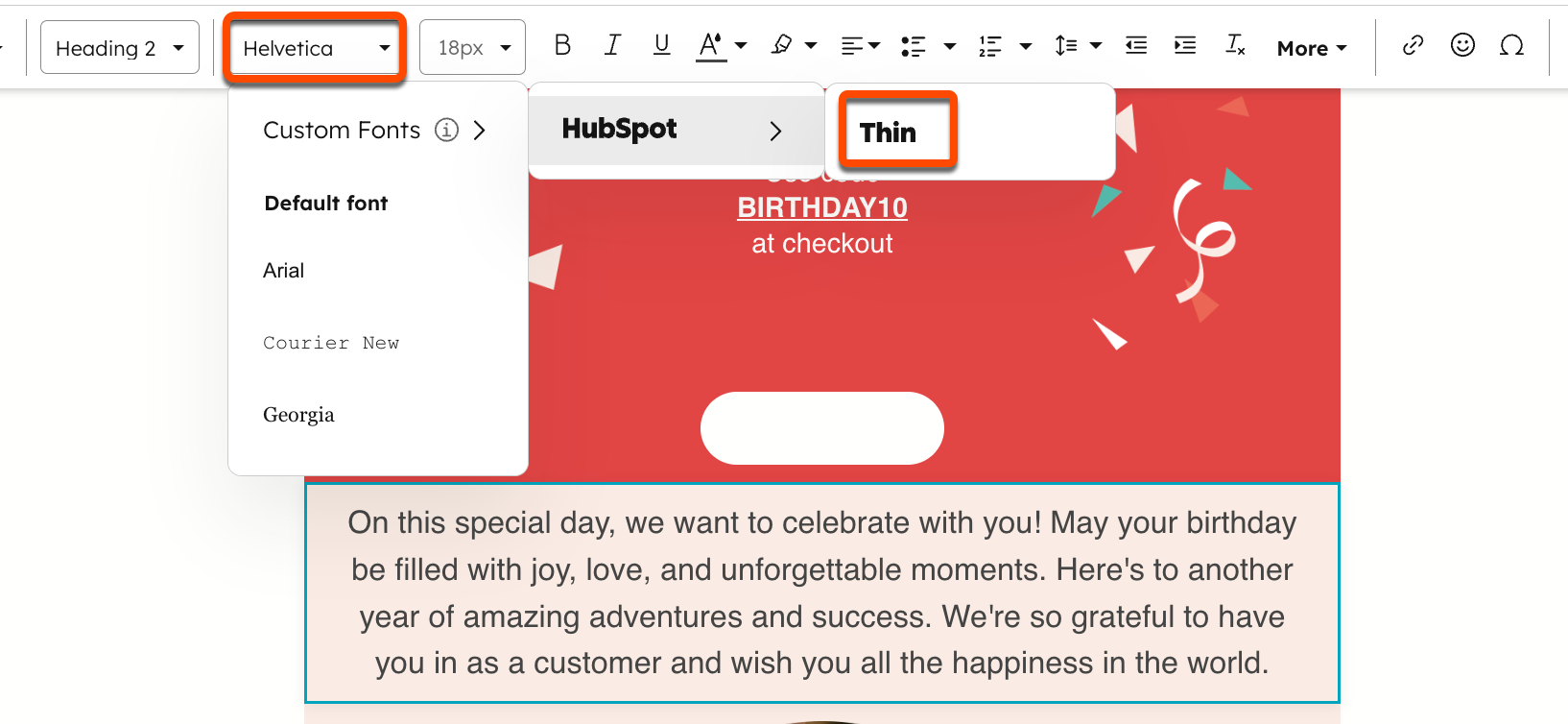
- To use a custom font in a rich text module:
- In the email editor, highlight text in a rich text module.
- In the rich text editor, click the font dropdown menu, hover over Custom Fonts, then over a custom font and select a font weight.
- Compose the content of the email, then preview the email in multiple clients.
- Finalize and send the email.
