
Last updated: January 15, 2026
Available with any of the following subscriptions, except where noted:

-
 Additional subscriptions required for certain features
The payments account overview provides a centralized view of connected commerce account information for users who have set up HubSpot payments or Stripe as a payment processing option.
This article covers how to:
- View associated fees, account information, transaction limits, and more.
- Update the commerce account representative, business, personal, and bank account details.
- Disconnect your payment processing option.
Subscription required A Starter, Professional, or Enterprise account is required to use HubSpot payments.
View payments account overview
Payments account lists information such as the account name, primary point of contact listed for the account, payment processor, transaction and platform fees, promotional or custom fee rates, and application date.
To view the payments account overview:
- In your HubSpot account, click the settings icon in the top navigation bar.
- In the left sidebar menu, navigate to Payments Account.
- If HubSpot payments is connected, you will see the following:
- Account overview: an overview of your account including your account name, primary point of contact, payment processing provider, transaction fees, and application date.
- Account information:
- Business type: your business structure and location.
- Business details: your website URL, address, and industry.
- Public details: the descriptor shown on customer bank statements.
- Management and ownership: your legal name, email address, date of birth, home address, phone number, and social security number.
- Public business information: your support phone number, support email, and statement descriptor.
- Bank account details: your bank name and bank details (e.g., account number, routing number)
- If Stripe is connected as a payment processing option, you will see the following:
- Account overview: an overview of your account including payment processing provider, transaction fees, and application date.
- Account information:
- Business type: your business structure and location.
- Professional details: your website URL and industry.
- Public details: your customer support number and descriptor shown on customer bank statements.
- Payout details: your bank name and details (e.g., account number, routing number).
- Authentication: the email used to authenticate.
- Payout statement descriptor: the descriptor shown on customer bank statements.
- Public business information: your support phone number, support email, and statement descriptor.
Update HubSpot payments account details
Permissions required Super Admin permissions are required to update your payments account.
Add or modify your bank account details, edit your website URL, your support phone number, support email, statement descriptor, and personal details.
Update your HubSpot payments point of contact
To update your commerce account information when using HubSpot payments:
- In your HubSpot account, click the settings icon in the top navigation bar.
- In the left sidebar menu, navigate to Payments Account.
- Under Account Overview, in the upper right, click Actions, then select Edit point of contact.
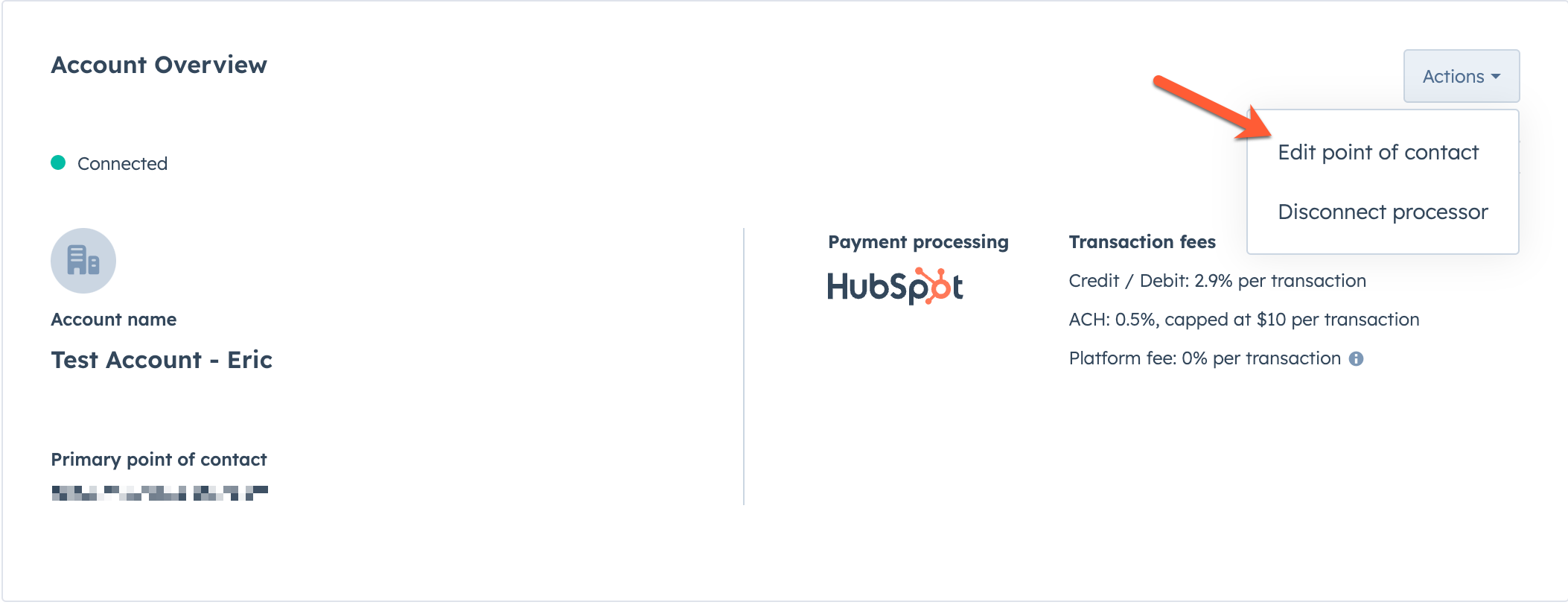
- In the right panel, in the POC email field, enter the email address of the new point of contact, then click Save.
Request a transaction limit increase for HubSpot payments
To request a transaction limit increase when using HubSpot payments:
- In your HubSpot account, click the settings icon in the top navigation bar.
- In the left sidebar menu, navigate to Payments Account.
- Under Account Overview, in the upper right, click Actions, then select Request a limit increase.
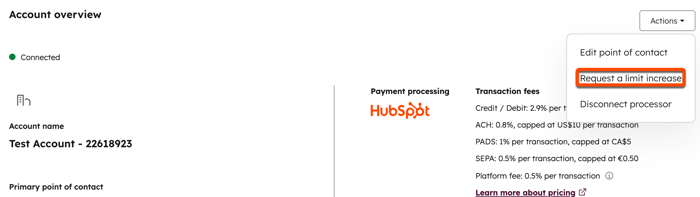
- In the right panel:
- In the Email for the person to contact field, enter the email address of the person who should be contacted about the limit increase.
- Enter details of the transaction limits and a reason for the limit increase request.
- Select the terms and underwriting agreement checkboxes.
- Click Request an increase.
Update HubSpot payments account information
To update commerce account information when using HubSpot payments:
- In your HubSpot account, click the settings icon in the top navigation bar.
- In the left sidebar menu, navigate to Payments Account.
- Click to expand the Account information section.
- To update your business type and business structure:
- Click Edit under Business type. In the right panel:
- Click the Business type dropdown menu and select a type.
- Click the Business structure dropdown menu and select a structure.
- Click Save.
- Click Edit under Business type. In the right panel:
- To update your legal business name, "doing business as" name, Employer Identification Number (EIN), business address, or business website:
- Click Edit under Business details. In the right panel:
- In the Legal business name field, enter the legal business name.
- In the Business name (Doing Business As) field, enter the business name. This is an optional field.
- In the Employer Identification (EID) field, enter your Employer Identification Number.
- In the Business address field, enter your business address.
- In the Business website field, enter your business website.
- Click Save.
- Click Edit under Business details. In the right panel:
- To update your statement descriptor:
- Click Edit under Public details.
- In the right panel, in the Statement descriptor field, enter the statement descriptor. The descriptor will appear on buyers bank statements when they make a purchase from you.
- Click Save.
- To change the account representative (the person who has authority to represent your business):
- Click Choose next to Change account representative. In the right panel:
- Select a person from the list, or click Add someone new.
- Click Update representative.
- Add the details of the new representative. Your business will need to verify the account representative within seven days, otherwise payouts may be paused.
- Click Choose next to Change account representative. In the right panel:
- To update your personal details:
- Click Edit under Management and ownership. In the right panel:
- In the Legal name fields, enter your first and last names.
- In the Email address field, enter your email address.
- In the Date of birth field, enter your date of birth.
- In the Home address field, enter your personal address.
- In the Phone number field, enter your personal phone number.
- In the Last 4 digits of Social Security number field, enter the last four digits of your social security number.
- Click Submit.
- Click Edit under Management and ownership. In the right panel:
Update HubSpot payments public business information
To update your support phone number and support email address when using HubSpot payments:
- In your HubSpot account, click the settings icon in the top navigation bar.
- In the left sidebar menu, navigate to Payments Account.
- Click Edit under Public business information. In the right panel:
- In the Support phone number field, enter your support phone number.
- In the Support email field, enter your support email address.
- Click Save.
- To update your bank account details:
-
- Click Edit next to Bank account details.
- If prompted, submit authentication through the HubSpot app, or other authentication method.
- In the right panel:
- In the Account holder name field, enter the account holder name.
- In the Account number field, enter your account number.
- In the other field, enter your routing number/sort code (depending on the location of your bank account).
Update payments account details for Stripe
Permissions required Super Admin permissions are required to update your payments account.
To update your commerce account information when using Stripe as a payment processing option:
- In your HubSpot account, click the settings icon in the top navigation bar.
- In the left sidebar menu, navigate to Payments Account.
- Click to expand the Account information section
- To update your business type:
- Click Edit under Business type.
- In the right panel, click the Business type dropdown menu and select a type.
- Click Save.
- To update your industry, business website, or product description:
- Click Edit under Professional details. In the right panel:
- Click the Industry dropdown menu and select an industry.
- In the Your website field, enter your website.
- In the Product description field, enter a product description.
- Click Save.
- Click Edit under Professional details. In the right panel:
- To update your public details including your statement descriptor and support phone number:
- Click Edit under Public details. In the right panel:
- In the Statement descriptor field, enter a statement descriptor. The descriptor will appear on buyers bank statements when they make a purchase from you.
- In the Shortened descriptor field, enter a shortened statement descriptor. The descriptor will appear on buyers bank statements when they make a purchase from you. If a shortened descriptor is entered, it takes preference over the Statement descriptor field.
- In the Customer support phone number field, enter your support phone number.
- Toggle the Show phone number of receipts and invoices switch on to display your support phone number on receipts and invoices.
- Click Save.
- Click Edit under Public details. In the right panel:
Please note: you can update your support email address by logging into your Stripe account and updating it in settings.
- To update your personal details:
- Click Edit under Personal details.
- In the right panel:
- Click Edit in the upper right.
- In the Your legal name fields, enter your first and last names.
- In the Email address field, enter your email address.
- In the Date of birth field, enter your date of birth.
- In the Home address field, enter your personal address.
- In the Phone number field, enter your personal phone number.
- Click Submit.
- To update your payout account details:
- Click Edit under Payout details. In the right panel:
- Click the Currency dropdown menu and select a currency.
- Click the Country of bank account dropdown menu and select a country.
- Enter your bank details (e.g., account number, sort code, routing number, IBAN).
- Click Save.
- Click Edit under Payout details. In the right panel:
- To edit the email associated with your Stripe account, click Edit in dashboard under Authentication. You'll be redirected to your Stripe settings to update your email.
Disconnect HubSpot payments
Disconnection is initiated from your account. You're then passed to a live chat with HubSpot Support to complete the disconnection. If you choose to disconnect HubSpot payments, please be aware of the following:
- Customers won't be able to pay any existing payment links, quotes, or invoices.
- All subscriptions will be canceled and payments won't be collected.
- You won't be able to issue refunds from HubSpot.
- Payments and payout data in HubSpot will be read-only.
To disconnect HubSpot payments:
- In your HubSpot account, click the settings icon in the top navigation bar.
- In the left sidebar menu, navigate to Payments Account.
- In the upper right, click Actions, then select Disconnect processor.
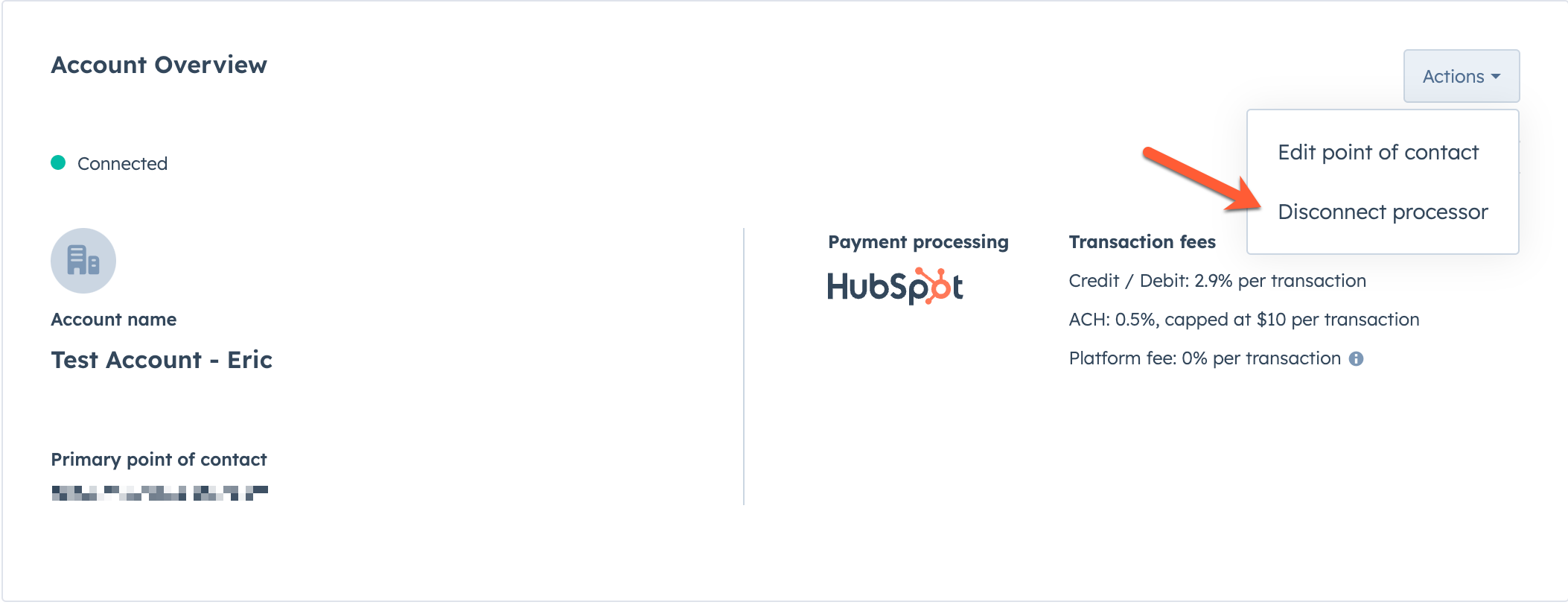
- A dialog box will open, detailing how your HubSpot account will be affected upon disconnection.
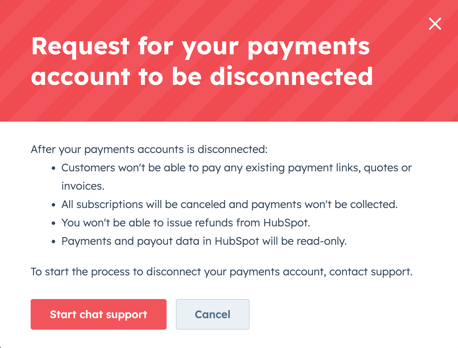
- Click Continue to start the disconnection process.
- Click the Reason for disconnect dropdown menu and select a reason.
- In the text field, enter any feedback.
- Click Disconnect HubSpot Payments.
- If your account doesn't have any transactions, subscriptions, or stored payment methods, HubSpot payments will be disconnected. If the account has transactions, subscriptions, or stored payment methods, a support ticket will automatically be raised with the appropriate HubSpot team to continue the disconnection process on your behalf. The team will contact you if they need further information.
If you'd like to set up a new payment processing option, set up a Stripe as a payment processing option or reconnect HubSpot payments.
Disconnect your Stripe account as a payment processor
If you choose to disconnect Stripe as your payment processing option, please be aware of the following:
- Customers won't be able to pay any existing payment links, quotes, or invoices.
- All subscriptions will be canceled and payments won't be collected.
- You won't be able to issue refunds from HubSpot. Refunds will need to be issued from Stripe.
- Payments data in HubSpot will be read-only.
To disconnect Stripe as a payment processing option:
- In your HubSpot account, click the settings icon in the top navigation bar.
- In the left sidebar menu, navigate to Payments Account.
- Click the Actions dropdown menu in the upper right of Account overview, then click Disconnect processor.
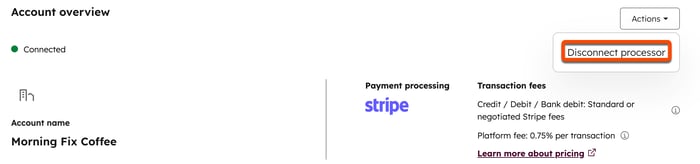
- A dialog box will open, detailing how your HubSpot account will be affected upon disconnection.
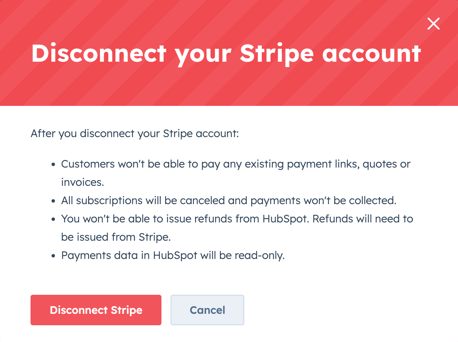
- Click Disconnect Stripe to confirm disconnection.
If you'd like to set up a new payment processing option, set up a different Stripe account or HubSpot payments.
