
Last updated: December 3, 2025
Available with any of the following subscriptions, except where noted:
-
 Marketing Hub
Professional, Enterprise
Marketing Hub
Professional, Enterprise
-
 Sales Hub
Professional, Enterprise
Sales Hub
Professional, Enterprise
-
 Service Hub
Professional, Enterprise
Service Hub
Professional, Enterprise
-
 Data Hub
Professional, Enterprise
Data Hub
Professional, Enterprise
-
 Content Hub
Professional, Enterprise
Content Hub
Professional, Enterprise
Create text properties and add regular expressions (regexes) to validate their values. Regexes are sequences of characters that define a desired text pattern. For example, you can require values with a certain number of digits or include specific characters and formatting. Manually set up regular expressions or use Breeze to generate regex based on the goals of your validation rules. For further guidance, review example use cases.
Please note: HubSpot's regex engine does not support capture groups. You can use regular expressions for pattern matching, but you won't be able to use features associated with capture groups, such as the following: extracting parts of the match for later use, referring back to captured values within the expression (i.e. backreferences), or storing match results in variables or groups.
Add regex validation rules to a property
You can add regular expressions to text property validation rules. You can manually enter or use AI to write regular expressions.
- In your HubSpot account, click the settings icon in the top navigation bar.
-
In the left sidebar menu, navigate to Properties.
-
Click the Select an object dropdown menu and select [Object] properties to create or edit a property for that object.
- Create or edit a property with the Single-line text or Multi-line text field type. When using regex validation rules, there's a limit of 1,000 characters for the property.
- In the property editor, click the Rules tab.
- Select Validate using custom rules. If you want to use basic rules instead, learn how to set up other validation rules.
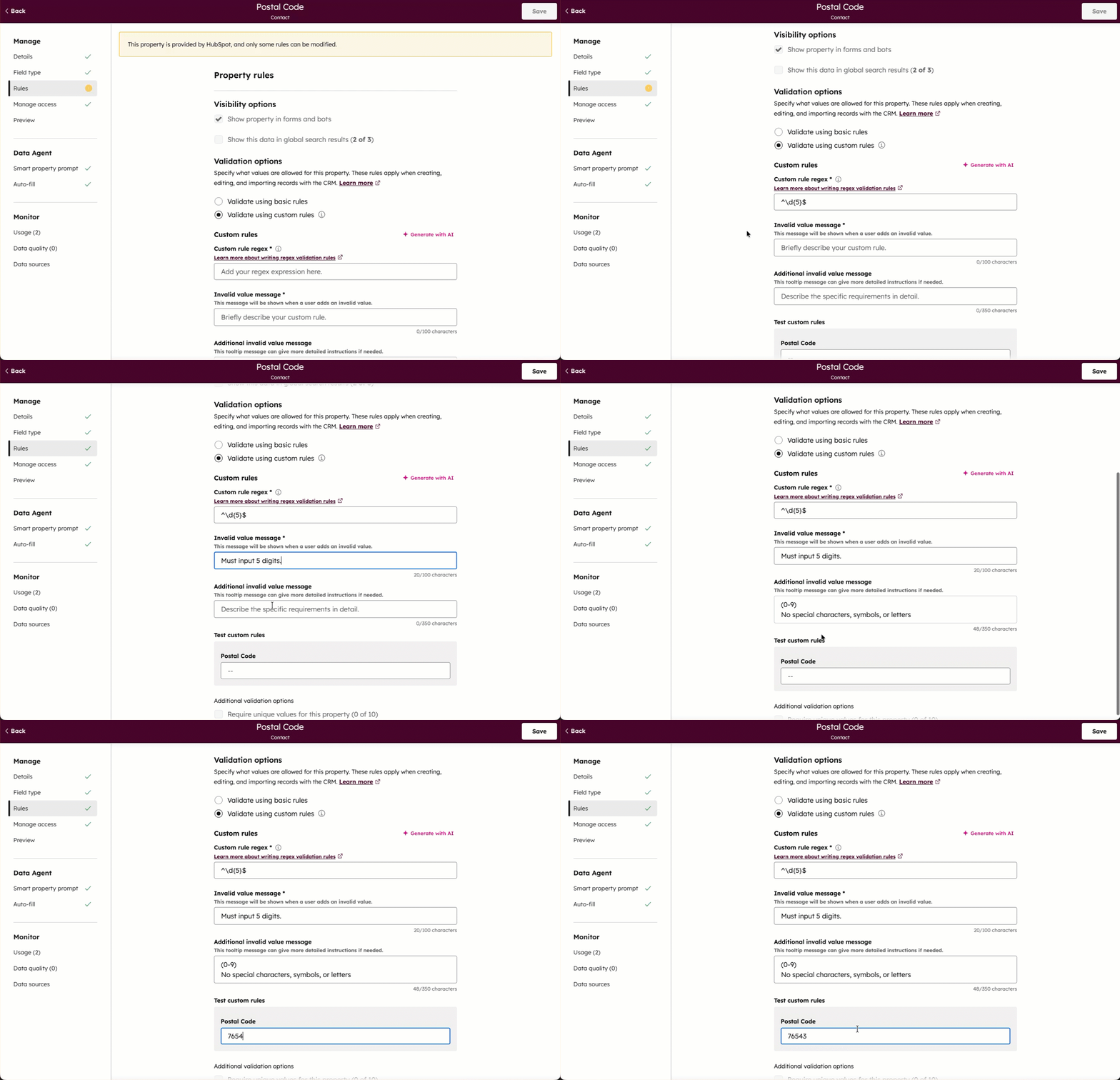
- Add the regular expression manually:
- In the Custom rule regex field, enter your expression.
- In the Invalid value message field, enter a message up to 100 characters. This is displayed to users when the value they've entered doesn't meet the validation requirements.
- In the Additional invalid value field, enter help text up to 350 characters. This is for more detail on the Invalid value message, if desired.
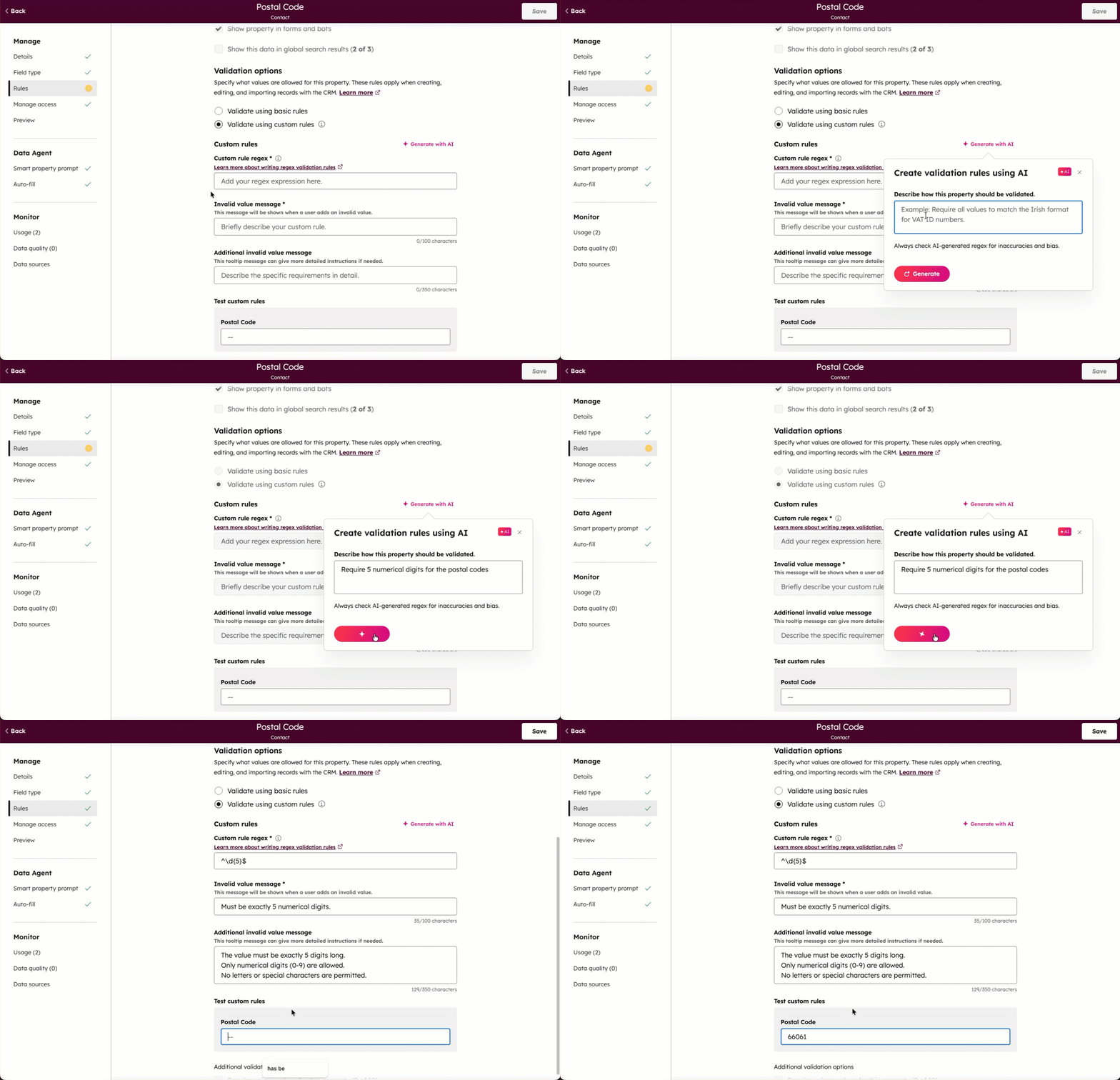
- Add the regular expression with AI:
- Click Generate with AI.
- In the pop-up box, enter a description of how the property should be validated, then click Generate. The other fields will also be automatically filled in.
- In the Test custom rules field, enter a value to validate your rule. If the regex works, an invalid value will result in an error, while a valid value will be accepted.
- Finish setting up or editing your property, then in the upper right, click Create or Save.
The validation rules apply when users set or edit the property's value during creation, on a record, on the object index page, via import, or through submissions to forms created via the new form editor.
Regex syntax
For guidance setting up your regular expression, refer to this Regex cheat sheet.
Example expressions
Some example use cases include:
Please note: before implementing the following expressions, you should verify they work for your specific use case.
- US phone number: to require that phone numbers are entered in the format (123) 456-7890, you could use the regex
^\(\d{3}\) \d{3}-\d{4}$. - Email address: to validate that an inputted value follows a standard email format (e.g., user@example.com), you could use the regex
^[a-zA-Z0-9._%+-]+@[a-zA-Z0-9.-]+\.[a-zA-Z]{2,}$. - Zip code: to require that zip codes have five digits, you could use the regex
^\d{5}$. - URL: to validate a URL starts with "http://" or "https://"”, you could use the regex
^https?:\/\/[^\s/$.?#].[^\s]*$. - No whitespace: to prevent whitespaces from being entered, you could use the regex
^\S*$.
