Last updated: April 16, 2026
Available with any of the following subscriptions, except where noted:
-
 Marketing Hub
Professional, Enterprise
Marketing Hub
Professional, Enterprise
From your campaign settings in Marketing Studio, you can update your campaign properties, UTM and tracking URLs, user and team access, and canvas settings. You can also export, clone, or delete the campaign.
Manage your campaign properties
- In your HubSpot account, navigate to Marketing > Marketing Studio.
- At the top, click the Manage tab. In the table, select an existing campaign. Alternatively, create a new campaign.
- In the left sidebar menu, click the settings icon.
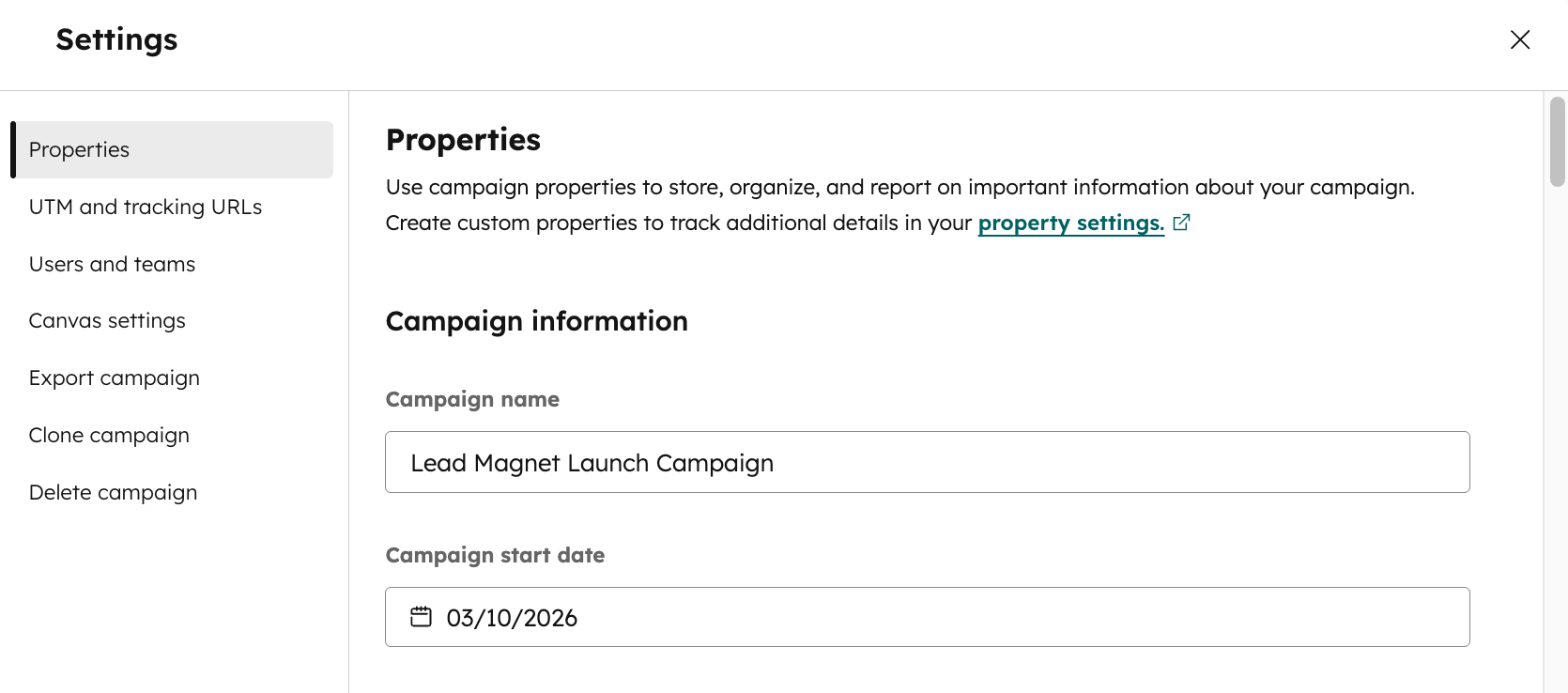
- In the dialog box, navigate to Properties. You can customize your campaign properties or create new ones in your property settings. Learn more about managing campaign properties.
- In the Campaign information section, you can update your property.
- Properties values that have been populated by AI will be tagged with AI. After making your changes, When your manually-input property value manually replaces the AI-generated campaign property value, the AI tag will be removed.
- Supported custom property types include text, number, date picker, single and multiple checkboxes, radio select, dropdown select, phone number, and rich text.
Manage your campaign UTM values
- In your HubSpot account, navigate to Marketing > Marketing Studio.
- At the top, click the Manage tab. In the table, select an existing campaign. Alternatively, create a new campaign.
- In the left sidebar menu, click the settings icon.
- In the dialog box, navigate to UTM and Tracking URLs.
- In the UTM field, enter your UTM and press enter.
- To review any previous campaign UTMs, click See previous campaign UTMs to expand. Learn more about managing your campaign UTM values.
Create a tracking URL for your campaign
- In your HubSpot account, navigate to Marketing > Marketing Studio.
- At the top, click the Manage tab. In the table, select an existing campaign. Alternatively, create a new campaign.
- In the left sidebar menu, click the settings icon.
- In the dialog box, navigate to UTM and Tracking URLs.
- In the Tracking URLs section, click Create tracking URL.
- In the right panel, set up your tracking URL, then click Create. The new tracking URL will appear in the dialog box.
Manage user and team access to your campaign
- In your HubSpot account, navigate to Marketing > Marketing Studio.
- At the top, click the Manage tab. In the table, select an existing campaign. Alternatively, create a new campaign.
- In the left sidebar menu, click the settings icon.
- In the dialog box, navigate to Users and teams.
- In the Users and teams section, set your campaign access:
- Available to everyone: allow all users in your account to access the campaign.
- Select users and teams who can edit: allow only specified users to access the campaign.
Manage your campaign's canvas settings
- In your HubSpot account, navigate to Marketing > Marketing Studio.
- At the top, click the Manage tab. In the table, select an existing campaign. Alternatively, create a new campaign.
- In the left sidebar menu, click the settings icon.
- In the dialog box, navigate to Canvas settings.
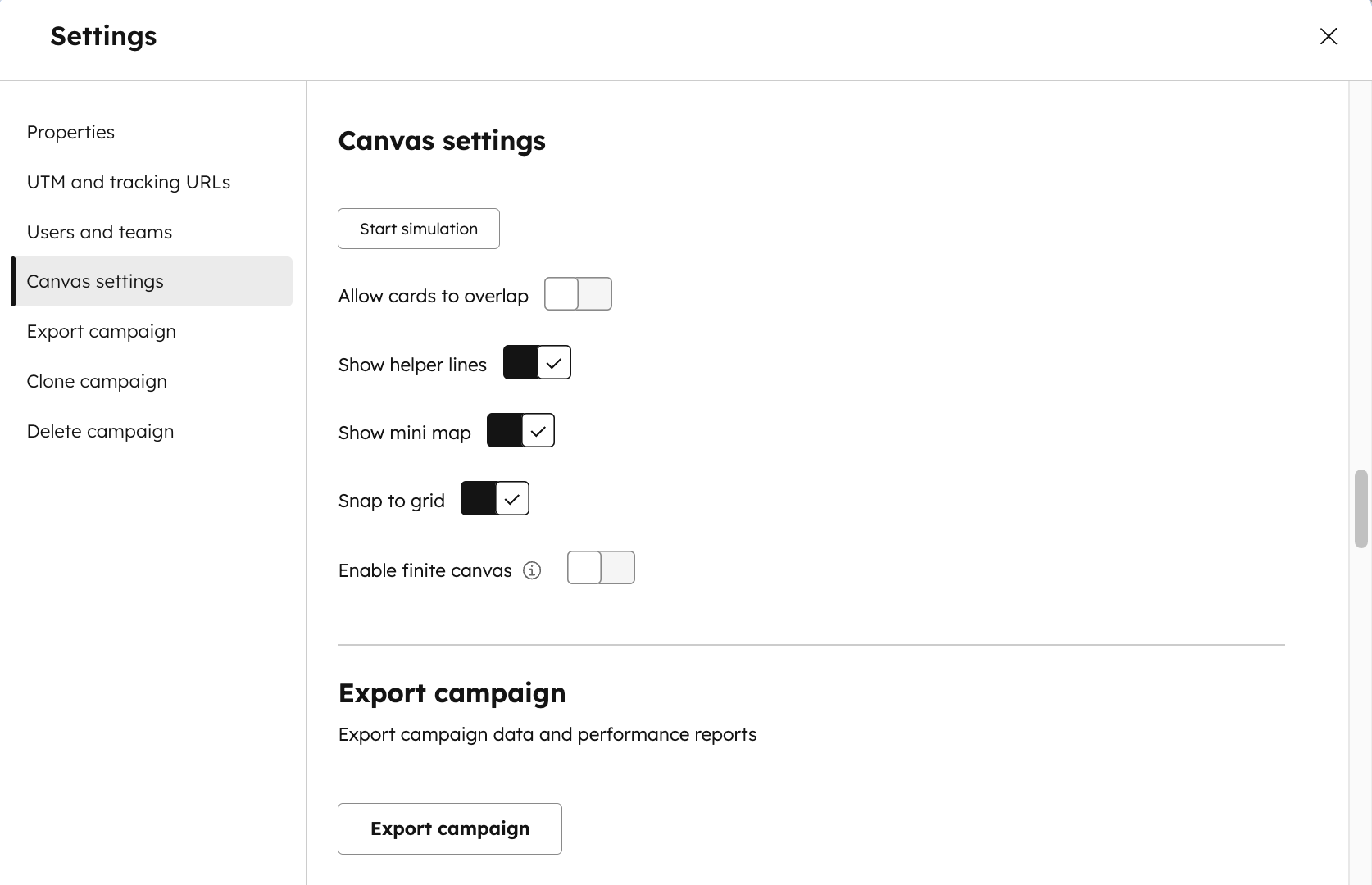
- Configure the following canvas settings:
- Allow cards to overlap: allow content cards to overlap when arranging your campaign content types.
- Show helper lines: helper lines will appear when arranging the content cards.
- Show mini map: a minimap will appear in the bottom right of the canvas view
- Snap to grid: automatically align content cards to a grid.
- Enable finite canvas: automatically move cards closer together, when placed too far away on the canvas. Turning this on will move any outlier cards to the closest card on the canvas.
- To preview the settings on the canvas view, click Start simulation. To exist the stimulation, in the top left, click Exist simulation view.
Export, clone, or delete your campaign from your campaign settings
- In your HubSpot account, navigate to Marketing > Marketing Studio.
- At the top, click the Manage tab. In the table, select an existing campaign. Alternatively, create a new campaign.
- In the left sidebar menu, click the settings icon.
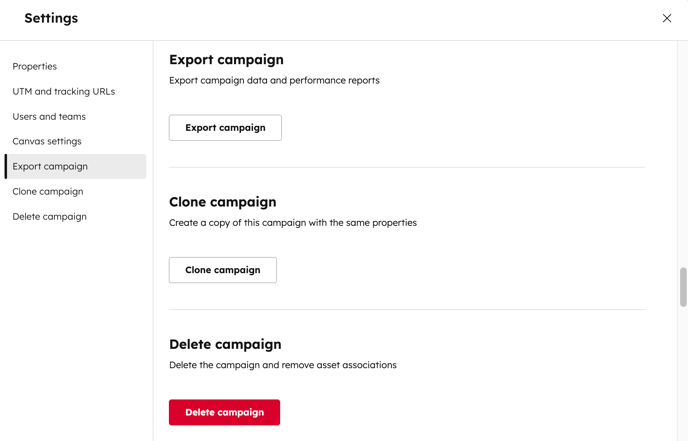
- To export a campaign, in the dialog box, navigate to Export campaign. Then, click Export campaign.
- To clone a campaign, in the dialog box, navigate to Clone campaign. Then, click Clone campaign.
- To permanently delete a campaign, in the dialog box, navigate to Delete campaign. Then, click Delete campaign. Deleted campaigns cannot be restored.