Last updated: September 11, 2026
Available with any of the following subscriptions, except where noted:

Customize the layout of your form fields to control how your form appears and functions for visitors. You can adjust field placement and group related fields to create a more organized form experience. For example, you can group contact details together or reorder fields to match the flow of your conversion process.
This article covers how to customize the layout of form fields using the updated form editor. If you're using the legacy form editor, learn how to customize the layout of your form fields with legacy forms.
Permissions required Edit forms permissions are required to create or edit a form.
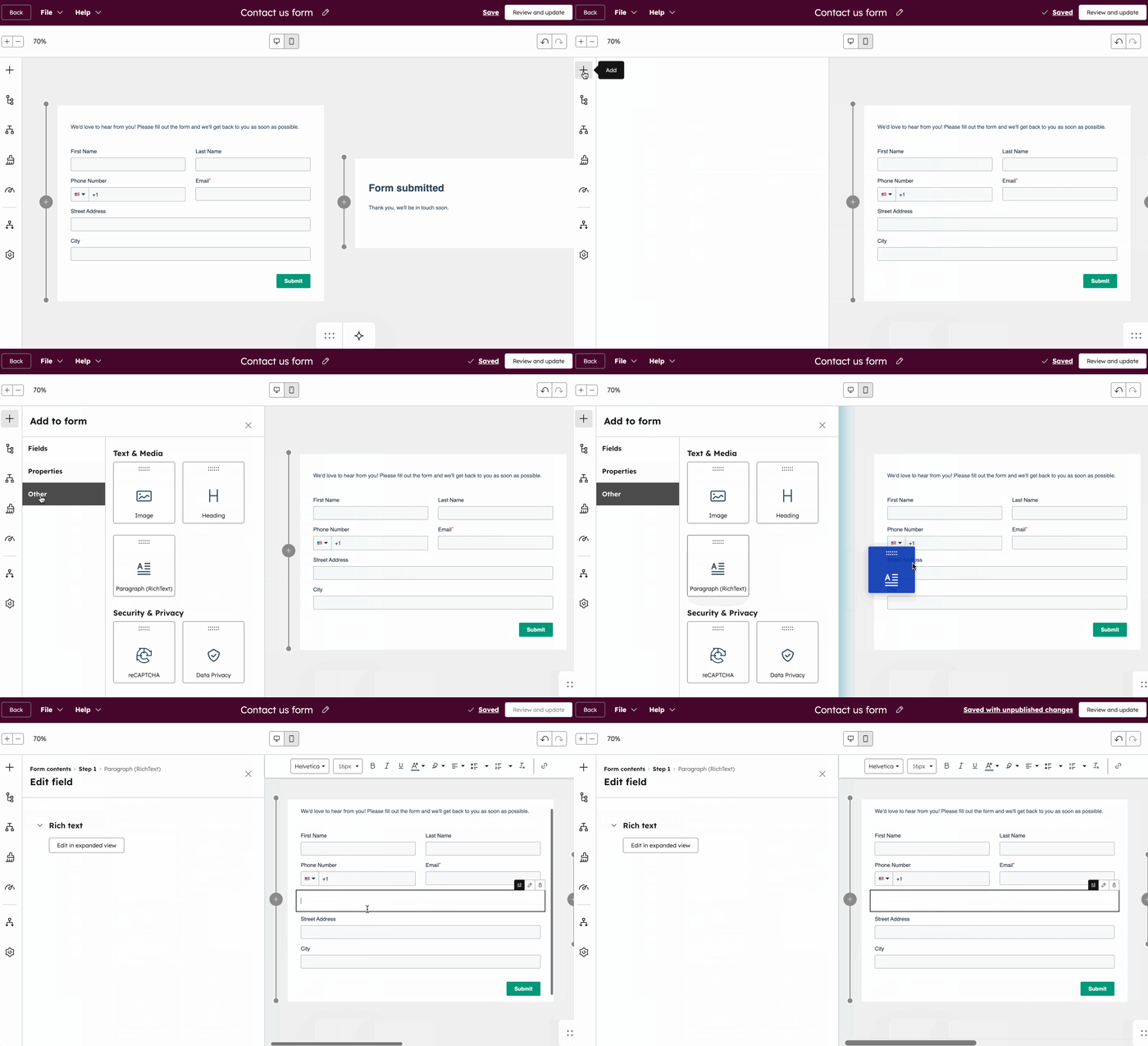
Add content between form fields
Form fields and additional form elements can be placed above, below, or next to other fields.
- In your HubSpot account, click More, then navigate to Marketing > Forms. If More doesn't appear in your account, navigate to Marketing > Forms directly.
- Hover over your form and click Edit, or create a new form.
- In the top left, click the add icon.
- In the left panel, click Fields, Properties or Other.
- Click and drag the field onto the form preview on the right to include it on your form.
- In the top right, click Update or Publish to save your form updates.
Change the order of options in a form field
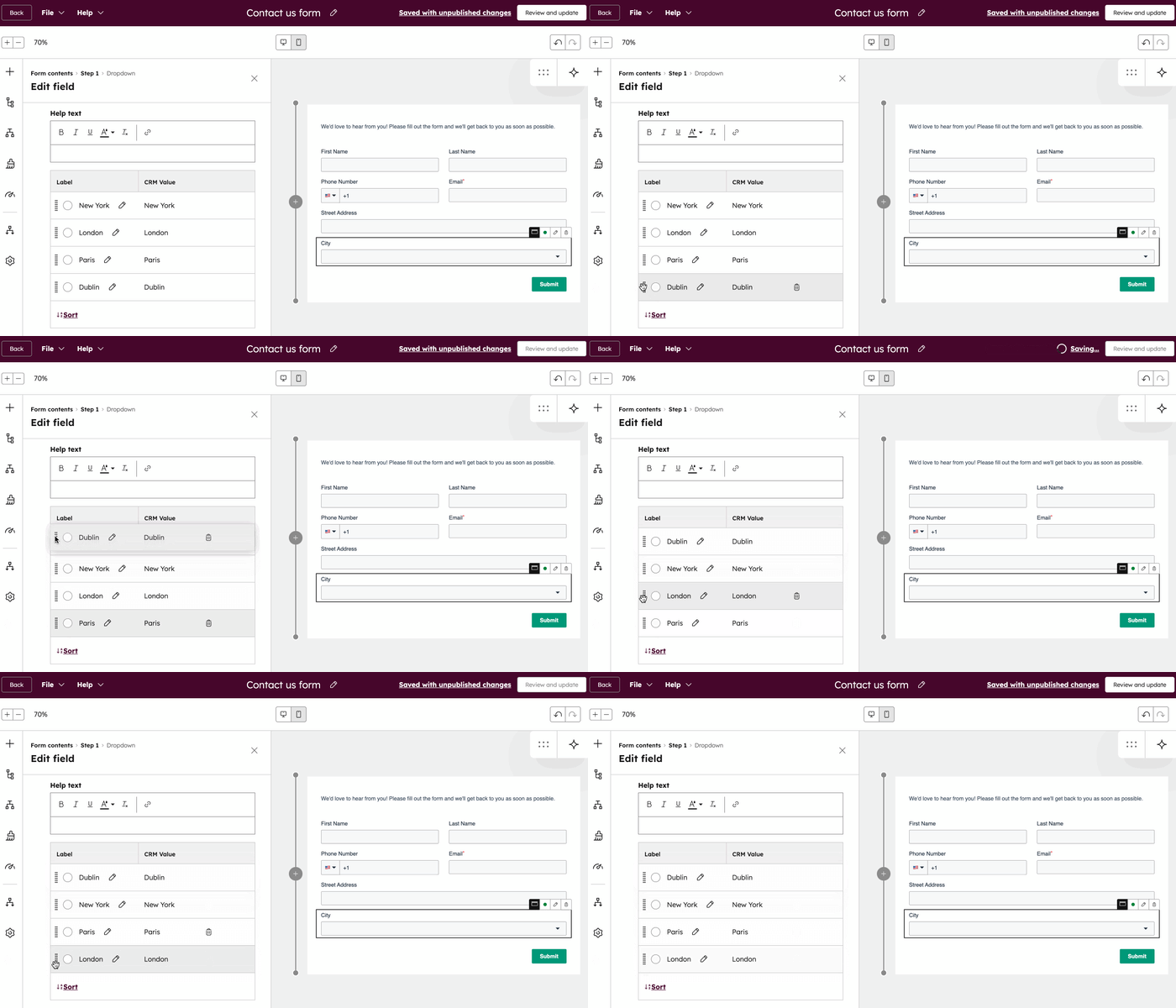
If you're using a form field with multiple options, like a dropdown select property, you can reorder the options. Learn more about available choosing options.
- In your HubSpot account, click More, then navigate to Marketing > Forms. If More doesn't appear in your account, navigate to Marketing > Forms directly.
- Hover over your form and click Edit, or create a new form.
- In the right panel, click the field to change the order of its options.
- In the left panel, under the Field options section, click the dotted lines to the left of a field option, then click and drag the option to the desired position.
- To sort the options alphabetically, click Sort.
- In the top right, click Review and update to publish your form updates.
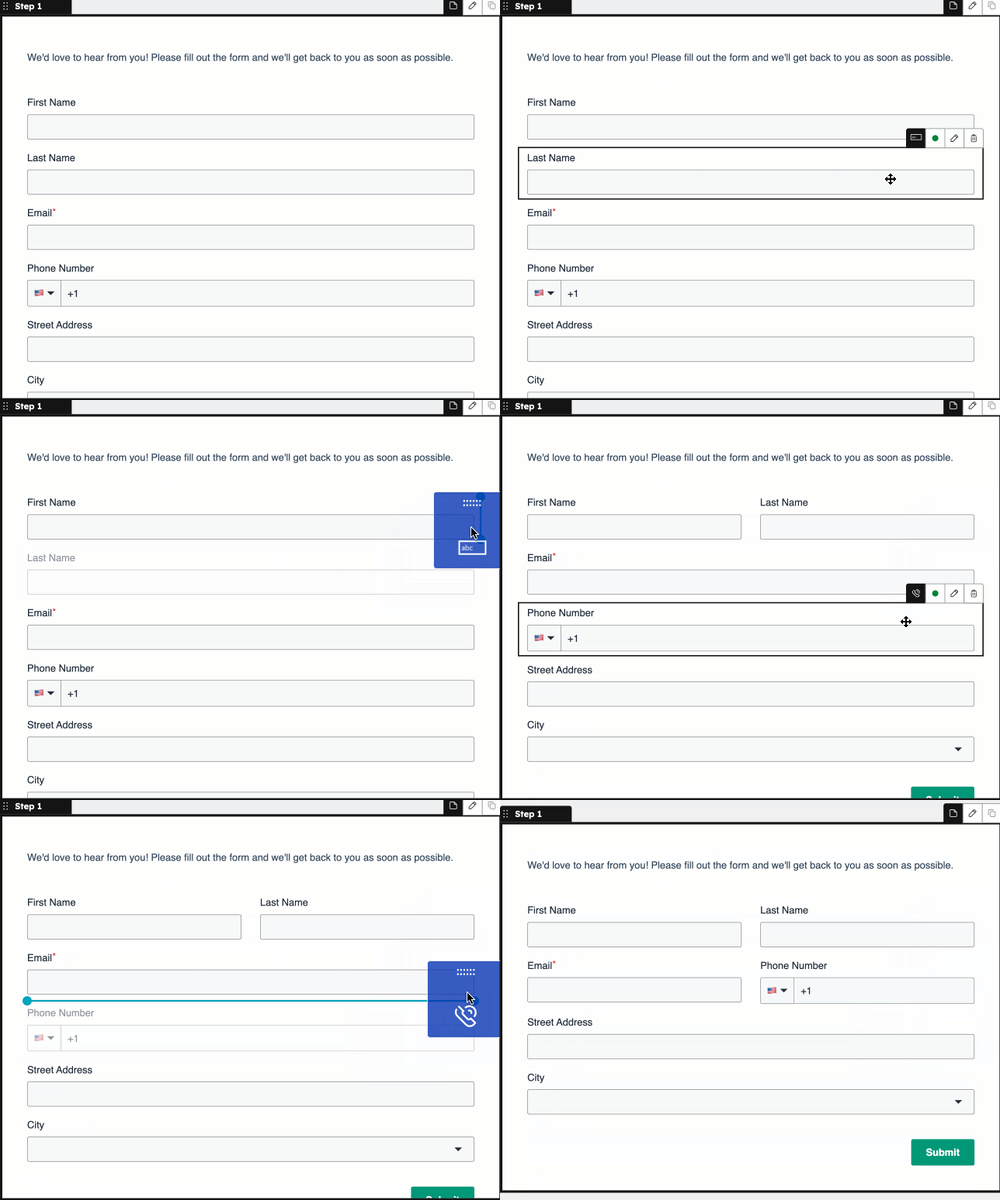
Arrange form fields side by side
You can place a maximum of three fields side by side in a form.
- In your HubSpot account, click More, then navigate to Marketing > Forms. If More doesn't appear in your account, navigate to Marketing > Forms directly.
- Hover over your form and click Edit, or create a new form.
- Click and drag the form field to see placement options.
- To place it next to a field on a line, drag it to one of the available spaces on that line.
- In the top right, click Review and update to publish your form updates.