Last updated: July 28, 2026
Available with any of the following subscriptions, except where noted:

A non-HubSpot form is automatically named based on its CSS selector. Identifying the CSS selector can help you match a non-HubSpot form to the corresponding form on your external page. For example, if multiple non-HubSpot forms are listed in your account, you can use the CSS selector to determine which external form is connected.
To identify the CSS selector of a non-HubSpot form:
- In your Chrome browser, navigate to the page with your external form.
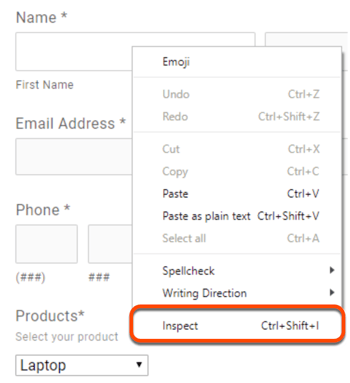
- Right-click the first field in your external form and select Inspect.
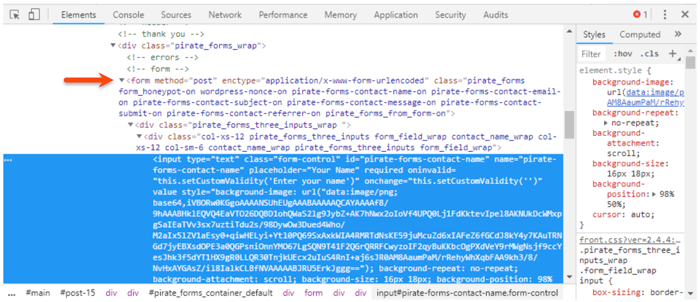
- In Chrome DevTools, on the Elements tab, locate the highlighted code for the form field.
- Above the highlighted code, locate the
<form>tag. The tag will include ID or class attributes.- ID attributes: prefaced by a
#symbol. For example, if the<form>tag includesid="form-id", the corresponding non-HubSpot form's default name should include #form-id. - Class attributes: prefaced by a
.symbol. For example, if the<form>tag includesclass="form-class", the corresponding non-HubSpot form's default name should include .form-class.
- ID attributes: prefaced by a