
Last updated: December 8, 2025
Available with any of the following subscriptions, except where noted:
-
 Marketing Hub
Professional, Enterprise
Marketing Hub
Professional, Enterprise
-
 Content Hub
Professional, Enterprise
Content Hub
Professional, Enterprise
After creating your form, you can use conditional logic to redirect visitors to a HubSpot page, external URL, or payment link based on their responses. Users in a Sales Hub Enterprise or Service Hub Enterprise account can redirect forms to a meeting link on a scheduling page.
For each form, you can add up to 30 rules with 10 conditions per rule.
Please note: redirecting forms based on Sensitive Data fields is not supported.
Redirect visitors to specific content based on form responses
- In your HubSpot account, navigate to Marketing > Forms.
- Create a new form or hover over an existing form and click Edit.
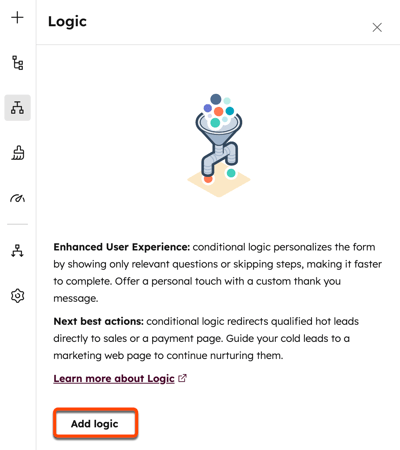
- In the top left, click the logic icon.
- In the left panel, click Add logic.
- In the Rule section, under If field, configure your conditional logic rules. For example, if you filter by City and select is any of Dublin, the rule will only apply to visitors who enter Dublin into the form field.
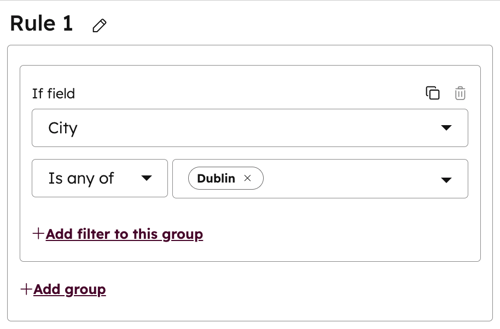
- To delete a filter, click the icon.
- To clone a filter, click the icon.
- To add additional filters to the rule, click filter to this group.
- To add an additional group to the rule, click group.
- If you’ve added multiple filters or groups to the rule, click the AND OR dropdown menu between the filters and groups to apply AND or OR logic:
- AND: All filters in the rule must be true for the rule to be triggered.
- OR: Only one filter in the group must be true for the rule to be triggered. Learn more about AND or OR logic.
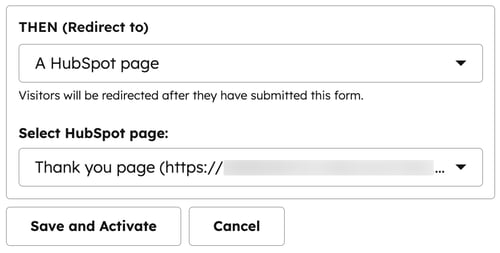
- In the Then section, click the dropdown menu and select the content to redirect visitors to:
- HubSpot page: select a HubSpot page. Any visitor that meets the above conditions will be redirected to this page.
- External URL: enter an External URL. Any visitor that meets the above conditions will be redirected to this URL.
- Meeting link (Sales Hub or Service Hub Enterprise only): select a meeting link. Visitors who meet the conditions will be redirected to this page, and the submitted form fields will be automatically populated.
- Payment link: select a payment link. Any visitor that meets the specified conditions will be sent to the payment checkout page.
- If the option to add a payment link isn't available in your form, learn how to opt in to the Payments in the new Forms Editor beta.
- To apply the conditional logic, Click Save and Activate.
- In the top right, click Review and update to publish your form updates.
Learn more about creating and editing forms in HubSpot.
