
Last updated: April 23, 2026
Available with any of the following subscriptions, except where noted:

-
 Additional subscriptions required for certain features
The intelligence tab displays data provided by Breeze, HubSpot's collection of AI tools, on contacts and companies. View data enrichment and website visit-based data insights for companies. For contacts, view data enrichment, associated company details, and contact outreach data. This tab allows you to inform key account-based qualification, routing, prospecting, and outreach decisions.
If you're looking to view traffic analytics for your entire site, learn more about the web analytics tool.
Before you get started
If you're a user in an account with free tools, you can review information about the company including: description, industry, country, employees, founded year.
Subscription required A Starter, Professional , or Enterprise subscription is required to enrich records.
Permissions required Super Admin or Data enrichment access permissions are is required to enrich records.
Use the intelligence tab
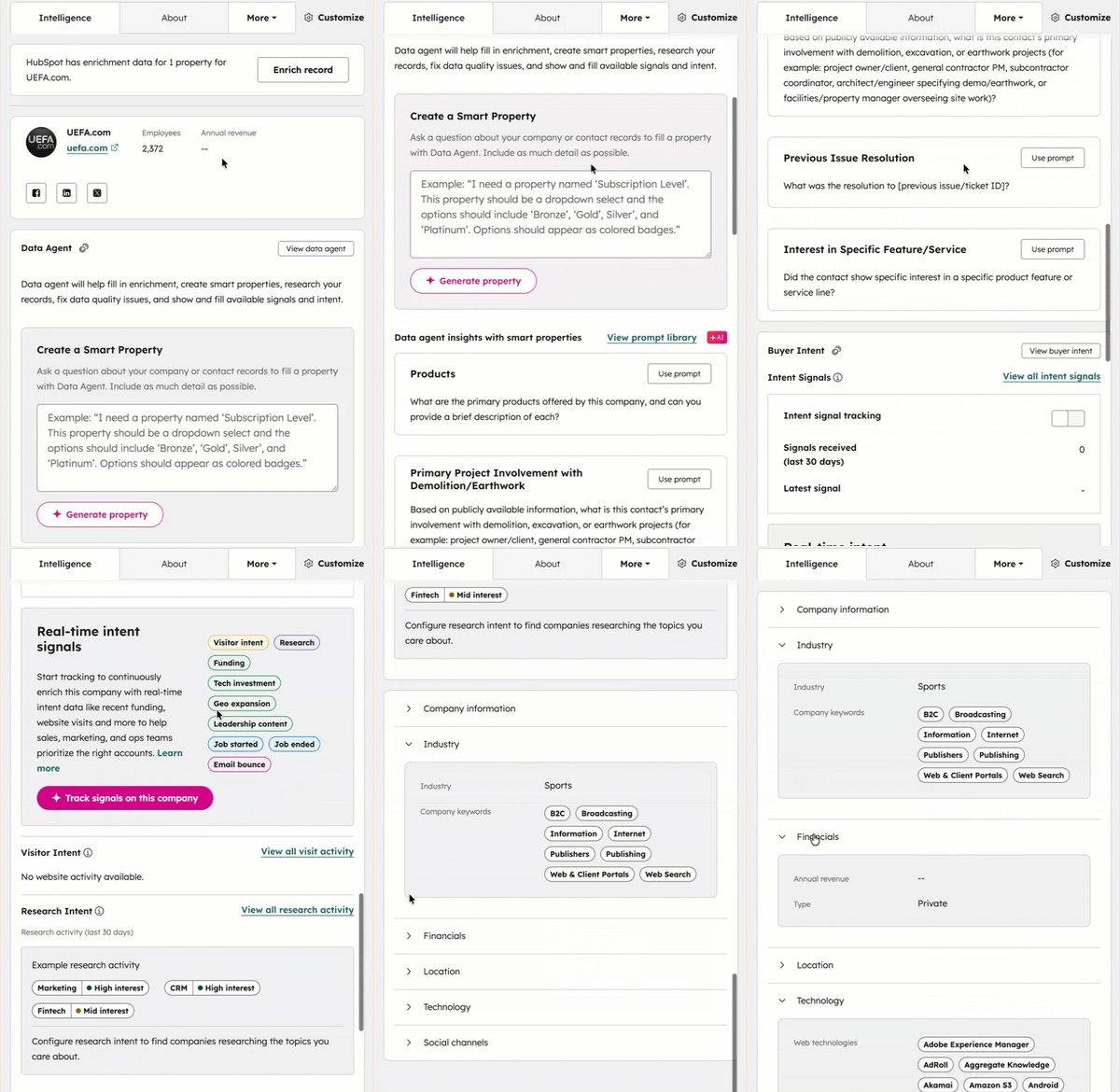
View enrichment data and manually enrich your records in the Intelligence tab. Learn more about the available enrichment properties.
To navigate to the Intelligence tab:
- Navigate to your contacts or companies.
- Click the name of the record you’d like to enrich.
- In the middle column, click the Intelligence tab.
Please note: if you don't see the Intelligence tab, you can reset the default contact or company view back to default settings from the record editor.
Update your data
If any contact or company properties are incorrect or missing, there'll be an enrichment prompt at the top of the Intelligence tab. When enriching your data, current property values will be populated or overwritten.
To update your data:
- Navigate to your contacts or companies (e.g., In your HubSpot account, navigate to CRM > Companies.).
- Click the name of the record you’d like enrich.
- In the middle column, click the Intelligence tab.
- If new data is available, click Enrich record. If your data is up to date, no action is needed and the Enrich record button won't be available.
- In the right panel, review the properties you want to enrich. By default, all properties will be selected. If you’d like to retain any of your current property values, click the property checkbox to de-select properties you don’t want to enrich.
- Click Enrich.
Review visitor activity on companies
You can view information about the company visiting your website in the last 30 rolling days.
- In your HubSpot account, navigate to CRM > Companies.
- Click the name of the company to review.
- In the middle column, click the Intelligence tab.
- In the Visitor activity table, you can review:
- Website visits: the total number of times people from the company have visited your website. The arrow and percentage show if visits have changed month over month. Learn more about analyzing traffic for your entire website.
- Line graph: shows the number of visits over the last 30 days.
- Unique visitors: total number of unique visitors to your website from the company.
- Last seen: when someone from the company last visited your site.
- Top pages & paths: website pages most frequently visited by people from the company. This includes the total number of visits to each page.
Review business profile details on companies
Subscription required A Starter, Professional, or Enterprise subscription is required to review key company information.
To review key metrics and business profile information on the Intelligence tab:
- In your HubSpot account, navigate to CRM > Companies.
- Click the name of the company to review.
- In the middle column, click the Intelligence tab.
- Review key information about the company, including:
- Employees: the total number of employees.
- Type: indicates if it is a public or private company.
- Annual revenue: the total amount of money earned by the company over a 12-month period.
- Below, you can also review basic information about the company such as address, industry, description, and company keywords.
- To review additional information about the company’s general information, industry, financials, location, tech, and social channels, click the relevant title to expand each section.
- Review key information about the company, including:
