
Last updated: March 31, 2026
Available with any of the following subscriptions, except where noted:
-
 Marketing Hub
Professional, Enterprise
Marketing Hub
Professional, Enterprise
-
 Content Hub
Professional, Enterprise
Content Hub
Professional, Enterprise
Create content variants to personalize content for different audience. Variants can be created in the personalization tool or directly within editors, allowing you to manage personalized content while editing pages or CTAs.
Please note: you can manage AI feature access in your AI settings and configure what data is shared. Review HubSpot's AI Trust FAQs and AI Model Cards for detailed information on AI security controls, data use, and compliance.
Before you get started
Before you begin working with this feature, make sure to fully understand what steps should be taken ahead of time, as well as the limitations of the feature and potential consequences of using it.
Subscription required The following subscriptions are required:
- A Marketing Hub Professional or Enterprise subscription is required to manage content variants in the personalization tool.
- A Content Hub Professional or Enterprise subscription is required to personalize pages and CTAs.
Permissions required The following permissions are required depending on the content type of the content variant you are editing or publishing:
- Edit and Publish permission is required to edit and publish pages.
- Edit and Publish permission is required to edit and publish CTAs.
Understand limitations & considerations
- Up to 10 content variants can be created within a personalization using an existing marketing asset.
Create content variants
Create content variants by starting from an existing marketing asset and tailoring the content for specific audience segments.
- In your HubSpot account, navigate to Marketing > Personalization.
- On the Manage tab, click Create variant.
- In the right panel, select the content type (e.g., CTA).
- Click Next.
- Click Create manually or Create with AI.
- Click the Existing [content type] dropdown menu and select an existing asset.
- Click the Segment type dropdown menu and select the segment type (e.g., Contact list).
- Click the Segment dropdown menu and select an existing segment.
- If you chose to Create with AI there will be additional required fields:
- Enter a prompt to describe the content changes you'd like to include for the generated content variant in the Prompt field.
- Click the Image generation dropdown menu and select Generate images with AI or Use images from the default asset.
- Enter a name for the content variant in the Personalized content name field.
- When finished, click Create or Generate.
Create additional content variants
Create additional content variants within a personalization, using an existing marketing asset. For example, if you chose a CTA as your marketing asset, create a different variant for each of your segments.
- In your HubSpot account, navigate to Marketing > Personalization.
- On the Manage tab, click the content type in the left menu (e.g., Website pages).
- Click the name of a personalization.
- Click Add variant in the top right of the personalization tool.
- Repeat the steps until you have the desired amount of content variants or reach the limit.
Edit content variants
Edit content variants to update their priority, associated segments, or underlying content. Content edits are made in the editor that corresponds to the asset type, such as the content editor.
- In your HubSpot account, navigate to Marketing > Personalization.
- On the Manage tab, click the content type in the left menu (e.g., Landing pages).
- Click the name of a personalization.
- To change the priority of a content variant, click Prioritize in the top right of the personalization tool.
- In the right panel, drag the content variant towards the top or bottom to set the priority.
- When finished, click Save.
- To edit the content of a variant, click Edit on the content variant card.
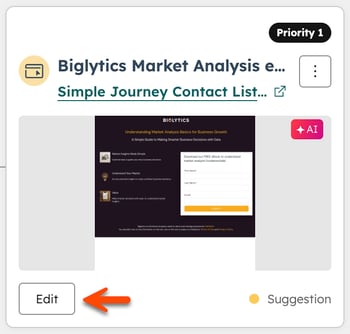
- To preview the content variant, click the menu icon and select Preview. In the preview, click the Choose a contact to preview dropdown menu and select a contact. The tool will decide the variant the contact qualifies for based on your segment rules.
- To change the segment of a content variant, click the menu icon and select Change segment.
- In the dialog box, select the segment type in the Segment type dropdown menu.
- In the Segment dropdown menu, select the segment.
- When finished, click Save.
- To delete a content variant, click the menu icon and select Delete. In the dialog box, click Delete to confirm. If you delete a content variant and it's the only variant in the personalization, the personalization will be deleted.
Publish content variants
- In your HubSpot account, navigate to Marketing > Personalization.
- On the Manage tab, click the content type in the left menu (e.g., Landing pages).
- Click the name of a personalization.
- Click Edit below the preview image of the content variant.
- In the content editor, click the variant control dropdown menu on the top left to toggle between the different variants.
- When finished, click Publish in the top right.
