
Last updated: June 30, 2026
Available with any of the following subscriptions, except where noted:
-
 Marketing Hub
Professional, Enterprise
Marketing Hub
Professional, Enterprise
-
 Content Hub
Professional, Enterprise
Content Hub
Professional, Enterprise
Create content variants to personalize content for different audiences. Variants can be created in the personalization tool or directly within asset editors (BETA). This helps you to manage personalized content while editing pages or CTAs.
Please note: you can manage AI feature access in your AI settings and configure what data is shared. Review HubSpot's AI Trust FAQs and AI Model Cards for detailed information on AI security controls, data use, and compliance.
Before you get started
Before you create content variants from editors, review the requirements and considerations.
Subscription required The following subscriptions are required:
- A Marketing Hub Professional or Enterprise subscription is required to manage content variants in the personalization tool.
- A Content Hub Professional or Enterprise subscription is required to personalize pages and CTAs.
Permissions required The following permissions are required depending on the content type of the content variant you are editing or publishing:
- Edit and Publish permission is required to edit and publish pages.
- Edit and Publish permission is required to edit and publish CTAs.
Understand limitations & considerations
- Up to 10 content variants can be created within a personalization using an existing marketing asset.
Create a variant for a page
- Navigate to your content:
- In your HubSpot account, click More, then navigate to Content > Website Pages. If More doesn't appear in your account, navigate to Content > Website Pages directly.
- In your HubSpot account, click More, then navigate to Content > Landing Pages. If More doesn't appear in your account, navigate to Content > Landing Pages directly.
- Click the name of a page.
- In the content editor, click the File dropdown menu, click New, and select Personalized variant.
- In the right panel, click Create manually or Create with AI.
- Enter a name for the personalization in the Personalized content name field.
- Click the Segment type dropdown menu and select a segment type.
- Click the Segment dropdown menu and select a segment.
- If you chose to Create with AI there will be additional required fields:
- Enter a prompt to describe the content changes you'd like to include for the generated content variant in the Prompt field.
- Click the Image generation dropdown menu and select Generate images with AI or Use images from the default asset.
- Click Create.
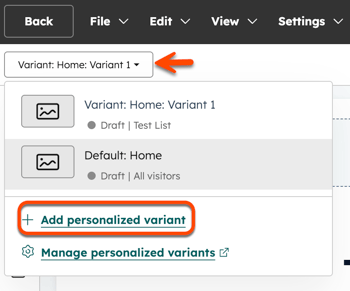
- In the content editor, to switch between variants, click the Variant dropdown menu, and select the variant.
- To add a new variant, click the Variant dropdown menu and select + Add personalized variant.
- Continue to customize the page.
- When finished, click Publish in the top right.
Create a variant for a CTA
- In your HubSpot account, click More, then navigate to Marketing > CTAs. If More doesn't appear in your account, navigate to Marketing > CTAs directly.
- Click the name of a CTA.
- In the editor, click New personalized variant on the top left.
- In the right panel, click Create manually or Create with AI.
- Enter a name for the personalization in the Personalized content name field.
- Click the Segment type dropdown menu and select a segment type.
- Click the Segment dropdown menu and select a segment.
- If you chose to Create with AI there will be additional required fields:
- Enter a prompt to describe the content changes you'd like to include for the generated content variant in the Prompt field.
- Click the Image generation dropdown menu and select Generate images with AI or Use images from the default asset.
- Click Create.
- In the editor, to switch between variants, click the Variant dropdown menu, and select the variant.
- To add a new variant, click the Variant dropdown menu and select + Add personalized variant.
- Continue to customize the CTA.
- When finished, click Review and Publish in the top right.
