
Last updated: May 19, 2026
Available with any of the following subscriptions, except where noted:

Blog authors represent the users credited on blog posts. Each author has a profile containing information, such as their display name, bio, and avatar. HubSpot automatically generates an author page for each blog that includes all posts attributed to the author. These pages have a title of [Blog name] | [Author name] and a meta description of the author's bio.
Before you get started
Before you manage blog authors, review the requirements and considerations.
Permissions required Marketing Access with Edit and Publish permission are required to manage blog authors.
Understand limitations & considerations
- If you're creating blog content in multiple languages, learn more about creating language variations for blog authors.
- Each blog post can have up to five blog authors.
Create a blog author
Create a new blog author by entering required information, including the name, internal name, and author slug. Additional optional details can be added to complete the author's profile.
- In your HubSpot account, navigate to Content > Blog.
- Click the Configure dropdown menu and select Authors in the top right.
- On the Blog authors page, click Add new author on the top right.
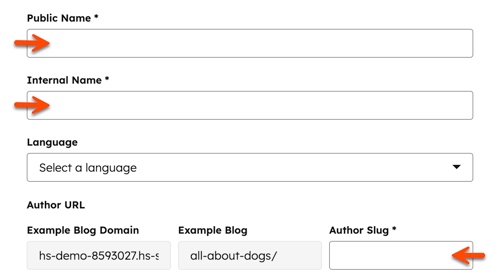
- In the right panel, enter the required author information:
- Public Name: the author name that appears on live blog posts.
- Internal Name: the author name that appears in the Authors dashboard in the blog tool.
- Author Slug: the unique string of the author URL. The rest of the URL pulls from the blogs where the author appears.
- Enter optional author information:
- Language: the primary language of the author's content. Only authors writing multi-language blog content need a value for this field.
- Email address: the author's email address.
- Author avatar: an image of the author. You can use the author's HubSpot profile avatar or add a custom avatar image from the files tool.
- Author bio: a description of the author.
- Website: the author's personal website.
- Facebook/X/LinkedIn: the author's social media profiles.
- When you've finished adding the author details, click Create author.
Edit a blog author's profile
Edit existing blog author profiles, including changes to names, avatar images, bio, language, or other optional profile information.
- In your HubSpot account, navigate to Content > Blog.
- Click the Configure dropdown menu and select Authors on the top right.
- To filter by blog, click the All blogs dropdown menu and select a blog.
- To filter by author, click the All authors dropdown menu and select Active or Inactive.
- Hover over an author and click Edit full profile.
- In the right panel, update the author's profile information. Then click Update blog author to take the changes live.
Add blog authors to a post
Blog authors are assigned to a blog post from the post's settings. Selecting authors determine whose names appear on the published post and which author pages the post is listed on.
- In your HubSpot account, navigate to Content > Blog.
- Click the name of the blog post.
- In the content editor, click Settings on the top right.
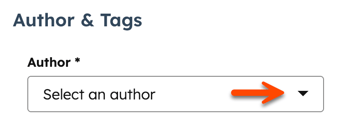
- In the Settings dialog box, click the Author dropdown menu and select the existing authors. To create a new author, click Create a new author.
- Click X to hide the dialog box.
- When finished, click Publish or Update in the top right to take your changes live.
Delete a blog author
When a blog author is deleted, their posts must be reassigned to another author. Deleting an author removes their profile and updates author attribution on all affected blog posts.
- In your HubSpot account, navigate to Content > Blog.
- Click the Configure dropdown menu and select Authors on the top right.
- On the Blog author page, hover over the author, and click the More dropdown menu. Then select Delete.
- In the dialog box, click the Reassign blog posts to dropdown menu and select an author to reassign the blog posts. If the deleted author has no live posts, this option won't appear.
- Enter delete to confirm you want to delete this author.
- Click Delete author.
