Last updated: September 22, 2026
Available with any of the following subscriptions, except where noted:

Set and change the publish date of an unpublished or published blog post in the Publishing Options dropdown menu of the content editor.
Before you get started
Before you set a blog post's publish date and time, review these requirements and considerations.
Permissions required Edit and Publish permission is required to set a blog post's publish date and time.
Understand limitations & considerations
- Changing a post's publish date may cause external RSS emails to include the post because the blog's RSS feed will be changed.
- Changing a blog post's publish date to a date in the past won't trigger a duplicate blog subscription email or automated social post.
- New blog posts with a publish date in the past won't trigger blog subscription emails or automated social posts.
- New blog posts with a publish date in the future won't appear live or trigger blog notification emails until that date.
Set the publish date for an unpublished post
Publish a new blog post with a publish date in the past, or schedule it to be published on a future date.
- In your HubSpot account, click More, then navigate to Content > Blog. If More doesn't appear in your account, navigate to Content > Blog directly.
- Click the name of a blog post.
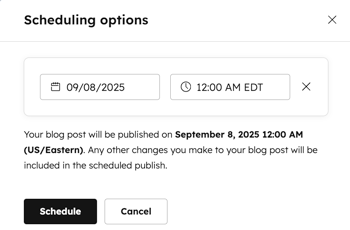
- In the content editor, click the dropdown menu next to Publish in the top right and select Scheduling options.
- In dialog box, click Schedule publish.
- Click the date and time fields and select the date and time when your post will be published.
- When finished, click Schedule.
Set the publish date for a published post
Set the publish date of an existing live post to a date in the past. I f blog subscription emails weren't turned on in your blog settings when the post was originally published, then the post may be included in relevant weekly or monthly blog notification emails for the new publish date.- In your HubSpot account, click More, then navigate to Content > Blog. If More doesn't appear in your account, navigate to Content > Blog directly.
- Click the name of a blog post.
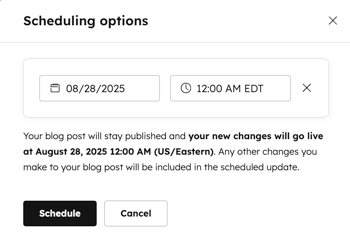
- In the content editor, click the dropdown menu next to Update in the top right and select Scheduling options.
- In the dialog box, click Schedule update.
- Click the date and time fields and select the date and time when your post will be published.
- When finished, click Schedule.