Last updated: January 5, 2026
Available with any of the following subscriptions, except where noted:
-
 Marketing Hub
Professional, Enterprise
Marketing Hub
Professional, Enterprise
-
 Content Hub
Professional, Enterprise
Content Hub
Professional, Enterprise
Add smart content to your calls-to-action (CTA) to display different versions of your CTA based on viewer category. For example, you can display text on your CTAs for visitors from a specific country or contact lifecycle stage.
Please note: smart content in a CTA that has been added to a marketing email is not currently supported.
- In your HubSpot account, navigate to Marketing > CTAs.
- In the top right, click Create.
- You can use smart content when creating a new CTA from scratch or from a template:
- To create a new CTA from a template, in the left panel, click HubSpot Templates. Then, select a template that matches your goals.
- To create a new CTA from scratch, in the left panel, click Start from scratch. Then, select a CTA type.
- In the left panel, from the Add tab, click and drag a new element directly into the right panel of the editor. Or, click an existing element on your CTA.
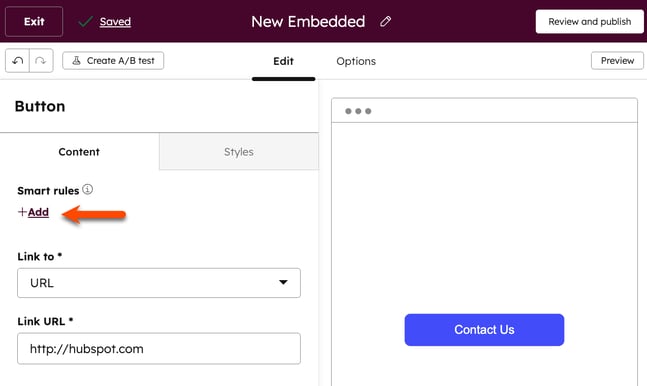
- In the Smart rules section, click + Add.
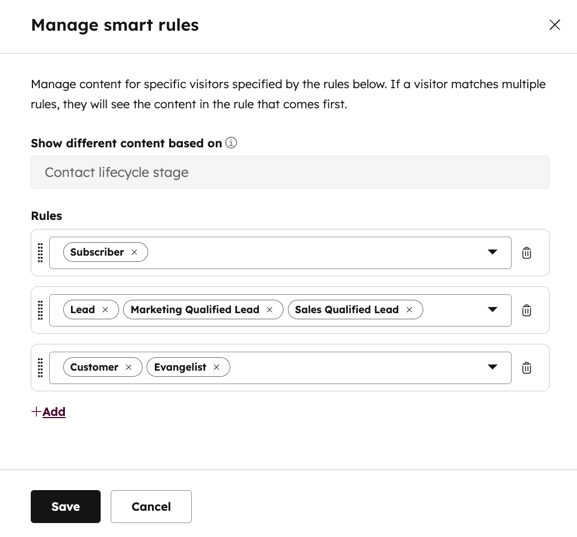
- In the right panel, click the Show different content based on dropdown menu and select a category. Learn more about smart rule categories.
- Under the rules section, add and manage your smart rules:
- To add a new smart rule in the same category, click + Add. Then, click the dropdown menu and select a rule.
- To delete the rule, click the delete icon to the right of the rule.
- After setting up your smart category and rules, at the bottom, click Save.
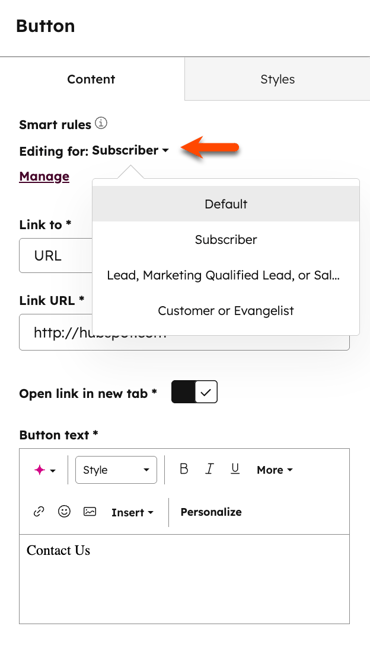
- In the left panel, click the Editing for dropdown menu to switch between default content and smart content for each rule.
- To add new rules or edit existing rules, click Manage.
- Continue setting up your CTA.