
Last updated: April 21, 2026
Available with any of the following subscriptions, except where noted:

You can tailor the subject lines of marketing emails to your recipients by using personalization tokens and emojis. This can increase open and click rates by drawing attention to your emails in recipients' inboxes.
Add personalization tokens to email subject lines
- In your HubSpot account, navigate to Marketing > Email.
- Click the name of an email draft, or click Create email.
- In the email editor, click the inbox content module at the top of the page.
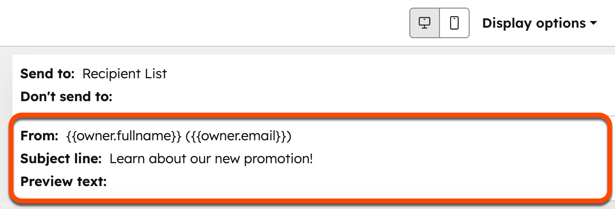
- In the Subject line field, click Personalize.
- In the dialog box, click the Type dropdown menu and select a token type.
- Click the Property dropdown menu and select a property.
- Enter a fallback value that will display if there isn't a value for this property, then click Insert.
Add emojis to email subject lines
- In your HubSpot account, navigate to Marketing > Email.
- Click the name of an email draft, or click Create email.
- In the email editor, click the inbox content module at the top of the page.
- In the Subject line field, click the emoji icon, then click an emoji.
