
Last updated: March 26, 2026
Available with any of the following subscriptions, except where noted:
- Brands Add-On
-
 Marketing Hub
Enterprise
Marketing Hub
Enterprise
Setting an email frequency safeguard lets you set a maximum number of marketing emails each contact can receive in a given period. This helps prevent contacts unsubscribing because they receive emails too frequently.
If you have multiple brands in your account, you can set separate email frequency safeguards for each of them when you opt into the beta for email frequency by brand.
Set up email frequency safeguards for separate brands
- In your HubSpot account, click the settings icon in the top navigation bar.
- In the left sidebar menu, navigate to Marketing > Email.
- Click the Send Frequency tab.
- In the Choose how a frequency cap should apply to your brands section, select Per Brand,
- Next to a brand, click Set in the Actions column.
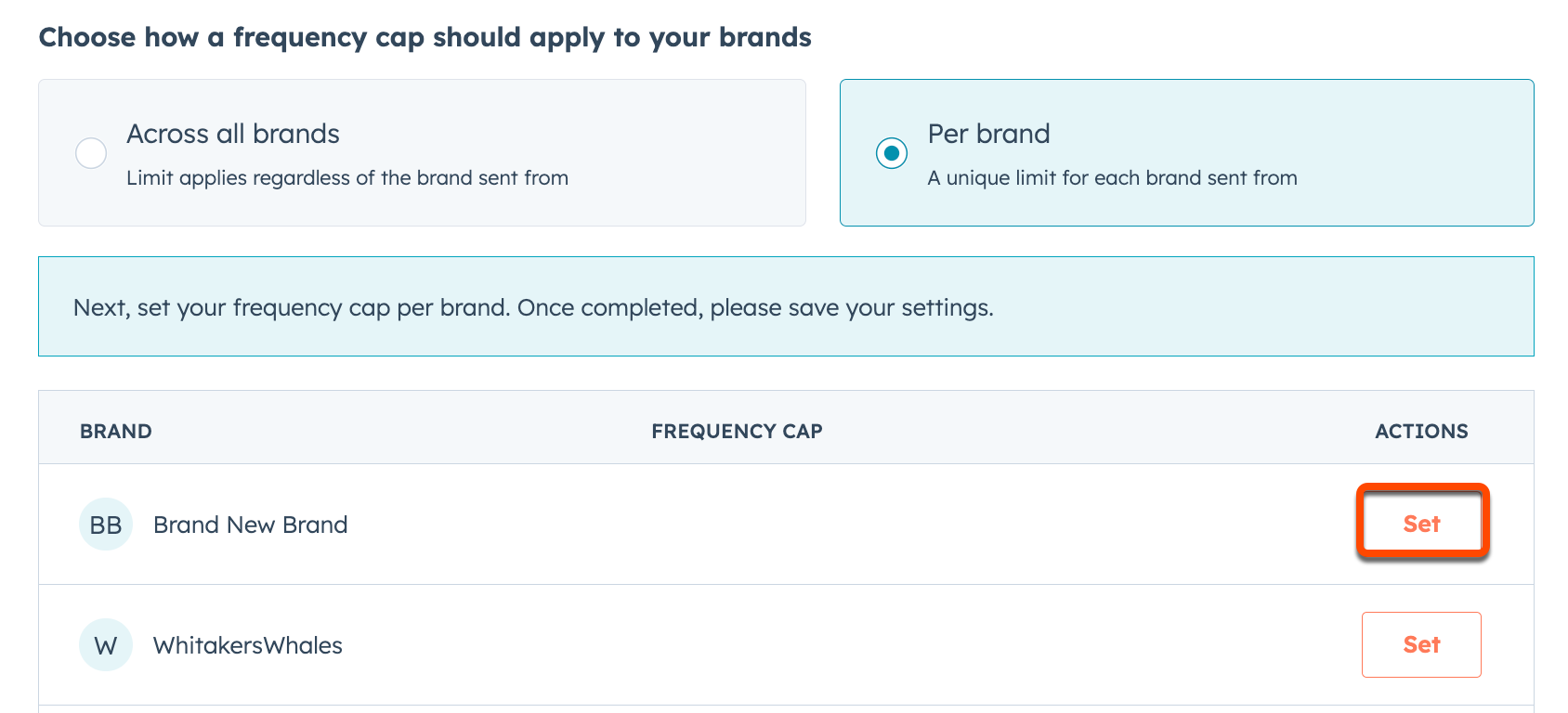
- In the right panel, select A set number of emails.
- In the Maximum number of emails per recipient section, enter the maximum number of emails a contact will receive per the frequency you set.
- In the Frequency section, select Daily, Weekly, Every two weeks, or Monthly.
- Click Update.
- In the bottom left of your settings, click Save.
- Repeat the process for each brand you want to have an email frequency safeguard.
