
Last updated: May 18, 2026
Available with any of the following subscriptions, except where noted:

-
 Additional subscriptions required for certain features
To check the performance of your overall segment strategy, review the segment analytics reports. For example, identify segments that are heavily used in workflows but have declining membership, or compare how segments overlap before setting up a campaign.
Segment analytics reports show:
-
How segments are used across your HubSpot account.
-
How contacts move through customer journeys.
-
How audiences overlap.
-
Which segments need your attention.
To review performance metrics for a single segment, learn how to analyze individual segments.
View where segments are used
You can use segments as data sources in other HubSpot tools. For example, use segments to automate actions in workflows or send marketing emails to a segment of contacts.
- In your HubSpot account, navigate to CRM > Segments.
- Navigate to the Analyze tab.
- Click the Segment type dropdown menu and select the object for which you want to analyze segments.
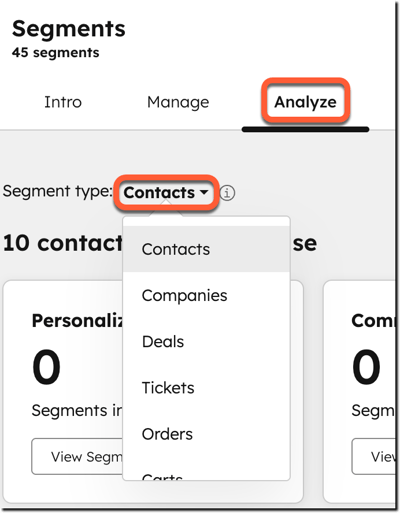
- On the [object] segments in use section, there are cards for each segment activation goal and the number of segments being used in tools related to the goal. The goals and the relevant tools are:
Goal Goal description Relevant tools where segments may be used Personalization (contacts only) Create variants of marketing assets tailored to specific segments. Ads, blogs, chatflows, CTAs, smart content, social streams. Communication (Contacts only) Reach contacts (e.g., prospects, customers) via email and SMS. Marketing emails or SMS. Automation Automate repetitive tasks and processes. Bots, health scoring, journeys, lead scoring, Salesforce inclusion lists, workflows. Analytics Use segment data to customize views, create reports, build data sets, or plan campaigns. Campaigns, datasets, marketing events, reports, index page views. Segmentation Organize and target specific records. For lookalike segments, create segments that resemble an existing audience. Segments (including lookalike segments and split segments). - To view segments used in those tools, click View segments on a card. You'll be brought to a segments view pre-filtered for Used in criteria. Learn more about filtering segments.
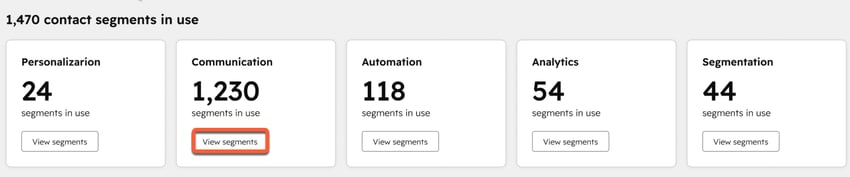
Learn more about activating segments in HubSpot tools.
Analyze customer journeys
Subscription required A Marketing Hub or Content Hub Professional or Enterprise subscription is required to use the segment journey report.
To track how contacts in segments move through steps in your customer journey, review the Segment journey report. This report is only available for contact segments.
Customer journey stages
The journey report includes counts for the following customer journey stages:
| Customer journey stage (in order) | Description |
| Visited website | The number of contacts from segments that visited a web page. |
| Submitted a form | The number of contacts from segments that submitted a form. |
| Marketing Qualified Lead | The number of contacts from segments that moved into the Marketing Qualified Lead lifecycle stage. |
| Sales Qualified Lead | The number of contacts from segments that moved into the Sales Qualified Lead lifecycle stage. |
| Deal record created | The number of deals created and associated with records in segments. |
| Closed-won deal | The number of closed-won deals associated with records in segments. |
Customer journey conversion metrics
For the full journey, the report includes the following conversation information:
| Conversion metric | Description |
| Total conversion | The percentage of contacts that made it to the end of the journey, including those that skipped stages. |
| Cumulative conversion | The percentage of contacts that completed the entire journey without skipping any stages. |
| Average time to complete journey | The average amount of time a contact took to go from the beginning to end of the journey. |
| Average time between steps | The average amount of time a contact took to move from one stage to the next. |
Analyze segment customer journeys
- In your HubSpot account, navigate to CRM > Segments.
- Navigate to the Analyze tab.
- Click the Segment type dropdown menu and select Contacts. The Segment journey report is only available for contacts.
- By default, the reports shows journey data for all contact segments. To view the journey data for specific segments, click Select segments in the top right of the report. Select up to five segments to compare their journey data.
- To view the contacts that completed a stage event (e.g., submitted a form), click the number in the stage column.
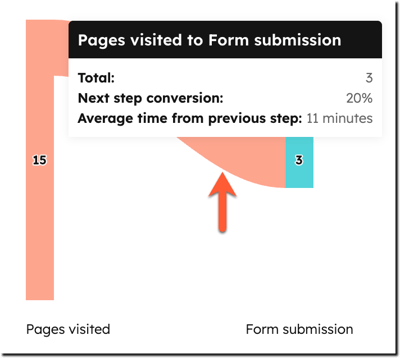
- To view data about contacts moving from one stage to the next, hover over the line between stages. In the pop-up, review the number and percentage of contacts that moved between the stages and the average time it took. To view the specific contacts, click the line.
Learn more about customer journey analytics.
Review segment overlap
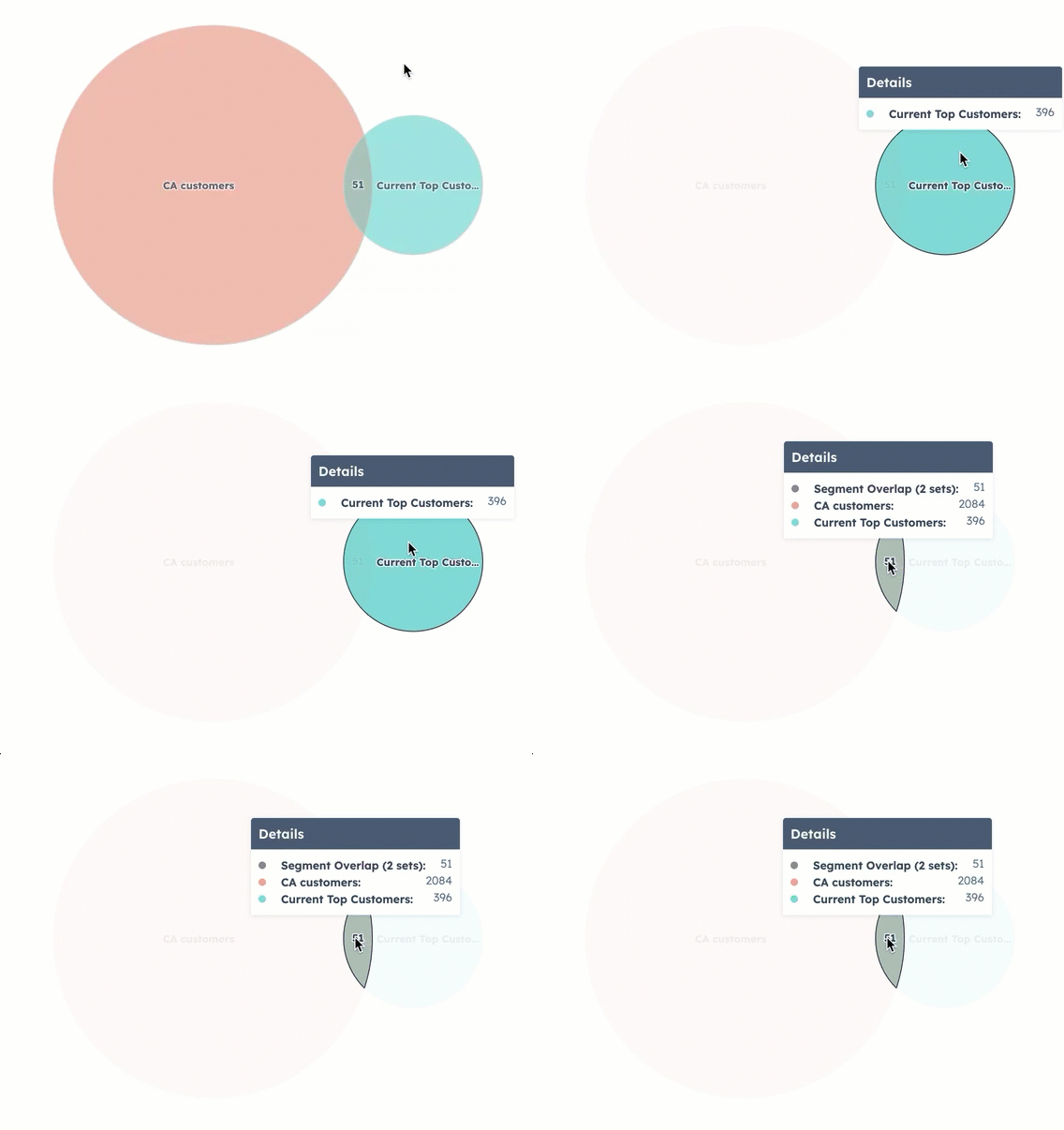
To review which contacts are included in multiple segments, use the Segment overlap report. This report is only available for contact segments.
For example, view the overlap of customers that are high-risk and have upcoming renewals.
- In your HubSpot account, navigate to CRM > Segments.
- Navigate to the Analyze tab.
- Click the Segment type dropdown menu and select Contacts. The Segment overlap report is only available for contacts.
- Click Select segments in the top right of the report, then select up to five segments to review their overlapping records.
- To view the number of records in a specific segment, hover a circle. Click the circle to view the specific records.
- To view the number of records included in multiple segments, hover over an intersection between circles. Click the intersection to view the specific overlap records.
Identify segments needing attention
The Segments that require your attention report shows segments with irregular changes in size in the last seven days.
For example, an active segment that has doubled in size in the past two days. This could indicate unexpected filter criteria in the segment or incorrect data entry for the new records.
- In your HubSpot account, navigate to CRM > Segments.
- Navigate to the Analyze tab.
- Click the Segment type dropdown menu and select the object for which you want to analyze segments.
- In the table, the segment's name, 7-day size change, type, object, and last update date are shown. You can also view the user that last updated the segment.
- To view the segment's details, click the segment name.

