
Last updated: September 21, 2026
Available with any of the following subscriptions, except where noted:

If you have Super admin permissions, export a file of users in your HubSpot account to review access, audit permissions, or share user data externally. You can export all users or only users in a filtered view. For example, you can export a filtered view to review only users on a specific team or with a specific role.
The export will contain the following user information:
- User ID
- First name
- Last name
- Email address
- Last login date
- Assigned teams
- Assigned role
- Permissions
Permissions required Super Admin permissions are required to export users.
Export all users
- In your HubSpot account, click the
settings icon in the top navigation bar. - In the left sidebar menu, navigate to Users & Teams.
- In the upper right, click the Actions dropdown and select Export all users.
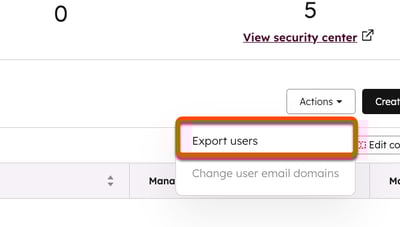
- In the dialog box, click the File format dropdown menu and select an format. Then click Export.
- Your export will begin to process. When ready, a download link will appear in your notification center. You'll also receive an email with a download link.
Export users in a view
To export your current view:
- In your HubSpot account, click the
settings icon in the top navigation bar. - In the left sidebar menu, navigate to Users & Teams.
- Filter your users.
- In the table toolbar, click Export view.
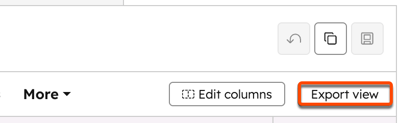
- In the dialog box, click the File format dropdown menu and select an format. Then click Export.
