
Last updated: May 8, 2026
Available with any of the following subscriptions, except where noted:
-
 Data Hub
Professional, Enterprise
Data Hub
Professional, Enterprise
-
 HubSpot Credits required
After creating a dataset in HubSpot, you can sync the data back to the CRM to improve your audience segmentation, help you send more personalized marketing emails, or improve your sales outreach based on learnings derived from the data.
Please note: while multi-object sync is live to all users, the Data Studio tool is still currently in beta.
- In your HubSpot account, navigate to Data Management > Data Studio.
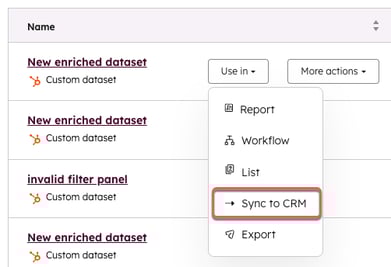
- Hover over an existing dataset, and click Use in, then click Sync to CRM.
- In the right sidebar menu, select the following:
- Destination: the CRM objects where you want to sync the data. You can select more than one object in a single configuration (e.g., syncing data to both Deals and Line Items simultaneously).
- Sync mode: choose Create and update, Create only, or Update only.
- Sync frequency: select Once, Every 15 minutes, Hourly, Daily, Weekly, or Monthly.
Please note: the initial sync runs immediately upon activation. Subsequent syncs will then occur at the specified interval from the time of initiation. For example, if you start an hourly sync at 11:45 am, the next sync will run at 12:00 pm, followed by a sync every hour after that.
-
- Mappings: choose a column and a property to be used as a match key to align rows across the source and destination. If you've selected multiple CRM objects, click the tabs at the top to map for each object.
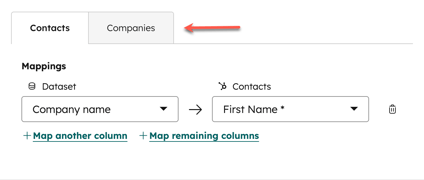
Multi-object sync and association mapping
When syncing to multiple objects, you must define how those records should be linked in the CRM.
- Establishing associations: use the mapping interface to define relationship links (e.g., linking new Line Items to existing Deals).
- Object dependencies: some objects are dependent on others to exist. For example, Line Items are dependent on Deals; you cannot sync Line Items without associating them with a Deal record.
Match keys and external identifiers
A match key is required even when you sync mode is set to Create only. This prevents duplicate records from being created on subsequent sync runs.
If you are syncing data from an external source (like Snowflake) and do not have HubSpot record IDs:
-
Create a custom property on the HubSpot object to store your external system's unique identifier.
- In your dataset, include a column with that external identifier.
- In the sync configuration, map that column to your custom property and set it as the match key.
- Required fields vary by record type:
- Contacts: First name, Last name, or Email
- Deals: Deal name, Deal Stage, and Pipeline. (Accepts text labels or internal IDs; boolean values are not supported).
- Line items: you must provide Option A (Product + Quantity) or Option B (Name + Quantity + Price).
Please note: the "Product" field expects a HubSpot Record ID. If using a product name/SKU, use the "Name" field instead to avoid silent sync failures.
Start and manage your sync
- Once your sync is configured, click Start sync.
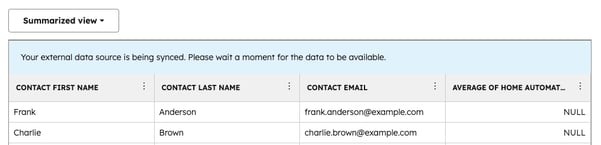
- On the Datasets tab, click the dataset you synced to the CRM. At the top of the table, a note will appear saying your external data is being synced.
- Click View sync health to be taken to the Sync Health & Monitoring page. Here you can see a full report on the performance of your sync—including the number of records created, the unique number of records updated, and the number of errors in your sync. For the unique number of records updated, if there are five updates to the same record in the specified time period, you would only see one update.
- On the Summary tab, at the top of the page, you can see when the sync last ran and the next time it will run.
- Click Sync now to perform an incremental sync of your data since the last sync.
- Click the Actions dropdown menu to pause, cancel, or edit the sync.
-
- Review the Sync activity table at the bottom of the page for detailed insights into how records interacted with the sync. Use the search bar to find a specific record included in the sync.
-
- On the Configuration tab, you can review the sync configuration that you created in the dataset builder. To edit this configuration, click Edit sync.
Troubleshooting common errors
Please note some of the following errors you may run into:
- Silent sync failures: If no records are created but no errors are shown, check the Sync activity table in the Summary tab. This often occurs when a column is mapped to an incompatible property type (e.g., mapping text to the "Product" ID field).
- Conflicting mappings error: This occurs if there is a mapping overlap.
- Conflicting column: Two different columns are mapped to the same property (Column A & B -> Property 1).
- Conflicting property: One column is mapped to two different properties (Column A -> Property 1 & 2).
