
Last updated: February 17, 2026
Available with any of the following subscriptions, except where noted:
-
 Marketing Hub
Professional, Enterprise
Marketing Hub
Professional, Enterprise
-
 Content Hub
Starter, Professional, Enterprise
Content Hub
Starter, Professional, Enterprise
- Legacy Marketing Hub Basic
Global content allows a section of content, such as a header or footer, to be reused across multiple pages. When global content is updated, the changes apply everywhere that global module or group is used.
Global content can be created and edited in the design manager and edited from the content editor.
Before you get started
Before using global content across multiple templates, review the following requirements and limitations.
Permissions required The following permissions are required:
- Edit and Publish permission is required to edit and publish content in the content editor.
- Global content and theme settings permission is required to edit global content in the content editor.
- Design tools permission is required to edit content in the design manager.
Understand limitations & considerations
- Flexible columns, drag and drop areas, and coded modules can't be used in global groups.
- Changes to global content apply to all templates and assets that reference the same global module or group.
- Drag-and-drop templates and coded templates use different methods for global content.
Create global content in the design manager
Global content can be created as a new module or converted from existing modules or groups.
Create a global module
- In your HubSpot account, navigate to Content > Design Manager..
- In the finder, click the File dropdown menu and select New file.
- In the dialog box, click the What would you like to build today? dropdown menu and select Module, then click Next.
- In the Where would you like to use this module? section, select the checkbox next to each type of content that'll use this global module. Global modules used for emails can't include CSS or Javascript.
- In the Module content scope section, select Global module.
- Enter a file name, then click Create.
- In the module editor, continue to edit the module.
Convert an existing local module or group
- In your HubSpot account, navigate to Content > Design Manager..
- In the finder, click a template to edit its contents.
- If you're creating a global group, you can edit the options of multiple modules. Press the Control / Command key, click the modules you want to group, then click the group icon in the inspector.
- Click the module or module group to select it in the layout editor.
- In the inspector, click the More dropdown menu and select Convert to global module/group.
Add a global module or group to a drag and drop template
- In your HubSpot account, navigate to Content > Design Manager..
- In the finder, click a drag and drop template to edit its contents.
- In the inspector, click + Add.
- Enter text in the Search field or click the Filter by category or tags dropdown menu to find your global module/group.
- Click your global module/group and drag it into the template layout.
- When finished, click Publish in the top right.
Use global content in coded templates
Coded templates don't include a Convert to global module/group option. Instead, global modules must be created and referenced manually.
- In your HubSpot account, navigate to Content > Design Manager..
- In the finder, click the File dropdown menu and select New file.
- In the dialog box, click the What would you like to build today? dropdown menu and select Module, then click Next.
- In the Module content scope section, select Global module.
- Enter a file name, then click Create.
- Create the required fields to match the original module.
- Copy the module's HubL snippet.
- Paste the HubL snippet in your coded template to reference the global module.
- When finished, click Publish in the top right.
Please note: developers can alternatively duplicate the module and set "global": true in the duplicated module’s meta.json file via the CLI before updating templates to use it. Learn more in the developer documentation.
Edit global content in the content editor
Global content can be edited directly from pages or posts in the content editor. Updates apply to all assets using the same global module or group.
-
Navigate to your content:
- Website Pages: In your HubSpot account, navigate to Content > Website Pages.
- Landing Pages: In your HubSpot account, navigate to Content > Landing Pages.
- Blog: In your HubSpot account, navigate to Content > Blog.
- Click the name of your content.
- In the content editor, click the content icon and then click the global content icon for the global module.
- In the dialog box, click Open in global content editor.
- In the global content editor, click the content icon and use the drag and drop tools to edit the modules in the global group.
- If you haven't previously added a logo, you can add a logo to your global header in the logo module. Learn more about configuring your branding. To add a logo, click the Logo module and then click brand settings.
- In the dialog box, click Add.
- Click Upload to upload an image from your computer or click Browse images to select an image from the files tool.
- Enter text to provide a name for the logo in the Logo name field.
- Enter text for the Logo alt text and Logo URL fields.
- When finished, click Save. Then click Publish to [#] assets.
- To edit a navigation menu, click the module. In the sidebar editor click Edit for the menu. In the dialog box, continue to customize the navigation menu.
- To preview the global content on existing pages or posts, click the View on dropdown menu in the top left and select a page or post where the global content is displayed. To view the global content by itself, select Group only instead.
- To create a multi-language version of the global content, click the Language dropdown menu in the top left and select Add/edit multi-language variations. Learn more about creating multi-language global content.
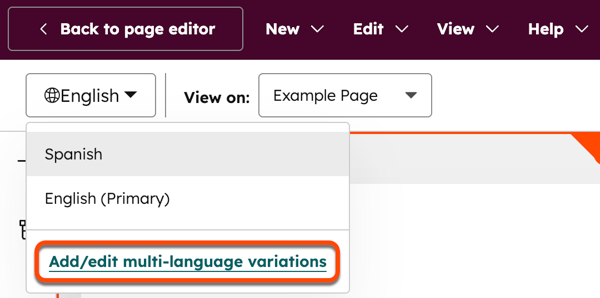
- When finished, click Publish to [#] assets in the top right. These changes will be applied to all pages and posts using a template that includes the global content.
Edit global content in the design manager
Developers can edit global modules or groups in the design manager. Changes made to global content will be applied to all content using a template that contains the same global content.
- In your HubSpot account, navigate to Content > Design Manager..
- In the finder, click a template to edit its contents.
- To edit the content of a global module or group for only a specific page, blog post, or email, you can make a local copy of the global content to edit in the design manager.
- To edit a global group in the layout editor, click the global group in your template. Then in the inspector, click the More dropdown menu and select Edit global group.
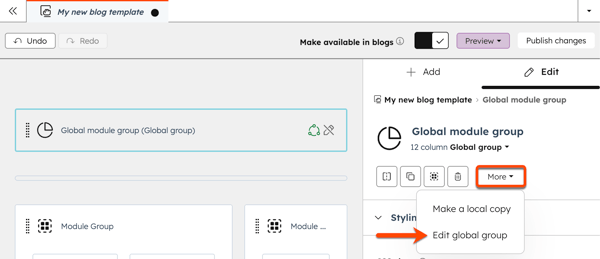
- When finished, click Publish changes.
