
Last updated: May 14, 2026
Available with any of the following subscriptions, except where noted:

-
 Additional subscriptions required for certain features
SEO recommendations identify issues that affect a website's visibility in search results. In HubSpot, SEO recommendations are generated by scanning pages and analyzing on-page SEO factors.
Use the SEO tool to review the recommendations across an entire domain or for individual pages. These insights help prioritize updates based on impact, technical difficulty, and ownership.
For example, recommendations may highlight missing metadata, broken links, or opportunities to improve internal linking. Learn more about specific SEO recommendations.
Before you get started
Before you begin working with SEO, review the requirements, limitations, and considerations.
Subscription required An account must have one of the following subscriptions to use the SEO tool:
-
Marketing Hub Professional or Enterprise
-
Content Hub Professional or Enterprise
SEO recommendations in the content editor or on detail pages are available in all accounts.
Permissions required A user may require additional permissions depending on where they are viewing SEO recommendations and customizing content.
- Individual performance details page: requires View permission for the content type (e.g, landing pages).
- Content editor: requires Edit permission for the content type (e.g., blog posts). To publish changes, Publish permission is required.
- SEO tool: requires Edit permission for the content type or Website settings permission.
Understand limitations & considerations
- To align SEO efforts with AI-driven visibility, review how to optimize content and improve brand visibility for AI.
- Page analysis includes HTML content only. Assets loaded through scripts (e.g., CTAs) aren't included.
View SEO recommendations for all pages
Review SEO recommendations across an entire domain to identify issues affecting multiple pages. Domain scans include both HubSpot-hosted and externally hosted pages, and group recommendations by impact and category.
The scanning process my take up to three hours, but may take up to six hours for large sites. Keeping the SEO tool open while scanning is taking place, is not required.
Understand domain scanning behavior
Domain scans follow specific rules based on how domains and subdomains are structured and linked. Review the following behavior to understand which pages are included in a scan.
- To scan the largest number of pages on your website, use your root domain (e.g. mywebsite.com).
- If your root domain doesn't redirect to your main website, the scan will fail. To test this, enter your root domain (e.g. mywebsite.com) into the URL bar of a browser and see if your website loads.
- If a subdomain (e.g., info.mywebsite.com) doesn't appear when its corresponding root domain (e.g., mywebsite.com) is crawled, try adding a link to that subdomain somewhere on your root domain.
- If you use a subdomain (e.g., info.mywebsite.com), all pages on that subdomain will be scanned. In addition, all pages on any other subdomains of the same root domain (help.mywebsite.com, blog.mywebsite.com, etc.) will be scanned only if you have a link to that subdomain on the scanned subdomain.
Scan a new domain
- In your HubSpot account, navigate to Marketing > SEO.
- Click Scan new URL in the top right.
- In the dialog box, enter a URL for your website, then click Scan URL. You'll receive an email when the scan is complete.
Rescan an existing domain
- In your HubSpot account, navigate to Marketing > SEO.
- Click the Domain dropdown menu and select a domain.
- In the top right, click Rescan now. You'll receive an email when the scan is complete.
Manage domains
Update domain settings used in the SEO tool.
- In your HubSpot account, navigate to Marketing > SEO.
- To set a default domain, click the Actions dropdown menu and select Make default domain.
- To remove a domain, click the Actions dropdown menu and select Remove domain.
Review recommendations
After the scan is finished, review the SEO recommendations for each page to identify issues based on impact, category, and priority.
- In your HubSpot account, navigate to Marketing > SEO.
- Click the Domain dropdown menu and select a domain.
- On the Categories tab, filter SEO recommendations by category, impact, role and technical difficulty:
- Category: select or clear the checkbox next to each category to the left of the recommendations. By default, all checkboxes are selected.
- Impact: lick the Impact dropdown menu, and select or clear the checkbox next to each impact level. By default, all checkboxes are selected.
- Technical difficulty: click the Technical difficulty dropdown menu and select or clear the checkbox next to each technical difficulty level. By default, all checkboxes are selected.
- Role: click the Role dropdown menu and select a role. Most recommendations will be suggested for either marketers or developers. The recommendations marked as Marketer* can usually be resolved by a marketer, but may require a developer's help.
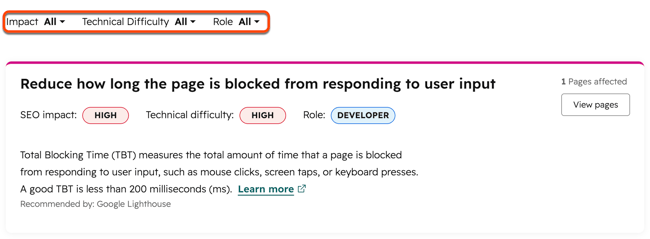
- To view pages for a specific recommendation category, click View pages.
- To fix a HubSpot-hosted page or blog post, click Fix in editor.
- To hide a recommendation, hover over a recommendation, and then click Hide.
- To unhide page recommendations, click Show all hidden recommendations at the bottom of the page.
- To view recommendations by page, click the Pages tab. Click the name of a page to view the recommendations for that page.
- To fix a HubSpot-hosted page or blog post, click View more information. In the right panel, click Fix in editor.
- To hide a recommendation, hover over a recommendation, and then click Hide.
- To unhide page recommendations, click Show all hidden recommendations at the bottom of the page.
Export recommendations
- In your HubSpot account, navigate to Marketing > SEO.
- Click the Domain dropdown menu and select a domain.
- To export recommendations, click the Actions dropdown menu and select Export recommendations.
- In the dialog box, click the File format dropdown menu and select a format, then click Export. You'll receive an email and an in-app notification with a download link to your export file.
Please note: exports only include recommendations that match applied filters.
View SEO recommendations for a specific page or blog post
Review SEO recommendations for individual pages or blog posts to identify content-specific issues. Recommendations are available in the content editor and in the page or post details.
View recommendations in the content editor
-
Navigate to your content:
-
Website Pages: In your HubSpot account, navigate to Content > Website Pages.
-
Landing Pages: In your HubSpot account, navigate to Content > Landing Pages.
-
Blog: In your HubSpot account, navigate to Content > Blog.
-
-
Click the name of your content.
-
In the content editor, click the Optimize icon in the left sidebar.
-
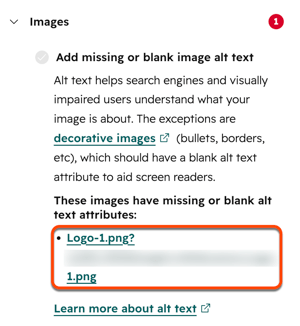
Click a category with a red circle to see incomplete recommendations. Each completed recommendation will have a green checkmark. Each incomplete recommendation will have a gray checkmark.
- For issues with images, click the file name to view the image in the content editor.
View recommendations in page or post details
On the Optimization tab for page or post details, you'll find recommendations to improve your content's performance in search engine results.
-
Navigate to your content:
-
Website Pages: In your HubSpot account, navigate to Content > Website Pages.
-
Landing Pages: In your HubSpot account, navigate to Content > Landing Pages.
- Blog: In your HubSpot account, navigate to Content > Blog.
-
- Hover over a page or post and click Performance.
- On the details page, click the Optimization tab. In the left sidebar menu, select an SEO metric to analyze:
- Recommendations: SEO recommendations for your content. Click Rescan now to scan the page for recommendations. This process can take several minutes.
- Search Queries: search queries that return your content in Google search results. This data is only available if you're using the Google Search Console integration.
- Internal Links: links to this page from other parts of your website. Internal links show search engines how your content is organized around topics. Click Links from page to view the status of links from this page to other pages instead.
Please note: due to recent changes to Google's referral policy, HubSpot can no longer accurately retrieve inbound link URLs. You can still view your content's referring domains in the Performance tab, or view full inbound link URLs in Google Search Console.
