Last updated: July 31, 2026
Available with any of the following subscriptions, except where noted:
-
 Marketing Hub
Professional, Enterprise
Marketing Hub
Professional, Enterprise
Create video clips from longer videos and edit them directly in the social tool. After generating clips, review, edit, and publish them to your social accounts without navigating to the video editor. For example, generate clips from a webinar recording, trim one during review, and publish it to LinkedIn or Instagram.
Please note: you can manage AI feature access in your AI settings and configure what data is shared. Review HubSpot's AI Trust FAQs and AI Model Cards for detailed information on AI security controls, data use, and compliance.
Create video clips
- In your HubSpot account, click More, then navigate to Marketing > Social. If More doesn't appear in your account, navigate to Marketing > Social directly.
- In the upper right, click Create post.
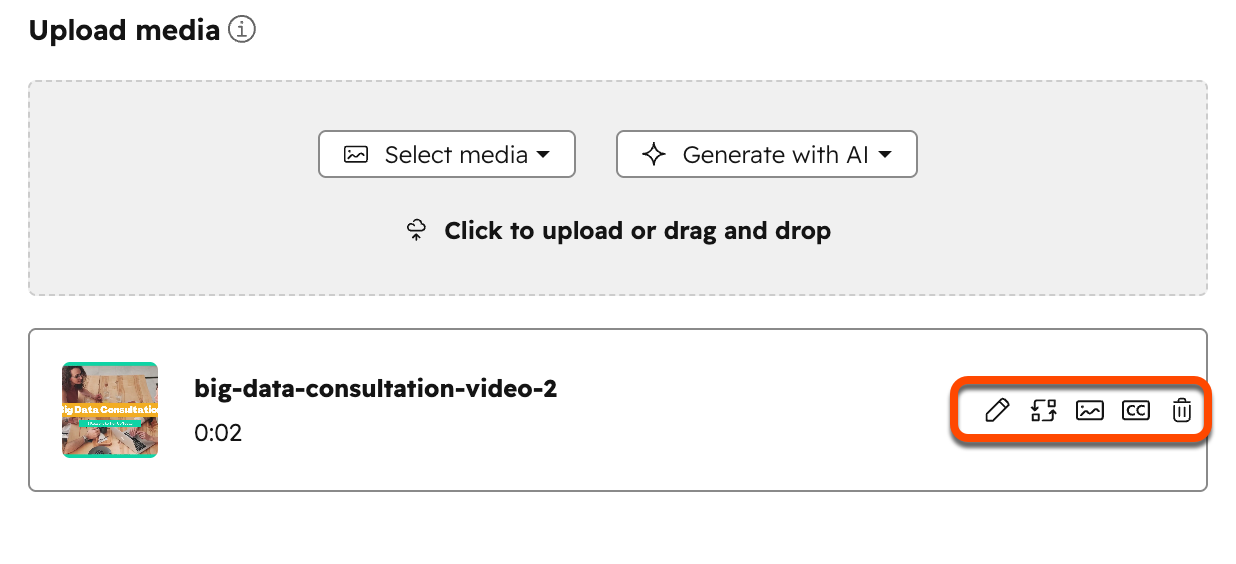
- In the Upload media section, click the Generate with AI dropdown menu and select Clip a video.
- In the right panel, click Select video. The video must be at least 3 minutes long.
- From your video file picker, select a video. To upload a new video, in the bottom, click Upload video.
- To change the selected video, click Replace video.
- To remove the video, click Remove.
- After selecting your video, at the bottom, click Next.

- Set up your video focus:
- To use a template, at the top select a template option. This will automatically populate a prompt in the text field and replace any existing content.
- To manually set up your clip focus, enter a prompt in the text field.
- Set up you video options:
- Network: select the checkboxes next to the social networks that the clips will be generated for.
- Number of clips: you can choose to generate 3 or 5 video clips.
- Duration: select the duration of your clips. You can generate clips up to 90 seconds.
- Include captions: choose whether to include captions in your video clips. These will be automatically generated by AI. If you've chosen to include captions, you will also need to select a caption style.
- Layout: select the layout for your video. You can choose between keeping the original layout, landscape, portrait, or a square layout.
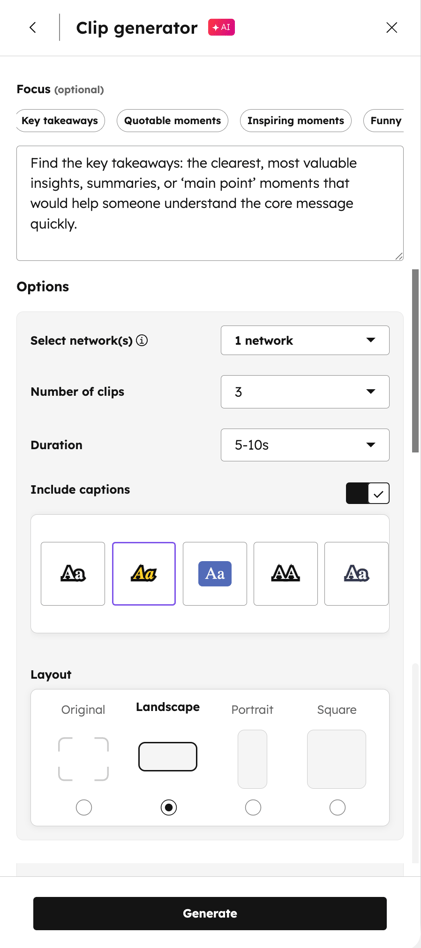
- After setting up your video focus and options, at the bottom, click Generate.
- To use a video clip, hover over the clip and click Review.
- In the dialog box, you can review the clip and recommended caption. To use the clip in your social post, at the bottom, click Select accounts and insert.
- In the dialog box, click the dropdown menu and select the checkboxes next to the accounts that you'd like to publish to. Then, click Insert.
- Continue setting up your social post.
Edit video clips
After inserting a clip into your social post, you can edit the video, thumbnail, or captions without leaving the social editor.
- In your HubSpot account, click More, then navigate to Marketing > Social. If More doesn't appear in your account, navigate to Marketing > Social directly.
- In the left panel, click the Drafts tab and select an existing social draft. Or, create a new social post with a video clip.
- In your social post editor, click the edit video icon to update your video content. You’ll be automatically directed to the video editor.
- Continue editing your video. Learn more about editing and trimming videos using the transcript and timeline.
- When finished, click Export in the upper right.
- A progress bar in the left sidebar will show the rendering status.
- Once rendering is complete, the updated video automatically replaces the original in the editor.
- Within the uploaded video section:
-
- To update your video thumbnail, click the edit thumbnail icon. Learn how to edit your video thumbnails.
- To update your video captions, click the captions icon. Learn how to edit your video captions.
- To remove the video, click the delete icon.
-
- Continue setting up your social post.