
Last updated: April 21, 2026
Available with any of the following subscriptions, except where noted:
-
 Marketing Hub
Professional, Enterprise
Marketing Hub
Professional, Enterprise
Optimize your social post captions and publishing schedule with AI recommendations for each social network. Use these suggestions to adapt social content across channels to increase engagement.
For example, when posting the same message to LinkedIn and Facebook, use AI recommendations to adapt the caption's formatting and tone for each specific network. Then, schedule the post for the optimal day and time.
Please note: if you're a Super Admin, you can opt your account into the Optimize your social posts (captions and best time to publish) beta.
Permissions required All accessible accounts or Their connected accounts Social permissions are required to connect a social account. Users with Draft only Social permissions can create draft posts, but cannot publish.
Before you get started
To access this feature, turn on the Give users access to generative AI tools and features setting. Learn how to manage your AI settings.
Please note: you can manage AI feature access in your AI settings and configure what data is shared. Review HubSpot's AI Trust FAQs and AI Model Cards for detailed information on AI security controls, data use, and compliance.
Optimize social post captions
Customize social posts using AI-recommended captions for each social network.
-
In your HubSpot account, navigate to Marketing > Social.
- In the upper right, click Create post. You can also hover over a draft or scheduled post and click Edit.
- In the social composer, click the Select accounts dropdown menu in the top left. Then, select the checkboxes next to the social accounts you want to post to. You’ll need to select one or more accounts to optimize captions for each network.
- In the Write caption section, enter a caption using at least 20 characters.
- Click the corresponding social account icon to customize the social post for a specific social network.
- To optimize your social post caption, click Optimize caption.
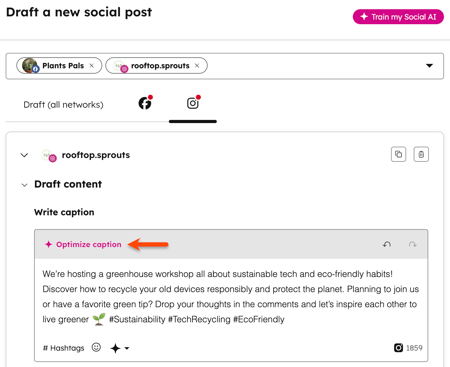
- To generate another caption, click Regenerate caption.
- To return to your original copy, click Revert.
Schedule social posts using recommended times
Schedule social posts with AI-recommended dates and times for each social network. Recommended times are generated based on industry trends and your historical social engagement data.
-
In your HubSpot account, navigate to Marketing > Social.
- In the upper right, click Create post. You can also hover over a draft or scheduled post and click Edit.
- In the social composer, click the Select accounts dropdown menu in the top left. Then, select the checkboxes next to the social accounts you want to post to.
- Click the corresponding social account icon to customize the social post for a specific social network.
- In the Schedule post section, select Schedule for later.
- Click a recommended time to apply the date and time for the selected social account.
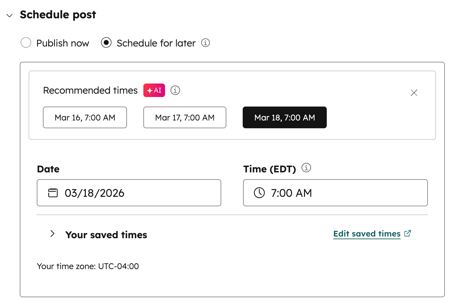
- Continue setting up your social post.
