Last updated: May 18, 2026
Available with any of the following subscriptions, except where noted:
-
 Marketing Hub
Professional, Enterprise
Marketing Hub
Professional, Enterprise
-
 Sales Hub
Professional, Enterprise
Sales Hub
Professional, Enterprise
-
 Service Hub
Professional, Enterprise
Service Hub
Professional, Enterprise
-
 Data Hub
Professional, Enterprise
Data Hub
Professional, Enterprise
-
 Smart CRM
Professional, Enterprise
Smart CRM
Professional, Enterprise
-
 Commerce Hub
Professional, Enterprise
Commerce Hub
Professional, Enterprise
-
 Additional subscriptions required for certain features
Use the Add participant to marketing event workflow action to add contacts to and update the participant state of these contacts in manually created marketing events.
Please note: this action only works for marketing events manually created in HubSpot. It cannot be used for events synced via integrations.
- In your HubSpot account, navigate to Automation > Workflows.
- Click the name of an existing workflow, or create a new workflow.
- Click the + add icon to add a workflow action.
- In the left panel, click to expand the Marketing section. Then, select Add participant to marketing event.
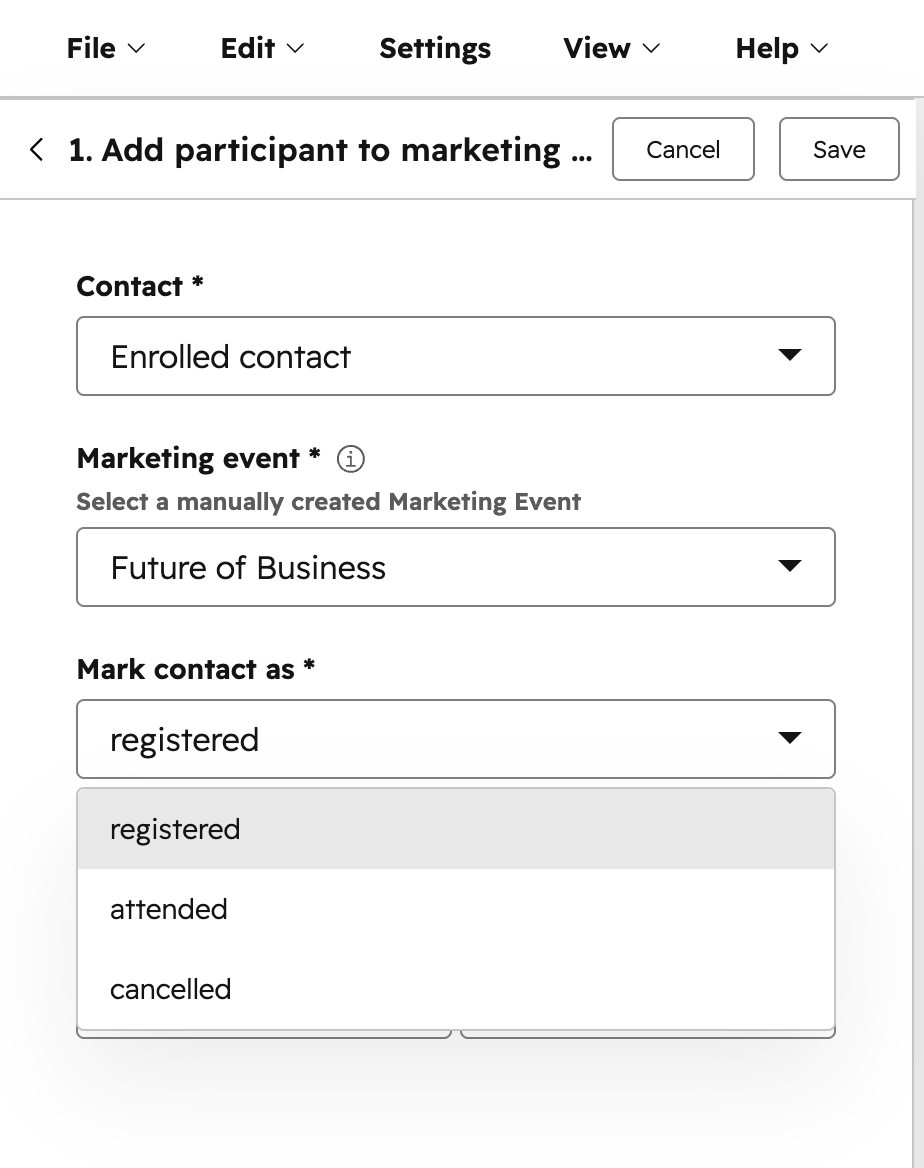
- Configure your workflow action:
- Contact: this will be set to the enrolled contact by default.
- Marketing event: select your marketing event. This will only apply to manually created marketing events. Marketing events created from third-party integrations will not appear.
- Mark contact as: the contact participant stage. You can select from Registered, Attended, or Cancelled.
- Started attending at: the date and time the contact attended the event. This is an optional field.
- Finished attending at: the date and time the contact completed the event. This is an optional field.
- After setting up your workflow action, at the top, click Save.
- Continue setting up your workflow.