Last updated: April 30, 2026
Available with any of the following subscriptions, except where noted:
-
 Marketing Hub
Professional, Enterprise
Marketing Hub
Professional, Enterprise
-
 Sales Hub
Professional, Enterprise
Sales Hub
Professional, Enterprise
-
 Service Hub
Professional, Enterprise
Service Hub
Professional, Enterprise
-
 Data Hub
Professional, Enterprise
Data Hub
Professional, Enterprise
-
 Smart CRM
Professional, Enterprise
Smart CRM
Professional, Enterprise
-
 Commerce Hub
Professional, Enterprise
Commerce Hub
Professional, Enterprise
-
 Additional subscriptions required for certain features
Use a workflow to automate the process of adding contacts to and updating the participant state of these contacts in your marketing events.
Please note: this action only works for marketing events manually created in HubSpot. It cannot be used for events synced via integrations.
- In your HubSpot account, navigate to Automation > Workflows.
- Click the name of an existing workflow, or create a new workflow.
- Click the + add icon to add a workflow action.
- In the left panel, click to expand the Marketing section. Then, select Add participant to marketing event.
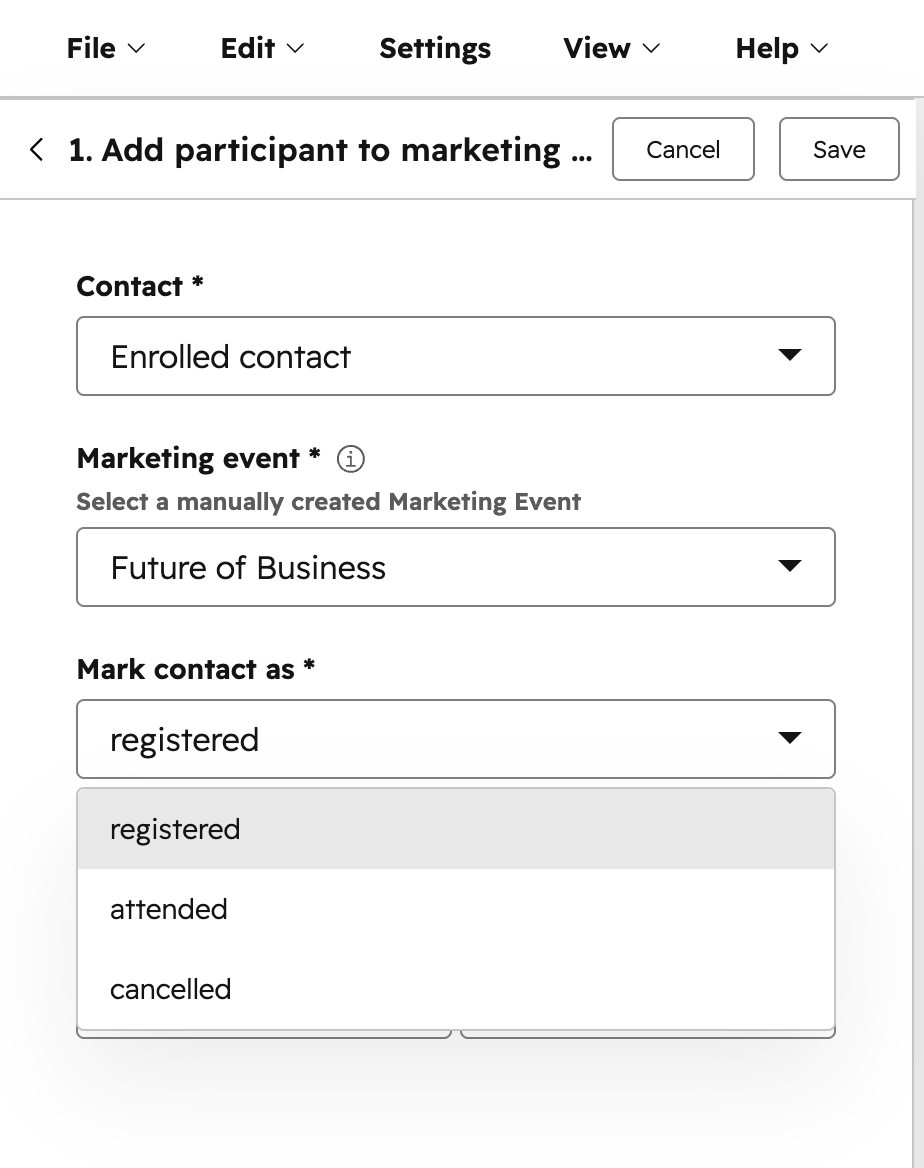
- Configure your workflow action:
- Contact: this will be set to the enrolled contact by default.
- Marketing event: select your marketing event. This will only apply to manually created marketing events. Marketing events created from third-party integrations will not appear.
- Mark contact as: the contact participant stage. You can select from Registered, Attended, or Cancelled.
- Started attending at: the date and time the contact attended the event. This is an optional field.
- Finished attending at: the date and time the contact completed the event. This is an optional field.
- After setting up your workflow action, at the top, click Save.
- Continue setting up your workflow.