
Last updated: December 3, 2025
Available with any of the following subscriptions, except where noted:

You can log in to HubSpot using several authentication methods, including a password, passkeys, Google, Microsoft, or single sign-on, depending on what’s turned on in your account. These options help you access your account securely and use the login method that best fits your organization’s security requirements. HubSpot determines the correct login screen based on your email address and the login methods your admin has configured.
If you're having trouble logging in, learn how to troubleshoot common login issues or recover access to a deactivated or inactive account.
There are multiple ways to log in to HubSpot:
- Enter an email address and password.
- Sign in with Google.
- Sign in with Microsoft.
- Use passkeys.
- Use single sign-on (Professional and Enterprise only). If SSO is turned on, you'll be signed out of HubSpot after 24 hours of inactivity.
Log in to HubSpot
To log in:
- In your browser, go to the login page.
- In the Email field, enter the email address of your account.
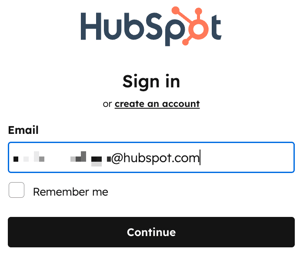
- You'll be directed to a login page based on which login methods are allowed and configured for your account. (e.g., if you're set up to log in with a password, you'll be directed to enter a password, or, if you're set up to log in with single sign-on, you'll be directed to log in using SSO). This applies to all login methods.
Password login Single sign-on login 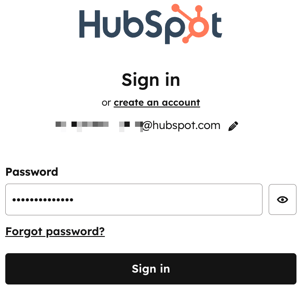
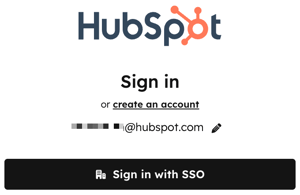
- Log in using your account method.
After logging out and returning to the login page, if you have turned on third-party cookies on your browser, you'll automatically be directed to the login screen based on your account configuration (e.g., if you're set up to log in with a password, you'll be directed to enter a password, or if you're set up to log in with single sign-on, you'll be directed to log in using SSO). This removes the need for you to enter your email address each time you want to log in to HubSpot.
Before you get started
Before getting started, please note the following:
- Only HubSpot customers, free users, or trial users can log in to HubSpot. If you signed up to receive an ebook or registered for a webinar, but don't have an active account, you will not be able to log in.
- If you try to log in and see a You have no accounts message, your account may have been deactivated. Learn more about deactivated accounts.
- If HubSpot doesn't recognize your browser or device, you'll be prompted to confirm your identity with an emailed verification code. This is separate from the confirmation code you receive when logging in with two-factor authentication. Learn more about login confirmations and account security.
- If you've forgotten your password:
- From the login page, you can reset your password.
- If the password reset email doesn't appear in your inbox, add hubspot.com to your email allowlist.
Troubleshoot login issues
If you're unable to log in to HubSpot, try the following troubleshooting steps:- Confirm that your browser is supported by HubSpot.
- Ensure that you're using the email address associated with your HubSpot account if you have multiple email addresses.
- Clear the cache and cookies in your browser and retry.
- Check status.hubspot.com to see if there's a known login issue. HubSpot will continue to update this page with any new information.
- Log in from another network, such as a cellular network, to see if the issue is network-related. If you're able to log in from another network, contact your IT department or network administrator to troubleshoot the network issue.
- Learn how to troubleshoot if you aren't receiving HubSpot system emails.
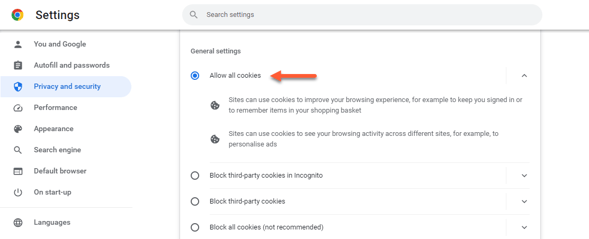
- Turn on third-party cookies in your Chrome settings:
- In the upper right of your Chrome browser, click the three vertical dots, then select Settings.
- In the Privacy and security section, click Cookies and other site data.
- Ensure that Allow all cookies is selected.
- Try logging in to HubSpot again.
Unable to stay logged in
To ensure you stayed logged in across HubSpot and any extensions or plug-ins you use, such as the Outlook plug-in, it is recommended to select the "Remember Me" checkbox during login.
Additional login help
If you're unable to log in after following the steps above, submit your information to the HubSpot support team using the link below.
