Last updated: December 1, 2025
Available with any of the following subscriptions, except where noted:

Set and change the publish date of an unpublished or published blog post in the Publishing Options dropdown menu of the content editor.
Before you get started
Before you begin working with this feature, make sure to fully understand what steps should be taken ahead of time, as well as the limitations of the feature and potential consequences of using it.
Understand limitations & considerations
- Changing a post's publish date may cause external RSS emails to include the post because the blog's RSS feed will be changed.
- Changing a blog post's publish date to a date in the past won't trigger a duplicate blog subscription email or automated social post .
- New blog posts with a publish date in the past won't trigger blog subscription emails or automated social posts.
- New blog posts with a publish date in the future won't appear live or trigger blog notification emails until that date.
Set the publish date for an unpublished post
Publish a new blog post with a publish date in the past, or schedule it to be published on a future date.
- In your HubSpot account, navigate to Content > Blog.
- Click the name of a blog post.
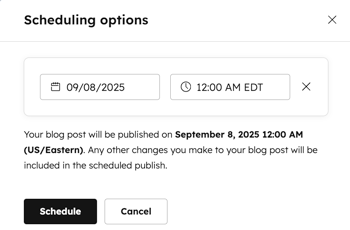
- In the content editor, click the dropdown menu next to Publish in the top right and select Scheduling options.
- In dialog box, click Schedule publish.
- Click the date and time fields and select the date and time when your post will be published.
- When finished, click Schedule.
Set the publish date for a published post
Set the publish date of an existing live post to a date in the past. I f blog subscription emails weren't turned on in your blog settings when the post was originally published, then the post may be included in relevant weekly or monthly blog notification emails for the new publish date.- In your HubSpot account, navigate to Content > Blog.
- Click the name of a blog post.
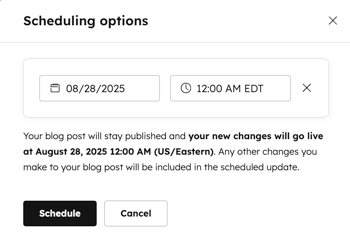
- In the content editor, click the dropdown menu next to Update in the top right and select Scheduling options.
- In the dialog box, click Schedule update.
- Click the date and time fields and select the date and time when your post will be published.
- Click Schedule.