
Last updated: July 15, 2026
Available with any of the following subscriptions, except where noted:
-
 Marketing Hub
Enterprise
Marketing Hub
Enterprise
-
 Sales Hub
Enterprise
Sales Hub
Enterprise
-
 Service Hub
Enterprise
Service Hub
Enterprise
-
 Data Hub
Enterprise
Data Hub
Enterprise
-
 Content Hub
Enterprise
Content Hub
Enterprise
-
 Smart CRM
Enterprise
Smart CRM
Enterprise
-
 Revenue Hub
Enterprise
Revenue Hub
Enterprise
Connect HubSpot with a supported large language model (LLM) provider to use the Use a custom LLM action in your workflows. This action lets you select from multiple supported LLM providers and models to generate outputs directly within a workflow.
For example, you can summarize information from a record, classify incoming data, or generate personalized content, then use the response to automate the next steps in your workflow.
After connecting an LLM provider, you can select a model and configure prompts directly within the workflow action.
Supported LLM providers
You can use the following LLM providers with the Use a custom LLM workflow action:
- OpenAI
- Anthropic (Claude)
- Cohere
- xAI (Grok)
- Google (Gemini)
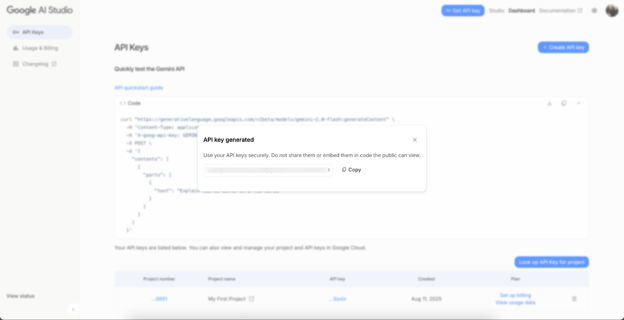
Retrieve your LLM API key
To connect HubSpot to an LLM provider, you'll first need the API key from the LLM provider you want to use.
Please note: you must keep the API key secure, as it provides access to your LLM instance.
OpenAI API key
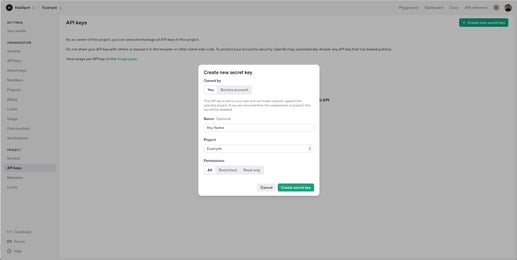
To connect your OpenAI account and HubSpot, a user with the role of owner in your OpenAI account must first retrieve your OpenAI API key:
- Navigate to OpenAI. Then, sign up or log into your account.
- Retrieve your API key.
-
- For existing projects, ensure you have the necessary permissions to use the API.
- Only organization owners can create new projects and generate the corresponding API keys. Learn more about the different roles and permissions in your OpenAI account.
- Check that your API key is still valid and not expired.
Anthropic API key
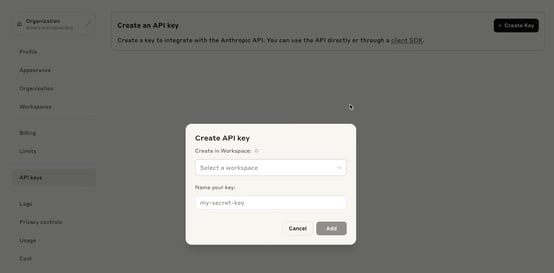
Before you can connect your Anthropic account to HubSpot, a user with the role of admin or developer in your Anthropic account must first retrieve your Anthropic API key:
- Navigate to https://console.anthropic.com to sign up or log into your Anthropic account.
- Access your Anthropic API key.
Cohere API key
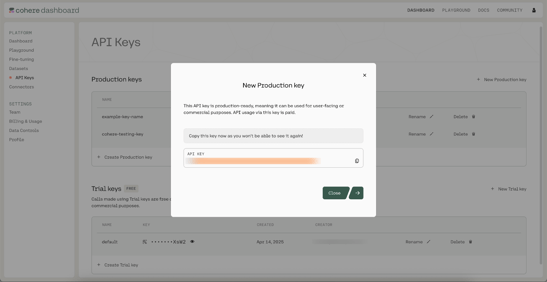
Before you can connect your Cohere account to HubSpot, a user with the role of owner in your Cohere account must first retrieve your Cohere API key:
- Navigate to https://dashboard.cohere.com/ to sign up or log into your Cohere account.
- Access your Cohere API key.
xAI API key
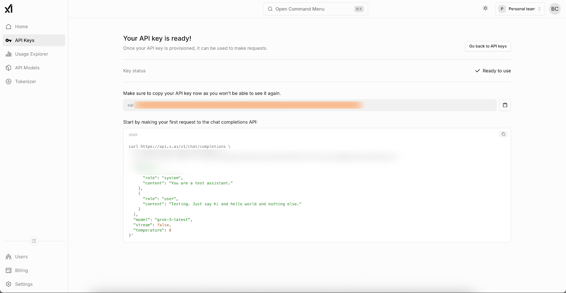
Before you can connect your xAI account to HubSpot, a user with API write permissions in your xAI account must first retrieve your xAI API key:
- Navigate to https://accounts.x.ai/sign-in to sign up or log into your xAI account.
- Access your xAI API key.
Google (Gemini) API key
Before you can connect your Gemini account to HubSpot, you'll need to retrieve your Gemini API key first:
- Navigate to https://ai.google.dev/gemini-api/docs to sign up or log into your Gemini account.
- Access your Gemini API key.
Add the Use a custom LLM action to a workflow
After retrieving the API key for your LLM provider, you can add the Use a custom LLM action to workflows in HubSpot.
- In your HubSpot account, click More, then navigate to Automation > Workflows. If More doesn't appear in your account, navigate to Automation > Workflows directly.
- Click the name of an existing workflow or create a new workflow.
- Set your enrollment triggers.
- Click the + plus icon to add an action.
- In the left panel, search for and select the Use a custom LLM workflow action.
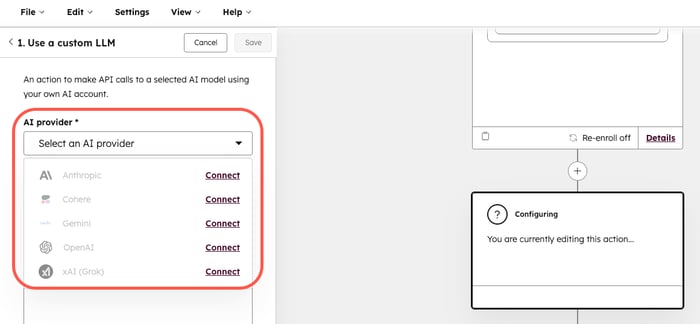
- From the AI provider dropdown menu, click Connect for the AI provider you want to connect to.
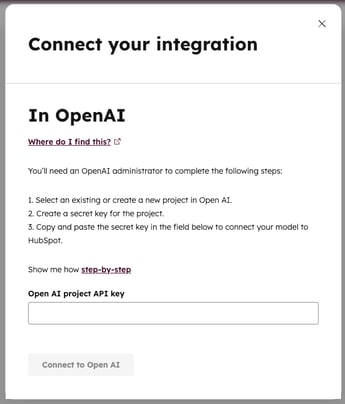
- In the dialog box, enter the API key for the LLM provider.
-
Click Connect to [LLM provider].
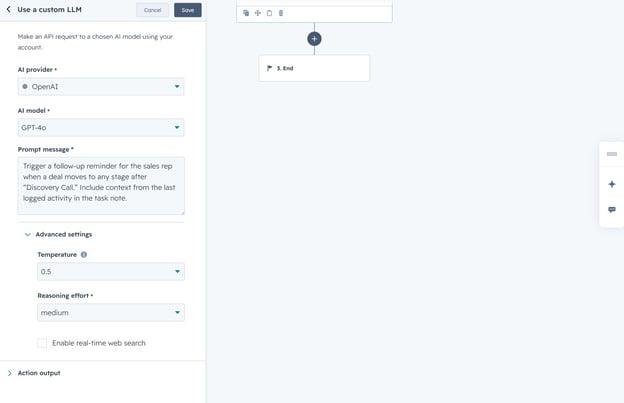
- From the AI model dropdown menu, select the AI model you want to use for the API call.
- In the Prompt message field, enter your prompt.
- Click to expand the Advanced settings section. Then, configure the following:
-
- Temperature: the randomness of the generated text. Lower values will result in more predictable responses, while higher values will result in more creative responses.
-
- Reasoning effort: the effort on reasoning. You can select from High, Medium, or Low. Higher values will result in more detailed responses but may take longer to generate.
- At the top, click Save.
Manage your connected LLM account
To uninstall an LLM app:
- In your HubSpot account, click the
settings icon in the top navigation bar. In the left sidebar menu, navigate to Integrations > Connected Apps. - Search for and click the app for the desired LLM provider.
- In the top right, click Actions > Uninstall.
To reconnect your LLM account:
- In your HubSpot account, click the
settings icon in the top navigation bar. In the left sidebar menu, navigate to Integrations > Connected Apps. - Search for and click the app for the desired LLM provider.
- In the top right, click Actions > Reconnect app.
