
Last updated: March 31, 2026
Available with any of the following subscriptions, except where noted:

-
 Additional subscriptions required for certain features
Use marketing events in HubSpot to have a consistent overview of your marketing events in one place. HubSpot can aggregate marketing events from certain connected apps or you can add contacts to a marketing event through an import.
For example, if you organize a Microsoft Teams webinar, the webinar details and participant information will automatically sync to a marketing event in HubSpot. If you're organizing an in-person event, you can manually create a marketing event in HubSpot and import the list of participants.
Subscription required If you have a Marketing Hub Professional or Enterprise account, you can also associate marketing events with HubSpot campaigns to keep track of the event's performance and contributions to your campaign.
Create marketing events
Permissions required Account Access permissions are required to manually create marketing events and install apps in your account.
If you have GoToWebinar, Eventbrite, Microsoft Teams webinars, or Zoom installed, you won't need to manually create marketing events for webinars. All webinar events will be synced to marketing events.
To manually create a marketing event (such as an in-person event you have organized):
- In your HubSpot account, navigate to Marketing > Events.
- In the upper right, click Create marketing event.
- In the right panel, enter the properties of the event. Learn more about customizing the properties that appear.
- Click Create to create the marketing event.
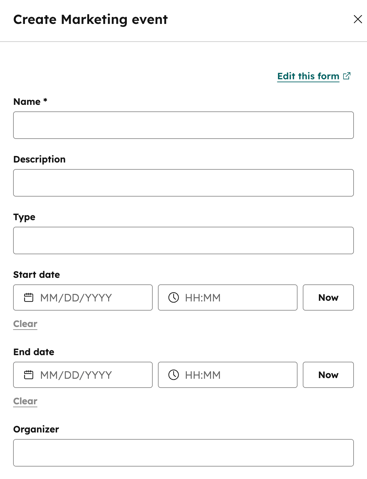
After you've created a marketing event, you can proceed to import the event participants.
Register contacts to marketing events with workflows
Subscription required A Professional or Enterprise subscription is required to use workflows.
Use the Add participant to marketing event workflow action to automatically register contacts to marketing events in HubSpot. If you regularly host marketing events, this will help you streamline the event registration process. For example, you can set up a workflow that automatically adds a contact to a marketing event as soon as they submit a HubSpot form.
Please note: this workflow action can only be used for marketing events that are manually created in HubSpot. It can't be used for events synced through integrations.
To set up the workflow action:
- In your HubSpot account, navigate to Automation > Workflows.
- Click the name of an existing workflow or create a new workflow.
- Set your enrollment triggers. For example, you can select a specific form as enrollment trigger.
- Click the + plus icon to add an action.
- In the left panel, under Marketing, click the Add participant to marketing event action.
- Click the Marketing event dropdown menu and select the marketing event you want to register contacts for.
- In the Date of registration field, select a date in the calendar or map the field to an existing contact date property. This step is optional. If you don't select a date or if the field is mapped to an empty property, the date and time when the contact enters the workflow will be used instead.
- Then, click Save to add the action to your workflow.
- In the upper right of the workflow editor, click Review and turn on.
- Review your workflow setup. Then click Turn on workflow, to turn on the workflow.
Once turned on, the workflow will automatically add every contact who submits the form to the marketing event.
View marketing events
Please note: marketing events appear on the Marketing Events index page only when they have at least one registrant. If an event has no registrants, the marketing event won't appear.
Events created via the Marketing events API, Eventbrite, Zoom, Microsoft Teams webinars, or GoToWebinar will appear on the Marketing Events index page. By default, all webinar events sync to marketing events in HubSpot. However, if the sync is turned off for a particular event on the connected app's settings page, that event won't sync to HubSpot. If you want the webinar event to sync data to HubSpot but don't want it to appear as a marketing event, you can delete the event from the Marketing Events index page.
To view a marketing event in HubSpot:
- In your HubSpot account, navigate to Marketing > Events.
- In the table, click a marketing event's name to access the marketing event record.
-
- The left sidebar shows information about the event, including the status of the event and a link to the hosting platform for the event. You can also view properties and their history.
- To view all event properties, click Actions > View all properties.
- To view the history of the event’s property values, click Actions > View property history.
- The Overview tab shows the number of registered attendees, canceled attendees, and the number of people who attended the event.
- Click the respective number of contacts to view who registered for, canceled, and attended the event.
- On the Activities tab, add activities (such as notes and tasks) to the marketing event.
- The Segments section shows all segments created using marketing event filters tied to that specific event.
- Click the name of each segment to view it.
- Use the Campaigns card on the right sidebar to associate a campaign to the marketing event.
- Click + Add. Then click the Campaign dropdown menu to select a campaign.
- The left sidebar shows information about the event, including the status of the event and a link to the hosting platform for the event. You can also view properties and their history.
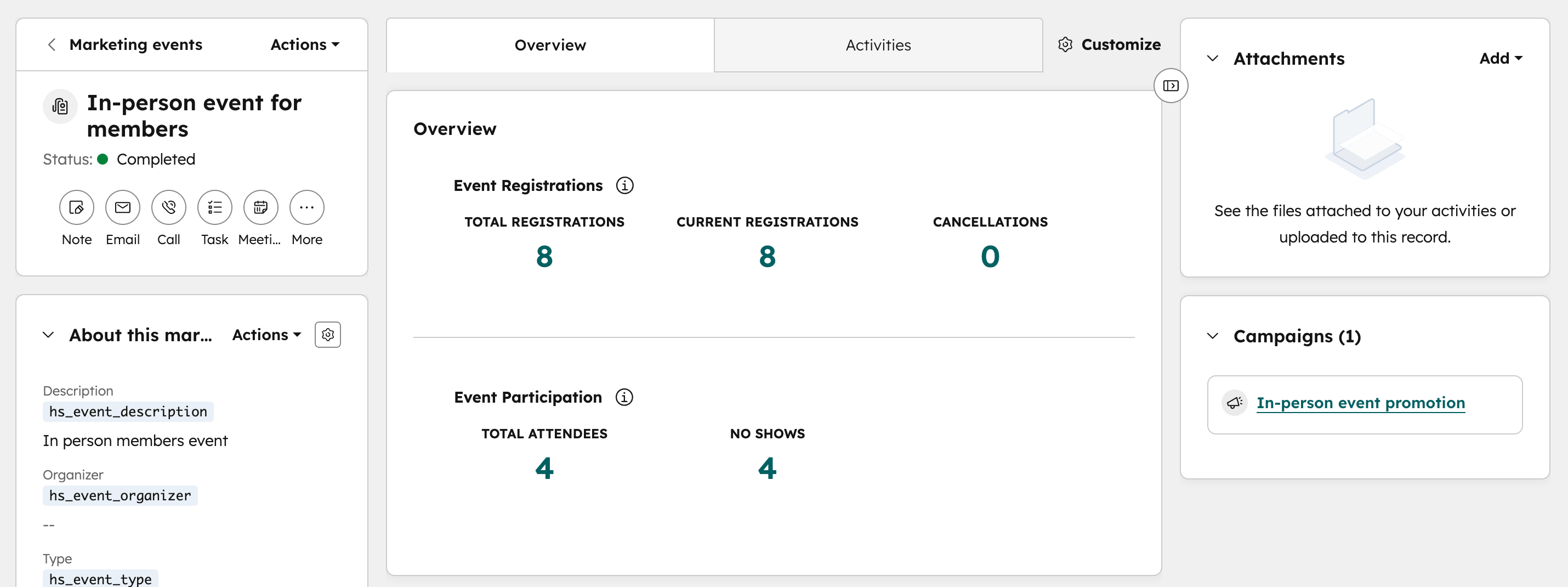
Please note: for registrations, HubSpot will always count each registration, even if a registration occurred and was then canceled.
Create a segment of marketing event contacts
You can create segments based on marketing events. For example, you can create a segment to show all contacts who attended a specific event. The segment will display results for attendees synced via your marketing event app or manually imported.
To create a segment specific to a marketing event:
- In your HubSpot account, navigate to CRM > Segments.
- In the upper right, click Create segment.
- In the left panel, select Contacts to create a segment of contacts.
- In the upper right, click Next.
- Click Add filter.
- Click the Events tab and select Marketing events.
- Select one of the following marketing event filters:
-
- Attendance duration
- Registered for marketing event
- Canceled marketing event registration
- Attended marketing event
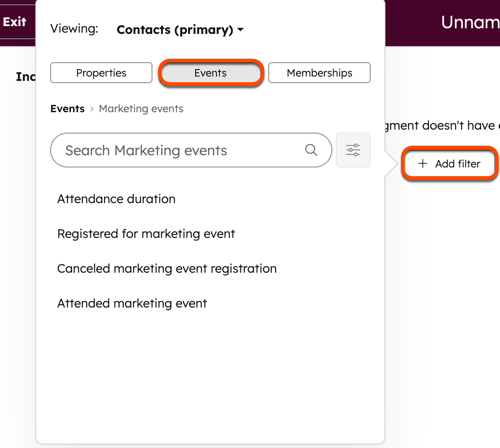
- Continue setting up your segment filter.
- To save your segment, in the upper right click Review and save to configure the segment details.
Learn more about marketing event segment filters.
Analyze marketing events in attribution reports
Subscription required A Marketing Hub Enterprise subscription is required to track marketing events in revenue attribution reports.
To use marketing event data in attribution reports, a user with Account Access permissions must turn on the marketing event data sources in the Tracking & Analytics settings.
- In your HubSpot account, click the
settings icon in the top navigation bar. - In the left sidebar menu, navigate to Tracking & Analytics > Attribution.
- In the Marketing section, click to toggle the Marketing event registered and Marketing event attended switches on.
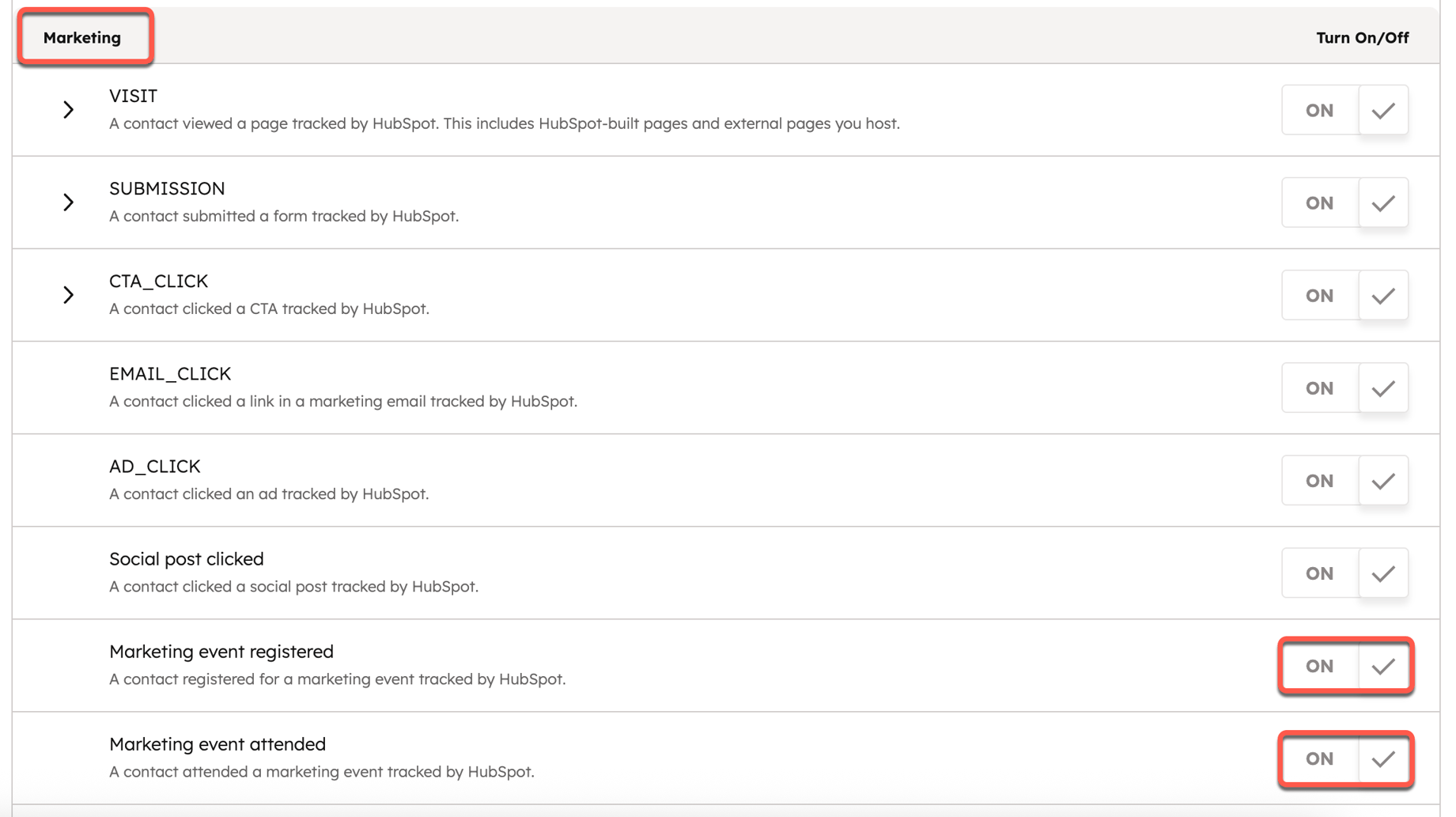
- Click Save.
- In the dialog box, click Save & start processing.
If a contact is associated with a closed-won deal, any marketing events that they attended or registered for will receive credit for driving revenue and will appear in your revenue attribution reports.
Learn more about creating multi-touch revenue attribution reports. You can also use marketing events in a journey report.
Analyze marketing events in the custom report builder
Subscription required A Professional or Enterprise subscription is required to create custom reports.
If you're a marketer or event manager, and you need to analyze and report on the performance and engagement of your marketing events, you can create a custom report using Marketing event analytics, Marketing event participations, or Marketing events as your primary data source. Learn more about creating a custom report.
