
Last updated: March 20, 2026
Available with any of the following subscriptions, except where noted:

Permissions required Super Admin permissions or Edit permissions for credit memos are required to apply, edit, or remove a credit memo on an invoice.
After creating credit memos, apply them to invoices to keep records accurate and billing organized. Once a credit memo has been applied, you can edit or remove it from the invoice.
Apply a credit memo to an invoice
Before you apply a credit memo to an invoice, keep in mind:
- Credit memos can't be applied to paid or voided invoices.
- The credit memo and the invoice must share the same billing contact.
To apply a credit memo to an invoice:
- In your HubSpot account, navigate to Commerce > Invoices.
- Click the invoice number of the invoice.
- In the right panel, in the upper right, click Actions, then select Apply available credit.
- In the dialog box:
- If more than one credit memo is available for the billing contact, click the Credit memo dropdown menu and select a credit memo.
- In the Amount applied field, enter the amount of credit. Credits can be for a partial or full amount of the invoice.
- To add another credit memo, click + Add available credit. To remove a credit memo, click the delete icon next to it.
- Click Apply.
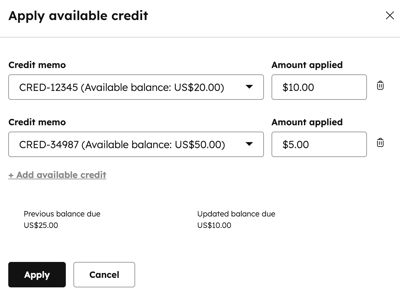
- Use the send invoice dialog box to send, download, or copy the link for the updated invoice.
View the associated credit memo
To view the associated credit memo and adjusted balance due:
- In your HubSpot account, navigate to Commerce > Invoices.
- Click the invoice number of the invoice.
- The adjusted balance due is displayed on the About this invoice card. The applied credit memo is displayed on the Credit memos card. If the Credit memos card isn't appearing on your record by default, you can manually add the card to your HubSpot record.

- Click View associated Credit memos to see the associated credit memos on the index page.

Edit an applied credit memo
- In your HubSpot account, navigate to Commerce > Invoices.
- Click the invoice number of the invoice.
- In the right panel, in the upper right, click Actions, then select Edit applied credit.
- In the dialog box:
- If more than one credit memo is available for the billing contact, to change the credit memo applied, click the Credit memo dropdown menu and select a credit memo.
- To adjust the amount, in the Amount applied field, enter the amount of credit. Credits can be for a partial or full amount of the invoice.
- To add another credit memo, click + Add available credit.
- To remove a credit memo, click the delete icon next to it.
- Click Apply.
- Use the send invoice dialog box to send, download, or copy the link for the updated invoice.
Remove a credit memo from an invoice
- In your HubSpot account, navigate to Commerce > Invoices.
- Click the invoice number of the invoice.
- In the right panel, in the upper right, click Actions, then select Remove applied credit.
- In the dialog box, click Remove to confirm.
- Use the send invoice dialog box to send, download, or copy the link for the updated invoice.
Next steps
-
Manage credit memos, including editing drafts, downloading, voiding, deleting, exporting, and associating credit memos with other records.
-
Manage invoices including editing, voiding, deleting, tracking, and exporting.
- Manage payments, including issuing refunds, resending receipts, downloading reports of your payments and payouts, exporting payment data, and more.
