
Last updated: May 29, 2026
Available with any of the following subscriptions, except where noted:

-
 Additional subscriptions required for certain features
Use the meetings dashboard to analyze your scheduling pages, helping you understand how your individual scheduling pages are performing. For example, you can quickly see how many contacts viewed a scheduling page and the conversion rate for that page (how many of those contacts ended up booking a meeting).
Users in a Professional or Enterprise account can also use the custom report builder to create a report based on meeting properties. This is helpful if you want to review things like which HubSpot users are attending meetings, the count of meetings, and the location of meetings.
Analyze meetings in the meetings dashboard
- In your HubSpot account, click More, then navigate to Sales > Meetings Scheduler. If More doesn't appear in your account, navigate to Sales > Meetings Scheduler directly.
- On the dashboard, you can analyze the metrics for each scheduling page.
- Duration: the time you've allotted for visitors to book when using the scheduling page.
- Type: whether the meeting is a personal or team scheduling page (Sales Hub or Service Hub Starter, Professional, or Enterprise only).
- Views: the number of times your scheduling page has been viewed.
- Meetings booked: the number of times visitors used the scheduling page to set up a meeting.
- Conversion rate: the percentage of views that resulted in a meeting booked.
Please note:
- Views, Meetings booked, and Conversion rate data for existing meetings will only be tracked as of the release of this feature. Activity prior to that date will not be reflected on the meetings dashboard.
- If you change the Brand associated with the meeting link, the analytics for the scheduling page will reset.
Analyze meetings in the custom report builder
Subscription required A Professional or Enterprise subscription is required to use the custom report builder.
When analyzing your meetings in the custom report builder, you can access performance metrics, such as count of meetings, location type, and users that are attendees of the meeting.
To create a report:
- In your HubSpot account, click More, then navigate to Reporting > Reports. If More doesn't appear in your account, navigate to Reporting > Reports directly.
- In the upper right, click Create report.
- In the Start on your own section, click Custom report. Then, in the upper right, click Next.
- In the Primary data source dropdown menu, select Meetings. Then, toggle the Add more data sources switch on if you want to add more data sources (e.g., if you want to learn more about the contacts who booked the meeting, select Contacts as an additional data source). Learn more about selecting data sources.
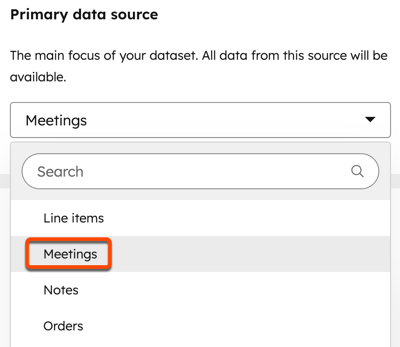
- In the upper right, click Next.
- Use the left panel to add fields to your report. Learn more about meeting properties and activity filters you can use in your custom report.
- Configure your report visualization.
- Save your report.
Learn more about creating reports with the custom report builder.
