
Last updated: April 30, 2026
Available with any of the following subscriptions, except where noted:
-
 Marketing Hub
Starter, Professional, Enterprise
Marketing Hub
Starter, Professional, Enterprise
-
 Sales Hub
Starter, Professional, Enterprise
Sales Hub
Starter, Professional, Enterprise
-
 Service Hub
Starter, Professional, Enterprise
Service Hub
Starter, Professional, Enterprise
-
 Data Hub
Starter, Professional, Enterprise
Data Hub
Starter, Professional, Enterprise
-
 Content Hub
Starter, Professional, Enterprise
Content Hub
Starter, Professional, Enterprise
-
 Smart CRM
Professional, Enterprise
Smart CRM
Professional, Enterprise
-
 Commerce Hub
Professional, Enterprise
Commerce Hub
Professional, Enterprise
Use data enrichment settings to control how contact and company records are enriched in your account. Configure automatic and continuous enrichment, define overwrite behavior, customize property mappings, and review enrichment activity. Learn how to get started with data enrichment.
For example, turn on automatic enrichment for new records created through forms or integrations, or continuously update existing records when new data becomes available.
Before you get started
Permissions required
- Super Admin permissions are required to configure enrichment settings.
- Data enrichment access or Super Admin permissions are required to enrich records.
Manage user permissions for enrichment
- In your HubSpot account, click the
settings icon in the top navigation bar. - In the left sidebar menu, navigate to Users & Teams.
- In the user table, hover over a user, then click Edit permissions.
- In the left sidebar menu, click Data Management.
- Toggle the Data enrichment access switch on or off.
/enrichment-permission.png?width=800&height=386&name=enrichment-permission.png)
Configure enrichment settings
- In your HubSpot account, click the
settings icon in the top navigation bar. - In the left sidebar menu, in the Data Management section, click Data Enrichment.
- On the Settings tab, configure the following:
-
- Automatically enrich new records: automatically enrich newly created records (e.g., from forms, integrations, or manual creation).
- Continuously enrich existing records: update previously enriched records monthly when new data becomes available.
- Overwrite incorrect enrichment values: replace previously enriched values with null values when the source data is inaccurate.
- This option is only available if Continuously enrich existing records is turned on.
- Values set manually, by workflows, or by integrations won’t be overwritten.
- Automatically enrich recently engaged contacts and companies: enrich records with recent engagement activity (e.g., emails, meetings, or activities that update the Last engagement date property).
- Opt out of free company name enrichment: prevent automatic population of the default Company name property for new company records.
Customize enrichment property mapping
Control which properties receive enrichment data and define overwrite behavior. Changes to mapping settings apply to future enrichment only and don’t update previously enriched records.
- In your HubSpot account, click the
settings icon in the top navigation bar. - In the left sidebar menu, in the Data Management section, click Data Enrichment.
- Click the Mapping tab.
- In the upper right of the table, select an object (contacts or companies).
- Configure each property:
- In the HubSpot Property column, select a property that matches the enrichment field type (e.g., text City to a custom text City).
- In the Overwrite Rule column, select an option:
- Fill empty values only: update properties only when blank. For example, use this option for First name and Last name to protect manually-entered contact names.
- Fill empty values and overwrite existing values: update both blank and existing values. For example, use this option for Job Title and Employment Seniority to keep data current
- Do not fill any values: prevent enrichment for the property.
- To revert changes, click the reset icon.
Please note: if you have a workflow using the Breeze Intelligence enrichment action, the overwrite settings in the action will take precedence over the overwrite rules set in the Overwrite Rule column. For example, if you've set the rule to Fill empty values only, but the workflow action has been set to overwrite existing data, any existing data for enrolled records in that workflow will be overwritten.
Example: configure enrichment mapping to use a custom Industry property
Custom dropdown select enrichment requires exact matching between the property option labels and internal names. Review how to configure a custom a custom industry property to align with your business needs.
To set up the custom property:
- Create a new dropdown select contact or company property.
- On the Field type tab, click Load options.
- In the pop-up box, configure the following:
- Click From property.
- Click the Object type dropdown menu and select Company.
- Click the Property to copy options from dropdown menu and select Industry.
- Click Load options. Learn more
- In the upper right, click Save.
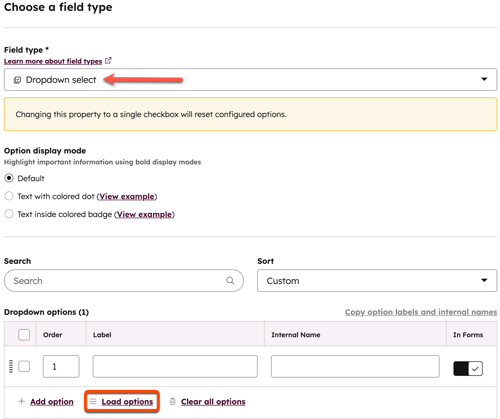 To configure the custom enrichment mapping:
- Navigate to enrichment settings.
- Click the Companies tab.
- Click the Industry dropdown menu and select the custom dropdown select property name.
/enrichment-mapping-example.png?width=600&height=463&name=enrichment-mapping-example.png)
View enrichment activity log
Use the enrichment activity log to review a chronological feed of enrichment events across your account. This helps track who enriched records, when enrichment occurred, and how it was triggered. Automatic and continuous enrichment events are grouped in 3 hour time blocks. The activity log updates automatically as enrichment occurs.
- In your HubSpot account, click the
settings icon in the top navigation bar. - In the left sidebar menu, in the Data Management section, click Data Enrichment.
- Click the Activity tab.
- Review enrichment data:
- Timestamp: review the date and time for when enrichment occurred.
- Source: review the source of enrichment (e.g., Continuous, Manual).
- User: review the user who triggered the enrichment. This can display as HubSpot system if the enrichment occurred automatically.
- Records: displays the number of records enriched during the specified date and time. If available, URL links to the records are displayed.
- Type: displays the enriched object (contact or company).
- Details: click the button to review expanded details in a panel. For example, if a user triggered enrichment in bulk, you'll see each record and the result of the enrichment in the panel.
Next steps
