
Last updated: May 18, 2026
Available with any of the following subscriptions, except where noted:

-
 Additional subscriptions required for certain features
Fonts in HubSpot are available in different ways depending on the content type and font type. Some default fonts are available in all content editors. Web fonts and custom fonts may need to be added to theme settings, style sheets, custom modules, or coded templates.
Before you get started
Before you begin using fonts in HubSpot, review the requirements and considerations.
Permissions required A user may need additional permissions depending on where the font is being used:
- Edit and Publish permission is required to use fonts in rich text modules on their respective content type (e.g., blog posts or landing pages).
- Global content and theme settings permission is required to use fonts in themes.
- Design tools permission is required to to use fonts in stylesheets, custom coded templates, or custom modules.
Understand limitations & considerations
- Not all content types are available in all accounts. To confirm which content types are available for your subscription, review the Product & Services Catalog.
- Review the table below to understand which font options are available for each content type:
| Content type | Font type | |||
| Default fonts | Web fonts |
Custom fonts |
||
| Page - theme templates | ✓ | Available in theme settings and via stylesheet | ✓ | |
| Page - coded template | ✓ | Available via stylesheet or custom module | Available via stylesheet | |
| Blog | ✓ | Available via stylesheet or custom module | ✓ | |
| Some default fonts not available in the drag and drop email editor | Available for custom coded email templates only; not supported in most email clients | Available for custom coded email templates only; not supported in most email clients | ||
| Knowledge base | Fonts cannot be customized in the article editor | Available in theme settings | Available in theme settings | |
| Custom module | ✓ | Available for custom modules not used in emails | Available for custom modules not used in emails | |
| CTA (legacy) | ✓ | ✓ | ✓ | |
| CTA | ✓ | ✓ | ✓ | |
Use default fonts in rich text modules
Default fonts are supported across HubSpot content, though the available options and where you can apply them depends on the content type.
-
Navigate to your content:
- Website Pages: In your HubSpot account, navigate to Content > Website Pages.
- Landing Pages: In your HubSpot account, navigate to Content > Landing Pages.
- Blog: In your HubSpot account, navigate to Content > Blog.
- Email: In your HubSpot account, navigate to Marketing > Email.
- Click the name of your content.
- In the content editor, click a rich text module, then highlight the text you want to edit.
- In the rich text toolbar, click the Font dropdown menu and select a font. The following fonts are available in rich text modules:
Use web fonts
Web fonts are supported in some HubSpot content, but they aren't available in the Font dropdown menu in the rich text editor. Depending on the content type, web fonts can be applied in theme settings, stylesheets, custom modules, or coded templates.
Developers can use the font field to add web fonts to themes and custom modules. When web fonts are added this way, HubSpot loads them directly on the content's domain instead of loading them from a third-party service.
Use third-party services such as Google Fonts by copying the font's import code, pasting it into the content's stylesheet, then applying the font through CSS:
- Navigate to fonts.google.com.
- In the search bar, enter a font name.
- Click the font name to view a list of styles available to import.
- Click Get font in the top right.
- Click Get embed code in the top right.
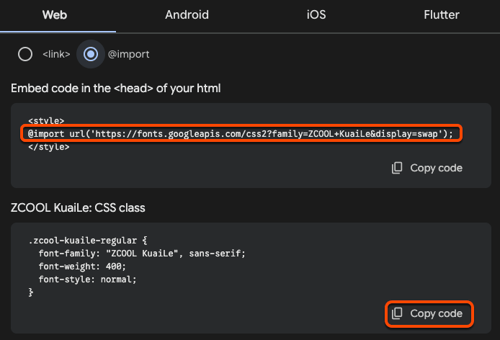
- In the right column, select @import on the Web tab.
- Copy the @import code without the
<style>tag. - Copy the CSS class code for setting CSS rules.
-
After you copy the code from Google Fonts, you can add the font to your HubSpot content:
Use a Google Font in a stylesheet
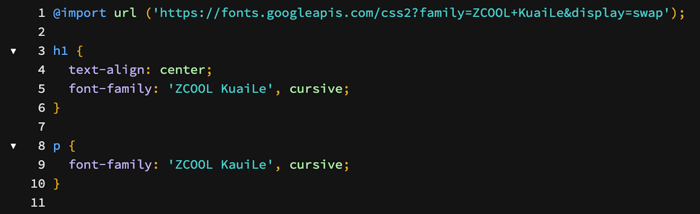
- Copy the font's @import code from Google Fonts.
- In your HubSpot account, navigate to Content > Design Manager.
- In the finder, open the stylesheet used for your content.
- Paste the @import code into
line 1of the stylesheet. - Add the code for setting CSS rules to the appropriate selectors in the stylesheet.
- In the top right, click Publish changes to take your changes live.
Use a Google Font in a custom coded email template
Google Fonts are supported in Apple Mail and a few other email clients, but broad support is limited. Most popular email clients support default web fonts only. Learn more about selecting the default fonts used in the classic email editor.
Subscription required Marketing Hub Professional or Enterprise subscription is required to build custom coded email templates.
To add a Google Font to a custom coded email template:
- Copy the font's @import code from Google Fonts.
- In your HubSpot account, navigate to Content > Design Manager.
- In the finder, open the custom coded email template.
- In the
<head>section of the template, paste the @import code between the<style>....</style>tags. - In the
<body>section of the template, add the custom font in inline styling. - In the top right, click Publish changes to take your changes live.
Use a Google Font in a CTA (legacy)
- Copy Google's code for setting CSS rules for that font.
- In your HubSpot account, navigate to Marketing > CTAs.
- Hover over a CTA, then click the Actions > Edit.
- In the right panel, click Advanced options.
- In the text box, paste Google's code for setting CSS rules for that font.
- In the bottom right, click Next. Then, click Save.
Use a Google Font in a form
- In your HubSpot account, navigate to Marketing > Forms.
- Hover over the form name and click Actions > Edit form or Create a new form.
- In the form editor, click the Style & preview tab.
- In the left sidebar menu, click the Style section.
- In the Text section, click the Font family dropdown menu and select a Google Font.
- In the top right, click Update or Publish to take your changes live.
Use a Google Font in a custom module
Please note: Google Fonts are not available for custom modules used in email templates.
- In your HubSpot account, navigate to Content > Design Manager.
- In the finder, click the name of a custom module. Learn more about creating a custom module.
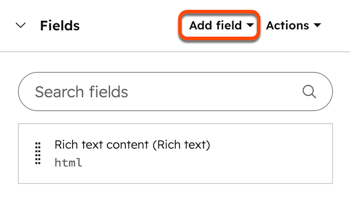
- In the inspector, click the Add field dropdown menu in the Fields section and select Font. Learn more about working with font fields.
- In the top right, click Publish changes to take your changes live.
- Navigate to your content:
- Website Pages: In your HubSpot account, navigate to Content > Website Pages.
- Landing Pages: In your HubSpot account, navigate to Content > Landing Pages.
- Blog: In your HubSpot account, navigate to Content > Blog.
- Click the name of the content using the custom module.
- In the content editor, click the custom module.
- In the sidebar editor, click the Font field dropdown menu and select a Google Font.
Use custom fonts
As an alternative to using standard web fonts or using a font library like Google Fonts, upload font files, then use them in themes or reference them in stylesheets.
Use custom fonts in themes
In the theme editor, upload a custom font, then use that font in pages and posts. Font files are supported in the following formats: TTF, OTF, WOFF.
Upload custom fonts for pages or posts
After you've uploaded custom fonts, they will be available for pages, posts, or knowledge base articles.
-
Navigate to your content:
- Website Pages: In your HubSpot account, navigate to Content > Website Pages.
- Landing Pages: In your HubSpot account, navigate to Content > Landing Pages.
- Blog: In your HubSpot account, navigate to Content > Blog.
- Click the name of your content.
- In the content editor, click the Edit menu and select Theme: [Name of Theme].
- In the left sidebar menu, click any font dropdown menu and select Manage brand fonts.
- Follow the steps in this Knowledge Base article to add or edit your fonts.
Upload custom fonts for knowledge base articles
After you've uploaded custom fonts, they will be available for pages, posts, or knowledge base articles.
- In your HubSpot account, navigate to Service > Knowledge Base.
- In the top right, click the Customize template.
- In the left sidebar, click the Design tab.
- In the left sidebar, click Font styles.
- Click any font dropdown menu and select Manage brand fonts.
- Follow the steps in this Knowledge Base article to add or edit your fonts.
Edit custom fonts
After you've uploaded a custom font in the theme editor, you can upload additional fonts, customize existing fonts with additional font styles, or delete fonts.
Use custom fonts in stylesheets
As an alternative to using standard web fonts or using a font library like Google Fonts, you can host font files in the files tool, then reference them in your stylesheet.
Please note: custom fonts are only available in accounts with access to the design manager and need to be applied with CSS. Adding a custom font will not add the font to styling dropdown menus in the content editor.
To use a font in content, upload the font's files to the files tool. It's recommended to upload at least .woff, .ttf, and .eot versions of the font to ensure your font loads on all browsers. You can use the Expert mode on Font Squirrel's converter tool to generate additional file formats.
- In your HubSpot account, navigate to Content > Files. If you're using HubSpot's free tools, navigate to Marketing > Email. In the top right, click Email tools and select Files.
- Click Upload files.
- On your computer's hard drive, select the font files, then click Open.
- Click the name of an uploaded font file.
- In the right panel, click Copy URL to copy the URL where the file is hosted. You will need the URL for the font in each file format.
Use a custom font in a stylesheet
After you've added a custom font to the files tool, you can reference it in a stylesheet. Each font style (italics, bold, etc.) will require a separate @font-face rule. Learn more about working with stylesheets in HubSpot.
- In your HubSpot account, navigate to Content > Design Manager.
- In the finder, open the stylesheet used for your content.
- For each font style:
- At the top of the stylesheet, paste the following code:
@font-face {
font-family: 'Your Font Name';
src: url('your_font_file.eot?') format('eot'), url('your_font_file.woff') format('woff'), url('your_font_file.ttf') format('truetype');}
-
- Replace Your Font Name with the name of the font.
- Replace your_font_file.xxx? with the URL from the files tool. Repeat for each file format.
- Create CSS rules with the font-family property to apply the custom font.
- In the top right, click Update or Publish to take your changes live.
Use a custom font in a custom coded email template
Custom fonts aren't supported in most popular email clients. To ensure a consistent experience for your readers, using default web fonts in emails is recommended. However, if you’d like to add a custom font to a custom coded email template, you can do so once you’ve added the custom font to the files tool.
- In your HubSpot account, navigate to Content > Design Manager.
- In the finder, click the name of your custom coded email template.
- For each font style:
- In the
<head>section of the template, paste this code between the<style>....</style>tags:
- In the
@font-face {
font-family: 'Your Font Name';
src: url('your_font_file.eot?') format('eot'), url('your_font_file.woff') format('woff'), url('your_font_file.ttf') format('truetype');}
-
- Replace Your Font Name with the name of the font.
- Replace your_font_file.xxx? with the URL from the files tool. Repeat for each file format.
- In the code of the email body, add the custom font in inline styling.
- In the top right, click Update or Publish to take your changes live.
Use a custom font in a CTA
After adding a custom font to your theme, you can use it with CTAs.
- In your HubSpot account, navigate to Marketing > CTAs.
- In the top left, click the dropdown menu and select CTAs
- Hover over a CTA, then click Actions > Edit.
- In the left panel of the CTA editor, click the Design tab.
- Click the Styles section to expand.
- Click the Primary Font dropdown menu and select your custom font.
- Continue creating your CTA.
Use a custom font in a CTA (legacy)
Similar to CTAs, after uploading a custom font file, use it with legacy CTAs.
- In your HubSpot account, navigate to Marketing > CTAs.
- Hover over a CTA, then click Actions > Edit.
- In the right panel, click Advanced options.
- In the text box, paste this code:
font-family: 'Your Font Name'; - Replace Your Font Name with the name of the font.
- In the bottom right, click Next. Then, click Save.
Use a custom font in a custom module
After you've added a custom font to the files tool, use it in custom blog or page modules. Learn how to add a custom font to a custom coded email template.
- In your HubSpot account, navigate to Content > Design Manager.
- In the finder, click the name of the custom module.
- In the module editor, for the module.css section, paste the following code:
@font-face {
font-family: 'Your Font Name';
src: url('your_font_file.eot?') format('eot'), url('your_font_file.woff') format('woff'), url('your_font_file.ttf') format('truetype');}
-
- Replace Your Font Name with the name of the font.
- Replace your_font_file.xxx? with the URL from the files tool. Repeat for each file format.
- Create CSS rules with the font-family property to apply the custom font.
- In the top right, click Publish changes to take your changes live.
