上次更新時間: 2026年1月30日

在 HubSpot 中,內容樣式可添加於多個位置,且會根據添加位置以特定順序套用。本文將說明樣式套用機制、如何在實際頁面中查找樣式,以及如何取得設計編輯協助。
理解樣式套用機制
樣式會依據在 HubSpot 中添加的位置,以特定順序套用。例如:全局樣式表中的樣式會被特定頁面添加的樣式覆寫。
請參照以下清單理解頁面樣式來源,從優先套用的樣式開始,至最後套用的樣式結束。
-
- 在模組編輯器中,新增至模組 .css區段的 CSS。
-
- 模組內 HubL 標記中的 CSS 內容
require_css 區塊區塊內的 CSS。
- 模組內 HubL 標記中的 CSS 內容
- 透過
require_css 區塊新增至模板的樣式表。 - 設計管理器中的 HubSpot 預設樣式表(例如layout.css)。
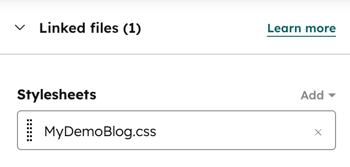
- 佈局編輯器中附加於模板的樣式表。
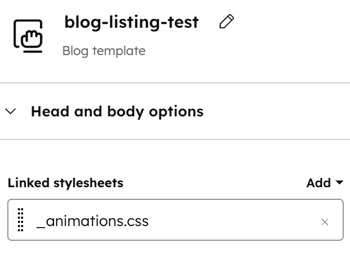
- 於頁面設定標籤頁附加的樣式表。
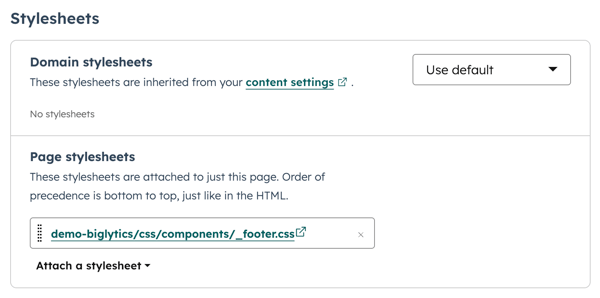
- 在所有網域設定中附加的樣式表
- 特定網域設定中附加的樣式表
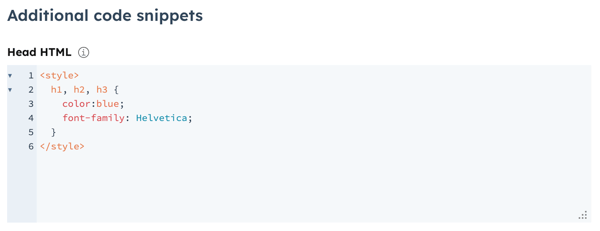
- 於 <style> 標籤內新增的 CSS。例如:網站設定、頁面設定或範本的 HTML 頭部區塊。
- 透過頁面編輯器新增的樣式。HubSpot 亦會為這些樣式添加
!important標籤。深入了解 !important 標籤及其對樣式設定的影響。
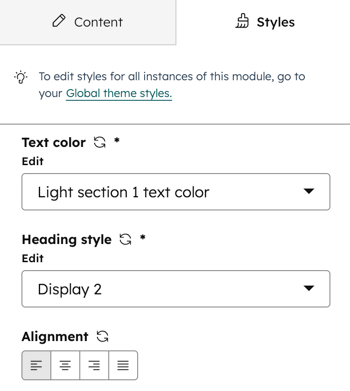
在預覽或正式頁面查找樣式
使用瀏覽器的開發人員工具,即可查閱應用於正式網站或預覽頁面的樣式。各瀏覽器排查樣式問題的方式略有差異,以下範例以 Google Chrome 為例。
- 導覽至您的內容:
- 在你的 HubSpot 帳戶中,瀏覽「內容」>「網站頁面」。
- 在你的 HubSpot 帳戶中,瀏覽「內容」>「登陸頁面」。
- 點擊您的頁面名稱。
- 在內容編輯器中,點擊右上角的「預覽」。
- 在預覽頁面中,點擊「在新分頁中開啟」。
- 在預覽中,於欲檢視的元素上按右鍵,選擇「檢查」。
- 在元素面板中,您將看到頁面的 HTML 結構。點擊元素可檢視其樣式。
- 在樣式窗格中檢視套用至該元素的 CSS 規則。勾選或取消勾選各樣式旁的核取方塊,即可暫時移除或新增樣式,有助於辨識影響元素的規則。

- 在 CSS 規則右側,您將看到該樣式的來源名稱。這可確認樣式來源的位置。將游標懸停在來源名稱上即可查看完整名稱:
- 若樣式來自 CSS 檔案,樣式表名稱將顯示於 CSS 宣告旁。請導覽至設計管理器,找到該樣式表並進行必要編輯。

-
- 若來源名稱以模組開頭,則樣式來自 模組的 CSS。將游標懸停於來源名稱可查看模組完整名稱。

-
- 若來源名稱為使用者代理程式樣式表,則 樣式屬於瀏覽器預設樣式的一部分。
- 通常當瀏覽器無法為元素找到樣式規則時,您會在此處看到 HTML 標籤樣式(例如
<p>、<h1>、<span>等)。 - 使用者代理程式樣式表可透過為該元素添加自訂樣式來覆寫。
- 通常當瀏覽器無法為元素找到樣式規則時,您會在此處看到 HTML 標籤樣式(例如
- 若來源名稱為使用者代理程式樣式表,則 樣式屬於瀏覽器預設樣式的一部分。

-
- 若來源名稱為頁面網址,則樣式來自頁面中的
<style>標籤。例如樣式可能設定於頁面或範本的頭部 HTML 區塊。
- 若來源名稱為頁面網址,則樣式來自頁面中的
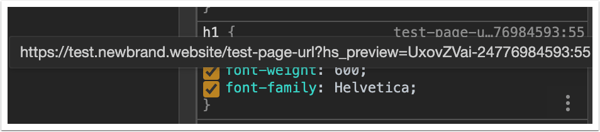
-
- 若來源名稱為頁面網址,且樣式針對#hs_cos_wrapper_module_number 元素,則該樣式是透過頁面編輯器的「樣式」標籤頁新增。HubSpot 會自動添加
!important標籤至這些樣式。瞭解更多關於!important 標籤及其對樣式影響的資訊。
- 若來源名稱為頁面網址,且樣式針對#hs_cos_wrapper_module_number 元素,則該樣式是透過頁面編輯器的「樣式」標籤頁新增。HubSpot 會自動添加

-
- 若來源名稱為<style>,樣式將自動隨元素載入。此情況常見於可嵌入式 HubSpot 資產(如行動呼籲按鈕或會議小工具)的編輯器內設定樣式。
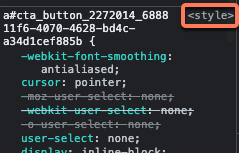
-
- 若元素樣式(element.style)出現在檢查器中的宣告旁,表示該 CSS 已設定為內聯樣式。內聯樣式是指直接添加至頁面 HTML 原始碼, 或模板內聯樣式欄位的樣式。例如,原始碼中的內聯樣式會呈現為
<p style="background:purple;">Hello world</p>。
- 若元素樣式(element.style)出現在檢查器中的宣告旁,表示該 CSS 已設定為內聯樣式。內聯樣式是指直接添加至頁面 HTML 原始碼, 或模板內聯樣式欄位的樣式。例如,原始碼中的內聯樣式會呈現為

欲深入瞭解檢視頁面的方法,請參閱您所使用網頁瀏覽器的說明文件:
設計編輯協助資源
修改 HubSpot 範本或樣式表的最佳資源是原始範本設計師。但根據您對 HTML 和 CSS 疑難排解的熟悉程度,尚有多種資源可協助內容樣式調整:
- 若您熟悉使用檢查工具來排除範本中的設計問題:
-
- 請至社群的CMS 開發論壇搜尋或發文,以獲取技巧、建議或解決程式碼問題。
- 請參閱CMS 參考文件以獲取教學指南、操作手冊及框架概述。
- 透過CMS 開發者社群 Slack 聯繫 HubSpot 產品團隊及使用 HubSpot 的其他開發者。
- 若您不熟悉在模板中閱讀或編輯 HTML 與 CSS:
-
- 聯繫具備網站設計專業知識的認證HubSpot 合作夥伴,協助您自訂模板。
- 使用主題模板編輯 頁面樣式,無需編寫任何程式碼。
- 若您使用的是從資產市集購買的模板,請就頁面設計相關問題聯繫該模板的設計師。