上次更新時間: 2026年4月21日

在 HubSpot 的社交工具中,當 在桌面上或從 HubSpot 移動應用程式創建社交文章時,啟動並在Breeze Assistant中輸入提示,以自動生成社交文章的內容。
在桌面端,您也可以使用 Breeze Assistant 來完善您的社群文章,或從部落格文章中建立社群文章。
請注意:你可以在你的 AI 設定中管理 AI 功能存取權,並設定要分享的資料。請檢閱 HubSpot 的 AI 信任常見問題和 AI 模型卡,以取得有關 AI 安全控制、資料使用和合規性的詳細資訊。
在桌面生成社交文章內容
在桌面創建社交文章時,使用 Breeze Assistant 產生內容:
- 在你的 HubSpot 帳戶中,瀏覽「行銷」>「社群」。
- 在右上方,點擊創建文章.
- 在文字框中,點選 AI 圖示。然後選擇社交文章或Hashtags。
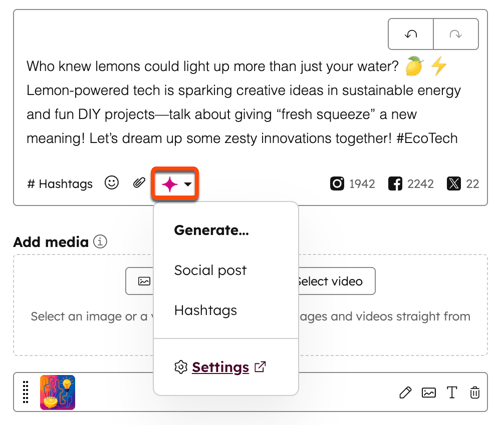
- 在 Breeze Assistant 中,輸入您的提示 ,然後點選傳送圖示。Breeze Assistant 會根據要求產生新的內容。
- 要使用內容,點擊插入。
- 要進一步完善內容,點擊Refine.然後在下面輸入您的提示 。
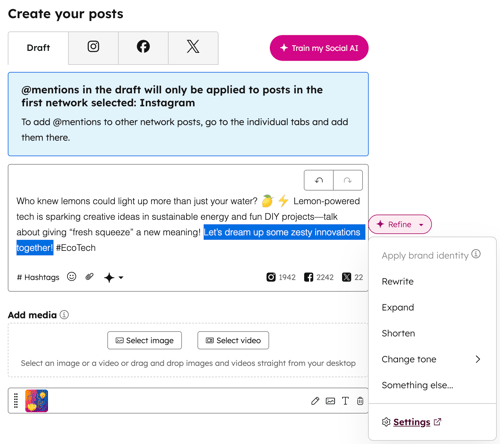
- 要使用 Breeze Assistant 來精煉現有的文字:
- 在文本框中, 高亮您想要生成內容的文本, 然後點擊 Refine並選擇一個高亮命令.瞭解更多關於使用 Breeze Assistant 完善現有文字的資訊。
- Breeze Assistant 將根據請求生成新的內容:
- 要使用該內容, 點擊Replace.
- 要進一步精煉內容,點擊Refine。然後在下面輸入您的提示 。
- 繼續建立您的社交文章。如果發表的文章包含已編輯的已產生內容,則發表的文章將標示為AI 輔助。如果發表的文章只有已產生的內容,則會標示為AI 產生。
從部落格文章產生社交文章
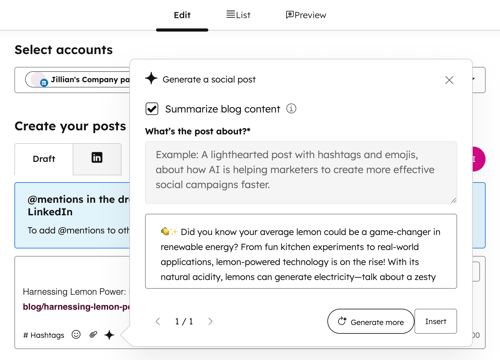
建立部落格文章後,產生摘要以用於社交文章並推廣您的內容。
- 在你的 HubSpot 帳戶中,瀏覽「內容」>「部落格」。
- 將滑鼠移至您想要摘要的部落格文章上,然後按一下更多並選擇分享。
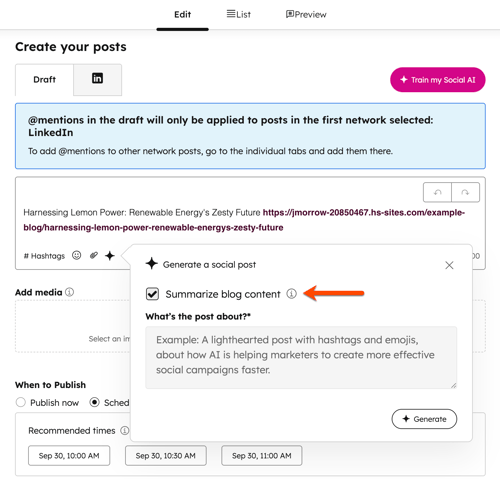
- 在右側面板中,按一下 AI圖示。
- 在對話方塊中,選取摘要部落格內容 核取方塊。然後按一下 [ 產生] ,以產生該部落格的摘要社交文章。
- 再次 按一下「產 生」,以產生新版本的文字。您可以為現有文字產生 6 個版本。
- 產生文章後,您可以增加或減少文章的長度:
- 若要增加文章的長度,請將滑鼠懸停在文章上,然後按一下 擴充圖示。
- 若要減少文章的長度,請將滑鼠懸停在文章上,然後按一下 縮小圖示。
- 若要從相同提示產生另一篇文章,請按一下 產生更多文章 。若要檢視已產生的文章,請按一下 對話方塊底部的 箭頭圖示 。
- 若要使用已產生的內容,請按一下插入。
- 繼續建立您的社群文章。 如果發表的文章包含已編輯的已產生內容,發表的文章將標示為AI-assisted。如果發表的文章只有已產生的內容,則會標示為AI 產生。
在 HubSpot 的行動應用程式上使用 Breeze 建立社群文章
在旅途中,您可以在HubSpot 的行動應用程式中輸入提示,自動產生社交文章的內容。
- 在您的設備上打開HubSpot 應用程式。
- 在右上方,點選 新增圖示。然後點選社交文章。
- 選擇 您要發佈到的社交網路帳號名稱旁的核取方塊 。
- 在文字方塊中,點選 AI圖示。
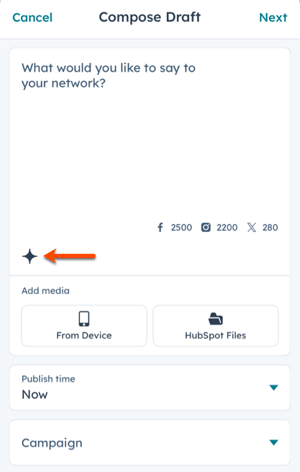
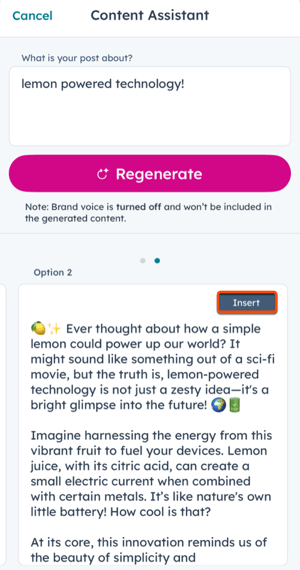
- 在What is your post about?文字方塊中,輸入社交文章的內容 。然後按一下產生。您的描述必須包含至少 2 個字。
- 若要產生另一篇文章,請點選再生。您最多可以產生6 個選項。
- 若要檢視不同的已產生選項,請左右滑動。
- 選取選項後,點選插入以使用此選項。在編輯器中,您可以繼續編輯文章文字,或直接發表文章。
- 如果您改變主意,想要插入不同的選項,您需要先手動移除舊文章。否則,任何新內容都會插入現有的文章中。
- 若要在現有文章中插入更多內容,請在產生內容之前, 點選文章 中您希望顯示新內容的 區域 。任何新內容都會插入選取的區域。
- 繼續建立您的社交文章。如果使用任何已產生的選項,貼文將自動標示為 AI 輔助。