
Last updated: April 13, 2026
Available with any of the following subscriptions, except where noted:

Access Breeze Assistant while on the go on your HubSpot mobile app for iOS and Android. Start or resume chats, and use voice input.
Please note: you can manage AI feature access in your AI settings and configure what data is shared. Review HubSpot's AI Trust FAQs and AI Model Cards for detailed information on AI security controls, data use, and compliance.
Before you get started
Before working with Breeze Assistant on the HubSpot mobile app, review the requirements below to ensure you can access all available features.
Understand requirements
- To use Breeze Assistant on the HubSpot mobile app, turn on Give users access to Breeze Assistant in your AI settings.
- User permissions determine which actions can be performed with Breeze Assistant.
Understand limitations & considerations
- It's recommended to keep the HubSpot mobile app updated to ensure the best performance. Learn more about updating apps on iOS and Android.
Use Breeze Assistant
Use Breeze Assistant from the HubSpot mobile app to create new chats or continue the ones you started on your desktop. You can upload files and use voice inputs.
- Open the Breeze Assistant app on your device.
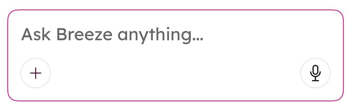
- To start a new chat, enter a prompt and then tap the send icon. You can also upload files and use Speech-to-Text (STT).
-
- To upload files (Android only), tap the add icon and select an option (e.g., Camera, Photos, Files, or HubSpot Files).
-
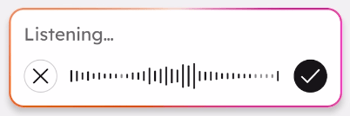
- To use Speech-to-Text (STT) to dictate your message, tap the microphone icon and begin speaking. Then, tap the checkmark icon.
- To access a previous chat, tap the previous chat icon and then tap a previous chat.
- To rename a previous chat, tap the previous chat icon and then tap and hold on a previous chat.
- In the pop-up box, tap Rename.
- In the dialog box, enter a name for the chat, and then tap Rename.
