
Last updated: August 25, 2026
Available with any of the following subscriptions, except where noted:

Permissions required Super Admin permissions or View permissions for credit memos are required to view credit memos.
Permissions required Super Admin permissions or Edit permissions for credit memos are required to manage, edit, void, or delete credit memos.
From the credit memos index page, edit drafts, manage applied credit memos, void or delete records, export data, and associate finalized credit memos with other records.
View and filter credit memos
To view credit memos:
- In your HubSpot account, click More, then navigate to Revenue > Invoices. If More doesn't appear in your account, navigate to Revenue > Invoices directly.
- In the upper right, click Actions, then select View credit memos.
- To edit the columns that appear in the table, click Edit columns in the upper right of the table.
- To filter the index page by specific credit memo properties:
- Click Advanced filters above the table.
- In the right panel, click + Add filter. Search for and select the property you want to filter by, then set the filter criteria. To add another filter to the filter group, under and, click + Add filter.
- To add an additional filter group, under or, click + Add filter group.
- Click the X in the upper right of the panel when you've set up your filter. Learn more about setting up filters and saving views.
- Credit memos can have the following statuses:
- Draft: the credit memo is being drafted and is not yet finalized. Draft credit memos can't be applied to invoices.
- Unapplied: the credit memo has been created, but not yet applied to an invoice.
- Partially applied: the credit memo amount has been partially applied to an invoice (e.g., $50 of a $100 credit memo has been applied to the invoice).
- Applied: the full amount of the credit memo has been applied to an invoice.
- Voided: the credit memo has been voided.
- To view an individual credit memo:
- Hover over a credit memo and click Preview.
- In the right panel, view the credit memo details and other records associated with the credit memo. To view the credit memo in a new browser tab or window, in the upper right, click Actions, then select View credit memo.
Edit draft credit memos
Only credit memos with a Draft status can be edited.
- In your HubSpot account, click More, then navigate to Revenue > Invoices. If More doesn't appear in your account, navigate to Revenue > Invoices directly.
- In the upper right, click Actions, then select View credit memos.
- Hover over a credit memo and click the Preview icon.
- In the right panel, in the upper right, click Actions, then select Edit.
- Continue configuring your credit memo.
Manage associated credit memos
View, edit, or remove associated credit memos from invoices.
View associated credit memos
To view associated credit memos and the adjusted balance due:
- In your HubSpot account, click More, then navigate to Revenue > Invoices. If More doesn't appear in your account, navigate to Revenue > Invoices directly.
- Click the invoice number of the invoice.
- The adjusted balance due is displayed on the About this invoice card. Applied credit memos are displayed on the Credit memos card. If the Credit memos card isn't appearing on your record by default, you can manually add the card to your HubSpot record.

- Click View associated Credit memos to see the associated credit memos on the index page.

Edit an applied credit memo
- In your HubSpot account, click More, then navigate to Revenue > Invoices. If More doesn't appear in your account, navigate to Revenue > Invoices directly.
- Click the invoice number of the invoice.
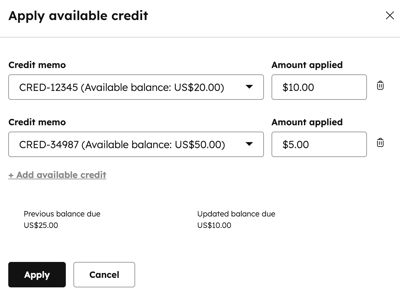
- In the right panel, in the upper right, click Actions, then select Apply or manage credit.
- In the dialog box:
- If more than one credit memo is available for the billing contact, to change the credit memo applied, click the Credit memo dropdown menu and select a credit memo.
- To adjust the amount, in the Amount applied field, enter the amount of credit. You can apply a partial or full credit amount to the invoice.
- To add another credit memo, click + Add available credit.
- To remove a credit memo, click the delete icon next to it.
- Click Save changes.
- Use the send invoice dialog box to send, download, or copy the link for the updated invoice.
Remove a credit memo from an invoice
You can remove a credit memo from an invoice, or void the credit memo and create a new one.
- In your HubSpot account, click More, then navigate to Revenue > Invoices. If More doesn't appear in your account, navigate to Revenue > Invoices directly.
- Click the invoice number of the invoice.
- In the right panel, in the upper right, click Actions, then select Apply or manage credit.
- In the dialog box:
- Click the delete icon next to the credit amount.
- Click Save changes.
- Use the send invoice dialog box to send, download, or copy the link for the updated invoice.
Copy a link or download a credit memo
You can copy a credit memo link or download the credit memo as a PDF if it has an Unapplied, Partially applied, Applied, or Voided status.
- In your HubSpot account, click More, then navigate to Revenue > Invoices. If More doesn't appear in your account, navigate to Revenue > Invoices directly.
- In the upper right, click Actions, then select View credit memos.
- Hover over a credit memo and click the Preview icon.
- In the right panel, in the upper right, click Actions, then select an option:
- Copy link: copy a link to the credit memo. For example, you could paste the link in an email to the buyer.
- Download: download a PDF version of the credit memo.
Void or delete credit memos
Credit memos with an Unapplied status can be voided. Credit memos with a Draft, Unapplied, or Voided status can be deleted.
- In your HubSpot account, click More, then navigate to Revenue > Invoices. If More doesn't appear in your account, navigate to Revenue > Invoices directly.
- In the upper right, click Actions, then select View credit memos.
- Hover over a credit memo and click the Preview icon.
- In the right panel, in the upper right, click Actions, then select an option:
- Void: void the credit memo. In the dialog box, click Void to confirm.
- Delete: delete the credit memo. In the dialog box, enter the number of credit memos to delete, then click Delete to confirm.
Bulk delete credit memos
- In your HubSpot account, click More, then navigate to Revenue > Invoices. If More doesn't appear in your account, navigate to Revenue > Invoices directly.
- In the upper right, click Actions, then select View credit memos.
- Select the checkboxes next to the credit memos you want to delete.
- Above the table, click Delete.

- In the dialog box, type the number of credit memos to delete, then click Delete to confirm.
Associate credit memos with other records
You can associate credit memos with standard objects or custom objects in HubSpot.
Associate credit memos with standard objects
You can manually associate credit memos with records to keep track of the relationships within and between objects. Credit memos can only be associated with invoices by creating a credit memo from an invoice, or applying a credit memo created on the index page to an invoice. Credit memos can be manually associated with:
- Contacts
- Companies
- Deals
Learn more about manually associating records.
Associate credit memos with custom objects
Subscription required An Enterprise subscription is required to create custom objects.
Permissions required Super Admin permissions are required to configure the data model.
Associate credit memos with custom objects to give better context in your data model when using custom objects alongside HubSpot's standard objects. Learn more about association limits in the product and services catalog.
- Create a custom object.
- In your HubSpot account, click More, then navigate to Data Management > Data Model. If More doesn't appear in your account, navigate to Data Management > Data Model directly.
- In the top right, click Edit data model.
- In the left panel, click the custom object.
- At the top, click the Associated object and labels tab.
- In the upper right, click + Create association.
- Click the Select the object you want to associate to [custom object name] dropdown menu and select Credit memos.
- Click Create.
- To add credit memos to the custom object:
- In your HubSpot account, click More, then navigate to Revenue > Credit Memos. If More doesn't appear in your account, navigate to Revenue > Credit Memos directly.
- Hover over a credit memo and click Preview.
- In the right sidebar, navigate to the custom object card. If the custom object card isn't appearing on your record by default, you can manually add the card to your HubSpot record.
- Click + Add to associate an existing custom object with the credit memo.
- In the right sidebar, click the Add existing tab and select the checkboxes next to the custom objects you want to associate. Click Save.
- To view more details about associated credit memos from the custom object:
- In your HubSpot account, navigate to CRM > [custom object].
- Click the name of a custom object record.
- In the right sidebar, navigate to the Credit memos card. If the Credit memos card isn't appearing on your record by default, you can manually add the card to your HubSpot record.
- Hover over the credit memo.
- Click the open link icon to open the credit memo in a new browser tab.
- Click the copy icon to copy a link to the credit memo.
- Click the preview icon to view the credit memo details in the right panel.
Export credit memos
Permissions required Export permissions are required to export credit memos.
- In your HubSpot account, click More, then navigate to Revenue > Invoices. If More doesn't appear in your account, navigate to Revenue > Invoices directly.
- In the upper right, click Actions, then select View credit memos.
- Click Export in the upper right of the table.
- In the dialog box:
- In the Export name field, enter an export name.
- Click the File format dropdown menu, and select a format.
- Click the Language of column headers dropdown menu and select a language.
- Click to expand the Customize section to customize the export further:
- Under Properties included in export select an option for which properties to include in the export.
- Under Associations included in export, select the Include associated record name checkbox to include associated record names (e.g., the invoice name).
- Under Associations included in export, select whether to include up to 1,000 associated records, or all associated records.
- Click Export. Learn more about exporting records.
Next steps
-
Learn more about managing invoices, including editing, voiding, deleting, tracking, and exporting.
- Learn more about managing payments, including reviewing transaction fees, retrying failed payments, and requesting a new payment method from a contact. You can also download payment and payout reports and export payment data.
