
Last updated: April 13, 2026
Available with any of the following subscriptions, except where noted:

Permissions required Super Admin permissions or View permissions for credit memos are required to view credit memos.
Permissions required Super Admin permissions or Edit permissions for credit memos are required to manage, edit, void, or delete credit memos.
Manage your credit memos from the credit memos index page. You can edit draft credit memos, void, delete and export credit memos, and associate finalized credit memos with other records.
View and filter credit memos
To view credit memos:
- In your HubSpot account, navigate to Commerce > Credit Memos.
- View all credit memos in the table. To edit the columns that appear in the table, click Edit columns in the upper right of the table.
- To filter the index page by specific credit memo properties:
- Click Advanced filters above the table.
- In the right panel, click + Add filter. Search for and select the property you want to filter by, then set the filter criteria. To add another filter to the filter group, under and, click + Add filter.
- To add an additional filter group, under or, click + Add filter group.
- Click the X in the upper right of the panel when you've set up your filter. Learn more about setting up filters and saving views.
- Credit memos can have the following statuses:
- Draft: the credit memo is being drafted and is not yet finalized. Draft credit memos can't be applied to invoices.
- Unapplied: the credit memo has been created, but not yet applied to an invoice.
- Partially applied: the credit memo amount has been partially applied to an invoice (e.g., $50 of a $100 credit memo has been applied to the invoice).
- Applied: the full amount of the credit memo has been applied to an invoice.
- Voided: the credit memo has been voided.
- To view an individual credit memo:
- Hover over a credit memo and click Preview.
- In the right panel, view the credit memo details and other records associated with the credit memo. To view the credit memo in a new browser tab or window, in the upper right, click Actions, then select View credit memo.
Edit draft credit memos
Only credit memos with a Draft status can be edited.
- In your HubSpot account, navigate to Commerce > Credit Memos.
- Hover over a credit memo and click Preview.
- In the right panel, in the upper right, click Actions, then select Edit.
- Continue configuring your credit memo.
Copy the link or download a credit memo
You can copy a credit memo link or download the credit memo as a PDF if its status is Unapplied, Partially applied, Applied, or Voided.
- In your HubSpot account, navigate to Commerce > Credit Memos.
- Hover over a credit memo and click Preview.
- In the right panel, in the upper right, click Actions, then select an option:
- Copy link: copy a link to the credit memo. For example, you could paste the link in an email to the buyer.
- Download: download a PDF version of the credit memo.
Void or delete credit memos
Credit memos with an Unapplied status can be voided. Credit memos with a Draft, Unapplied, or Voided status can be deleted.- In your HubSpot account, navigate to Commerce > Credit Memos.
- Hover over a credit memo and click Preview.
- In the right panel, in the upper right, click Actions, then select an option:
- Void: void the credit memo. In the dialog box, click Void to confirm.
- Delete: delete the credit memo. In the dialog box, type the number of credit memos to delete, then click Delete to confirm.
- You can also bulk delete credit memos:
- In your HubSpot account, navigate to Commerce > Credit Memos.
- Select the checkboxes next to the credit memos you want to delete.
- Above the table, click Delete.

- In the dialog box, type the number of credit memos to delete, then click Delete to confirm.
Associate credit memos with other records
You can associate credit memos with standard or custom objects in HubSpot.
Associate credit memos with standard objects
You can manually associate credit memos with records to keep track of the relationships within and between objects. Credit memos can only be associated to invoices by applying a credit memo to an invoice. Invoices can be manually associated with:
- Contacts
- Companies
- Deals
Learn more about manually associating records.
Associate credit memos with custom objects
Subscription required An Enterprise subscription is required to create custom objects.
Permissions required Super Admin permissions are required to configure the data model.
Associate credit memos to custom objects to give better context in your data model when using custom objects alongside HubSpot's standard objects. Learn more about association limits in the product and services catalog.
- Create a custom object.
- In your HubSpot account, navigate to Data Management > Data Model.
- In the upper right, click Edit data model.
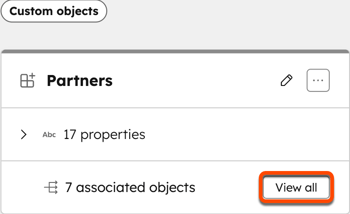
- On the custom object card, click View all.
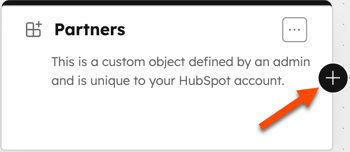
- Next to the custom object card, click +.
- Click the Select the object you want to associate to [custom object name] dropdown menu and select Credit memos.
- Click Create.
- To add credit memos to the custom object:
- In your HubSpot account, click the settings icon in the top navigation bar.
- In the left sidebar menu, navigate to Objects > [custom object].
- Click the name of a custom object record.
- In the right sidebar, navigate to the Credit memos card. If the Credit memos card isn't appearing on your record by default, you can manually add the card to your HubSpot record.
- Click +Add to associate existing credit memos with the custom object.
- In the right sidebar, select the checkboxes next to the credit memos you want to associate. Click Save.
- To view more details about associated credit memod from the custom object:
- In your HubSpot account, click the settings icon in the top navigation bar.
- In the left sidebar menu, navigate to Objects > [custom object].
- Click the name of a custom object record.
- In the right sidebar, navigate to the Credit memos card. If the Credit memos card isn't appearing on your record by default, you can manually add the card to your HubSpot record.
- Hover over the quote.
- Click the open link icon to open the quote in a new browser tab.
- Click the copy icon to copy a link to the quote.
- Click the preview icon to view the quote details in the right panel.
- Click the three dots icon and then select an option to manage the quote. Click Remove association to remove the association between the quote and custom object. Learn more about managing draft quotes and managing published quotes.
Export credit memos
Permissions required Export permissions are required to export credit memos.
- In your HubSpot account, navigate to Commerce > Credit Memos.
- Click Export in the upper right of the table.
- In the dialog box:
- In the Export name field, enter an export name.
- Click the File format dropdown menu, and select a format.
- Click the Language of column headers dropdown menu and select a language.
- Click to collapse the Customize section to customize the export further:
- Under Properties included in export select an option for which properties to include in the export.
- Under Associations included in export, select the Include associated record name checkbox to include associated record names (e.g., the invoice name).
- Under Associations included in export, select whether to include up to 1,000 associated records, or all associated records.
- Click Export. Learn more about exporting records.
Next steps
-
Manage invoices including editing, voiding, deleting, tracking, and exporting.
-
Manage payments, including issuing refunds, resending receipts, downloading reports of your payments and payouts, exporting payment data, and more.
