
Last updated: April 30, 2026
Available with any of the following subscriptions, except where noted:
-
 Sales Hub
Starter, Professional, Enterprise
Sales Hub
Starter, Professional, Enterprise
-
 HubSpot Credits required
Use the prospecting agent to identify good fit companies based on real-world triggers and to source the right contacts at those companies for outreach. Create specific plays to guide the prospecting agent's research and to refine its outreach strategies based on the targeted segment and persona.
The prospecting agent helps you build a more efficient pipeline by:
-
Detecting companies that match the buying signals that are most important to you.
-
Identifying the relevant contacts at those companies.
-
Generating personalized outreach based on CRM data and fresh, high-intent signals.
Please note: if you're a Super Admin, you can opt your account into the Prospecting Agent Gets Smarter: Buying Signals and Contact Sourcing beta.
Before you get started
Before you begin working with this feature, make sure to fully understand what steps should be taken ahead of time, as well as the limitations of the feature and potential consequences of using it.
HubSpot Credits required HubSpot Credits are consumed when the agent recommends a contact for outreach. Review how Breeze Agents use HubSpot Credits
Understand requirements
- A Super Admin will need to opt your account into the beta.
- In AI settings, the following switches must be turned on:
- Give users access to generate AI tools and features
- CRM data
- Customer conversation data
- Files data
- To set up and use the prospecting agent, users must be a Super Admin or have Access prospecting agent permissions.
Understand limitations & considerations
- The prospecting agent considers recent engagements up to the past year that are associated to contact records, including:
- Form submissions
- Page views
- Calls
- Meetings
- Notes
- Email opens
- Prospecting agent actions that require HubSpot credits cannot be completed in sandbox accounts.
- Users with Modify billing and change name on contract permissions can temporarily pause the prospecting agent's use of credits by following the instructions for tracking credit usage.
- You can continue to work leads without the prospecting agent. Learn how to manage leads manually.
Understand intent signals
To determine potential good fits for outreach, the prospecting agent monitors for "intent signals," such as news related to companies (e.g., receiving funding, launching a new product) or evidence of companies researching topics that you care about. When you create a play, you can choose which signals the prospecting agent should monitor for that specific play.
Learn more about the different types of intent signal.
Create plays
The prospecting agent relies on user-defined "plays," sets of instructions for how the agent conducts its research and its outreach. You can create multiple plays to match your target markets and the specific value propositions you offer for each market.
To create a new play:
- In your HubSpot account, navigate to Sales > Prospecting Agent.
- In the top right, click Create play.
- In the play editor, follow the instructions below to define the play's:
- As you're editing the play, you can click the Preview play button in the top right to get an overview of how the prospecting agent will operate based on your current selections.
- When you've finished customizing the play, in the top right, click Review and turn on. Then, in the dialog box, click Publish.
Audience
Use the Audience tab to define your audience.
- At the top, click the Audience tab.
- Under Target companies, choose the company segments you want to enroll in this play. The segments you select determines which companies the agent monitors for signals.
- Click Add segments.
- In the right sidebar, use the search bar to find segments, and select the checkboxes next to the segments you want to include.
- Click the X in the upper right of the sidebar to return to the play editor.
- Under Signals, choose the intent signals the prospecting agent will use when monitoring companies.
- Click Edit signals.
- In the right sidebar, use the search bar to find signals, and select the checkboxes next to signals you want to include.
- To edit the topics included in the Research signal:
- In the right sidebar, click Edit next to the Research signal.
- On the left of the sidebar, click Keyword and use the search bar to search for related topics. Alternatively, click Company URL and use the search bar to enter your company domain.
- Click Add next to the topics you want to add.
- On the right, click the delete icon to remove a topic from the Research signal.
- When you've finished editing your topics, at the bottom, click Save.
- Learn how to edit the criteria for the Visitor intent signal.
- Click the X in the upper right of the sidebar to return to the play editor.
- Under Target personas, select the personas you want to sell to in this play. The agent will find up to three contacts matching your personas per company enrolled in the play.
- Click Add personas.
- In the right sidebar, use the search bar to find personas and select the checkboxes next to the personas you want to include.
- Click the X in the upper right of the sidebar to return to the play editor.
- Under Daily new contact suggestions limit, set the maximum number of contacts the agent can suggest for this play per day.
- Enter a number of new contacts for the play to recommend per day.
- Suggestions are based on companies showing signals, so you may see fewer contact recommendations than the limit you set.
Selling Context
Use the Selling context tab to define the selling information about your company.
- At the top, click the Selling context tab.
- To generate selling context details based on your website, in the Analyze from website field, enter a URL and click Analyze website. Then, adjust the text as needed.
- To add selling context details manually, enter text in the following fields:
- What does your company sell?
- What is your value proposition?
- What pain points does your company solve?
- Click the Which products and services do you want to sell? dropdown menu to select the products and services you want the agent to sell. Learn how to add products and services.
Outreach
Use the Outreach tab to choose the agent's outreach method, to preview what that outreach will look like, and (optionally) to provide custom instructions to the agent.
-
At the top, click the Outreach tab.
- Click the Select method dropdown menu to choose the type of outreach the agent should perform:
- Sequence: sends personalized, multi-channel outreach with an AI sequence.
- Adaptive: sends personalized emails that adapt based on the enrolled prospect's actions, engagement, and signals.
- If you select Sequence:
- Click the add icon to add sequence steps.
- Click the edit icon to edit the contents of an automated email step.
- To personalize the subject line with content generated by Breeze, in the subject line, click Smart subject. Then, click Use a dynamic subject.
- To personalize the email body with content generated by Breeze, at the bottom right, click Add a smart block and select a smart block option. Alternatively, click Custom Prompt and in the pop-up, enter a Smart block name and Prompt instructions, then click Insert.
- To edit the instructions of a smart block, click the smart block name in your subject line or email body. Then, edit the Smart block name and/or Prompt instructions and click Save.
- When you've finished editing your email step, at the bottom left, click Save.
-
- To remove a step, click Actions at the top right of the step and then click Delete.
- To adjust the timing of steps, click Delay between two steps, select a number of business days to delay, and then click Save.
- If you select Adaptive:
- Under Outreach frequency, click the dropdown menus to set the Minimum days between emails and the Maximum emails per enrollment. The agent will follow these frequency guidelines regardless of any custom instructions you provide.
- Under Adaptive outreach, preview what the outreach strategy will look like for enrolled contacts.
- Under Advanced instructions, enter text to help guide the agent with additional instructions. For example, "Focus on building relationships and providing value to prospects. Emphasize our proven ability to adapt to market changes."
Guardrails
Use the Guardrails tab to configure the details of the emails themselves, such as the sender's email address, the writing tone, and the time of day the emails should execute.
- At the top, click the Guardrails tab.
- Under Send on behalf of, choose the user whose connected email address the agent will use for sending emails:
- Send from contact owner: the agent will use the connected email address of the contact owner.
- Click the Use this contact property dropdown menu to select the contact property that stores the correct owner. For example, you can select a custom owner property instead of the default Contact owner property.
- Click the Fallback sender dropdown menu and select a user to be the sender in case the contact owner doesn't have a connected inbox.
- If the fallback sender has more than one inbox connected, select an inbox.
- Send from single user: the agent will always use the same connected inbox for every contact.
- Click the Select a user dropdown menu and select a user.
- If the user has more than one inbox connected, select an inbox.
- Send from contact owner: the agent will use the connected email address of the contact owner.
- Under Tone, select an option for the writing tone the agent will use:
- Use a preset tone: the agent will write emails in a general tone (e.g., Professional, Helpful, etc.). Click the Select a tone dropdown menu and select a tone.
- Use brand voice: the agent will match your company's sales email brand voice and tone. Learn how to set up your brand voice.
- If you selected the Adaptive outreach method, under Language, choose whether the agent should adapt to the contact's preferred language.
- Turn the Enable multi-language outreach switch on to allow the agent to use the contact's preferred language (if defined).
- Click the Fallback language dropdown menu to select the language the agent will use if the contact does not have a preferred language.
- If you selected the Adaptive outreach method, under Call to action, choose what the agent can include in its outreach. The agent will decide when to use each item based on context.
- Request contact to book a meeting: select a meeting link the agent can share to help the contact book a meeting.
- If you select Non-HubSpot meeting link, in the URL field, enter a URL.
- If you select HubSpot meeting link, use the dropdown menus to select a user and a meeting link.
- Attach a HubSpot document: add a document the agent can include in outreach.
- Click Attach a document.
- In the dialog box, hover over a document and click Select.
- In the Description field, enter text to describe the attached document (e.g., "product description").
- To remove the attached document, click the delete icon.
- Include a URL: add a link you want the prospecting agent to share.
- Click Add a link.
- In the URL field, enter a URL.
- In the Description field, enter text to describe the destination of the URL (e.g., "purchase page").
- To remove the link, click the delete icon.
- Request contact to book a meeting: select a meeting link the agent can share to help the contact book a meeting.
- Under Business days and send window, you can choose what days and times the agent can send emails.
- Turn the Execute on business days switch on to instruct the agent to only schedule emails for business days.
- Click the Automated email send window dropdown menus and select the start and end times for when the agent can send emails during the day. The agent will choose times with the highest open rate during this window.
- Click the Default time zone dropdown menu and select a time zone to use when the contact's time zone is not available.
Automation
Use the Automation tab to select whether the agent acts autonomously.
- At the top, click the Automation tab.
- Under Autonomous mode, select one of the following options:
- Review before sending: you'll review and approve each message before it goes out.
- Send automatically: the agent sends emails without review, based on your outreach settings.
Manage plays
To manage existing prospecting agent plays:
- In your HubSpot account, navigate to Sales > Prospecting Agent.
- At the top, click Manage.
- To edit a play, hover over the play in the table and click Edit. When you're finished making changes, click Review changes in the top right. Then, in the dialog box, click Approve X changes.
- To set a play as your default play, hover over the play in the table, and click Actions > Make default.
- To clone a play, hover over the play in the table, and click Actions > Clone.
- To delete a play, hover over the play in the table, and click Actions > Delete. In the dialog box, click Delete.
Enroll contacts and companies from HubSpot
After you've defined your plays, the prospecting agent will monitor companies for signals, and recommend companies to enroll in the agent. You can also automate enrollment of contacts based on certain criteria, or enroll contacts and companies manually.
Monitor companies for signals
If you added an audience in the play's Context information, the prospecting agent will monitor the companies in that audience for buying signals.
- In your HubSpot account, navigate to Sales > Prospecting Agent.
- At the top, click the Enrollments.
- Click the Recommended tab to review companies the agent recommends for enrollment.
- Click the All monitored companies tab to review all the companies that are in audiences being monitored by the agent.
- In the table, for each company you can review:
- Suggested contacts for enrolling in the prospecting agent.
- The intent signals that have been detected for that company.
- Reasons to reach out to that company.
- When a contact at that company was last contacted.
- The plays that the company is associated with.
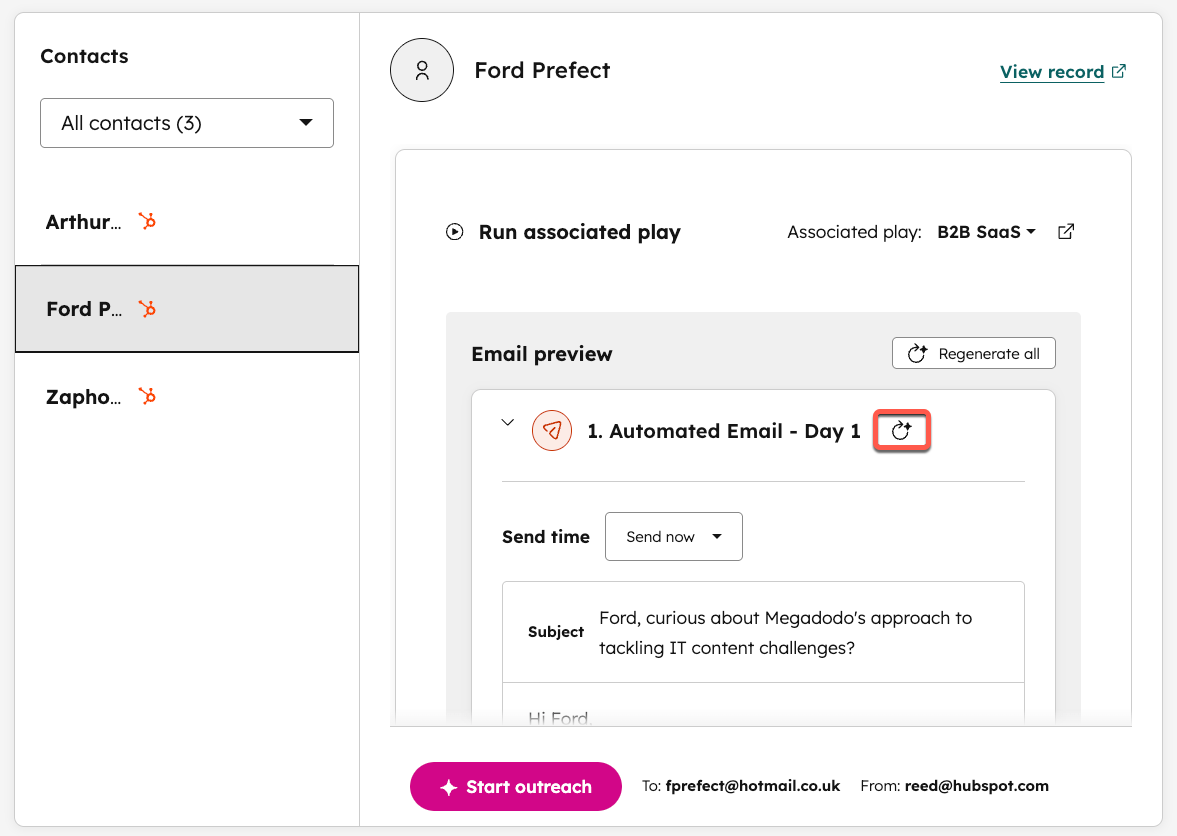
- To start outreach for a contact:
- In the table, click the company name.
- Click the contacts dropdown menu on the left to filter by suggested contacts, engaged contacts, or all contacts.
- On the left, click the contact name.
- On the right, click the Associated play dropdown menu and select a play.
- Review the generated emails. Click the regenerate email button next to an email to generate new content. Alternatively, click Regenerate all to generate a fresh set of emails.
-
- Click any of the emails to edit the email's content, and then click Save email updates.
- When you've finished editing your outreach emails, at the bottom, click Start outreach.
Automated enrollments
You can automate the enrollment of contacts using certain triggers and criteria.
- In your HubSpot account, navigate to Sales > Prospecting Agent.
- In the top right, click the Settings button.
- At the top, click the Automated enrollments tab.
- The available methods of enrollment are:
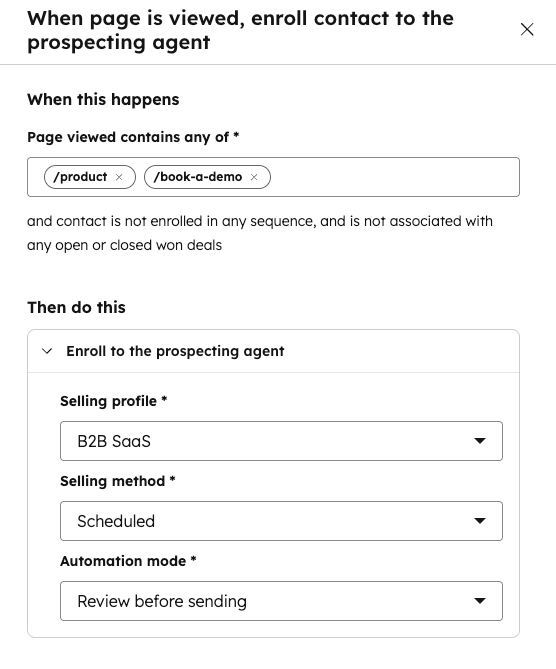
- When page is viewed: when pages viewed contain any of selected pages.
- When form is submitted: when selected forms are submitted.
- When days since last engagement is more than x: when a selected number of days have passed since the last engagement.
- When added to any list: when the contact is added to any of the selected lists.
- Click the Edit button next to a method of enrollment to:
- Define the specific criteria for the chosen method (pages viewed, forms submitted, number of days since last engagement, lists the contact is added to).
- Choose the specific play.
- Choose the selling method (Adaptive or Scheduled).
- Choose the automation mode (Send automatically or Review before sending).
- At the bottom, click Save.
- For each enrollment method you want to use, turn the switch on for that method. Then, in the dialog box, click Turn on.
Manual enrollment
- In your HubSpot account, navigate to Sales > Prospecting Agent.
- In the top right, click Enroll and select one of the options:
- Manually enroll contacts
- Manually enroll companies
- Use the search bar and filters to find the records you want to enroll.
- Click the checkboxes next to the records.
- At the bottom, click Next.
- Click the Play dropdown menu and select the play you want to enroll the records in.
- To preview the timing of the agent's outreach for that play, click Show preview in the top right.
- At the bottom right, click Start enrolling.
Enroll contacts from other sources
In addition to enrolling existing HubSpot contacts into the prospecting agent, you can connect a data source to find new contacts that the agent can enroll in a play.
Please note: only one external data source can be connected at a time.
- In your HubSpot account, navigate to Sales > Prospecting Agent.
- On the left, under Manage, click Integrations.
- Click the Data source dropdown menu and select a data source.
- If you selected Apollo:
- Click Connect.
- In the dialog box, click Connect to Apollo.
- If you selected Surfe:
- In the API key field, enter your API key.
- Click Connect.
- If you selected ZoomInfo:
- Click Connect.
- In the dialog box, click Connect to ZoomInfo.
Receive a daily summary of outreach to review
You can receive a daily email summarizing the contacts with prospecting agent-drafted outreach awaiting your review. The summary email links directly to the drafted content, so that you can review and act on each draft.
To receive the daily digest, you must:
- Have prospecting agent activated in your account.
- Have at least one prospecting agent-drafted outreach pending review at the time the email is generated.
The digest is sent at 9AM in your account timezone.
To take action on pending outreach:
- In the email, click Review for the specific contact. You'll be directed to the Ready for review tab in the prospecting agent, with the relevant contact selected and the draft open.
- If there are three or more drafts pending review, click Review all emails. You'll be directed to the Ready for review tab in the prospecting agent, where you can select the contacts and take action on the drafts individually.
You can unsubscribe from the daily digest by adjusting your user notifications to turn off the Prospecting Agent Daily Digest email.
Analyze performance
Review the outcomes generated by your prospecting agent, and see how many emails are
- In your HubSpot account, navigate to Sales > Prospecting Agent.
- At the top, click the Performance tab.
- Under Outcomes, review the:
- Total enrollments
- Delivered emails
- Opened emails
- Clicked emails
- Replied emails and booked meetings
- Use the filters at the top to refine the data displayed in the Outcomes report.
- Under Emails sending today, see which emails are scheduled, which have already sent, and which enrollments currently need review (i.e., the emails have been drafted and need to be approved).
